Add DNS records at Register.com
These are the steps for Register.com. For what the records do and how to check the setup afterwards, see Subdomain setup.
Datahash tells you which record type to use and gives you the values. Enter the values you were given.
NS records
Section titled “NS records”The published guidance for Register.com covers CNAME records only. If Datahash has asked you for NS records, the general steps apply, and the menu path below will get you to the right screen.
Adding a CNAME record
Section titled “Adding a CNAME record”-
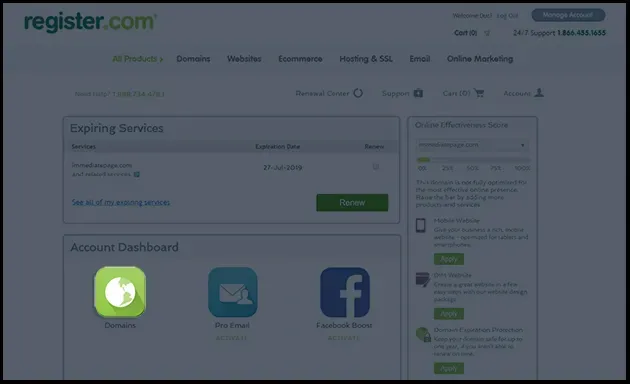
Sign in to your Register.com account and go to Manage Account.
-
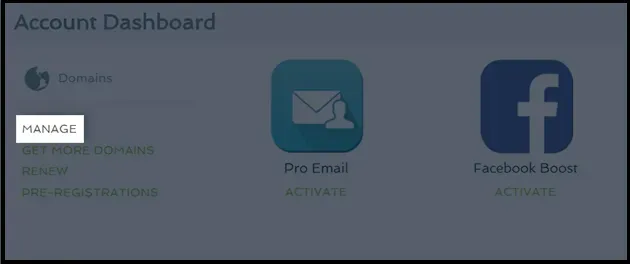
Hover over Domains and select Manage.
-
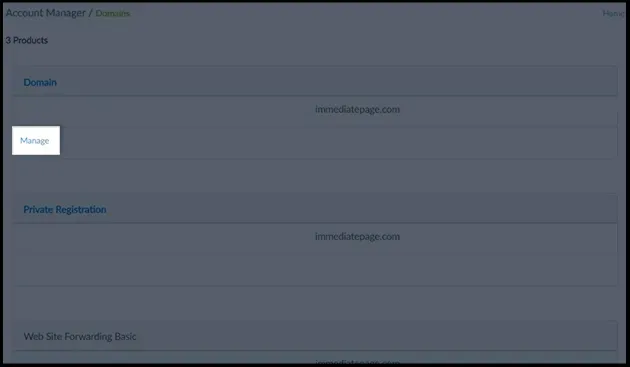
Click Manage under the domain you are configuring.
-
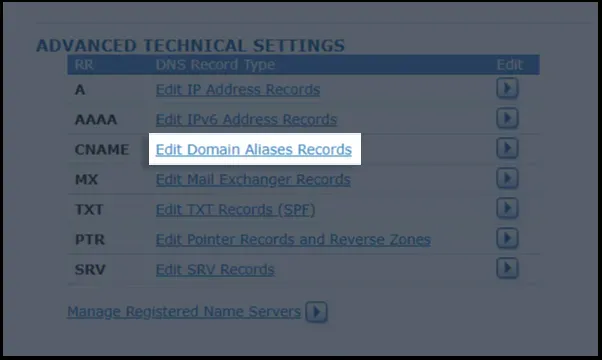
Scroll down and click Edit Domain Aliases Records next to CNAME.
-
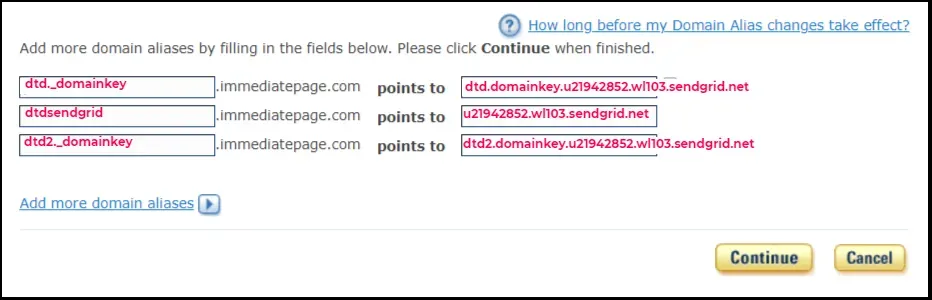
Paste the value you were given and save the changes.
CNAME record walkthrough6 screenshots

The register.com account bar, with Manage Account boxed at the top right. 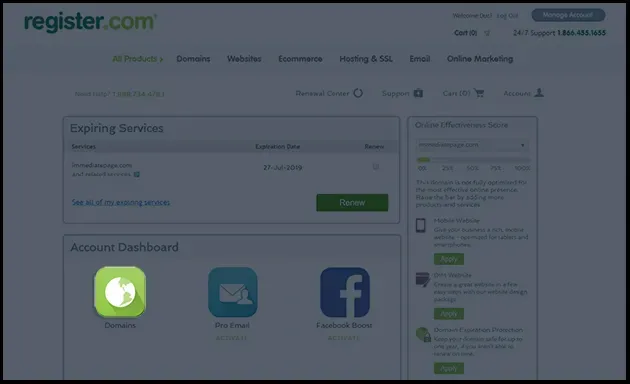
The Account Dashboard, with the Domains icon among the account products. 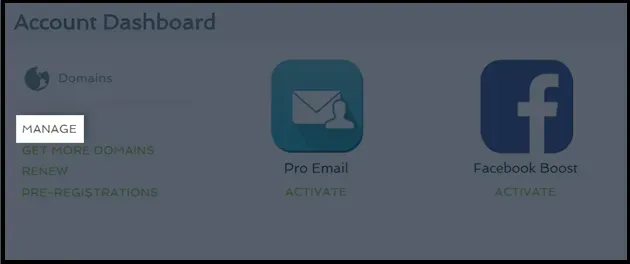
The Domains menu open under Account Dashboard, with Manage boxed in the list. 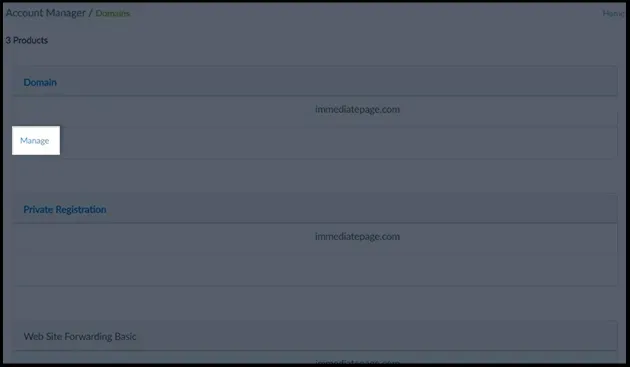
The Account Manager domains list, with Manage boxed under the domain entry. 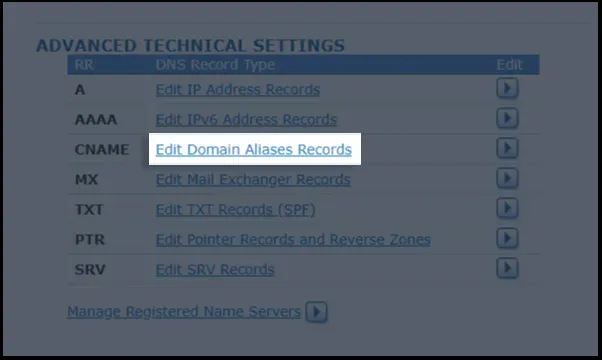
The Advanced Technical Settings table, with Edit Domain Aliases Records boxed next to CNAME. 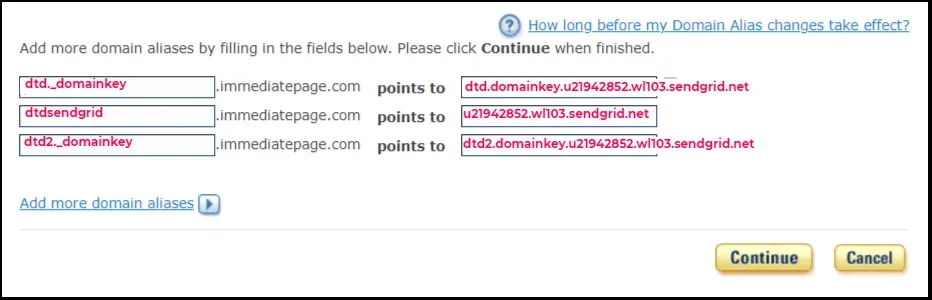
The Domain Aliases Records form, with several CNAME entries filled in and Continue below them.