

Add DNS records at Contabo
These are the steps for Contabo. For what the records do and how to check the setup afterwards, see Subdomain setup.
Datahash tells you which record type to use and gives you the values. Follow the matching section below and enter the values you were given.
Both record types start the same way in Contabo, so these screenshots cover either one.
Getting to the DNS records panel3 screenshots
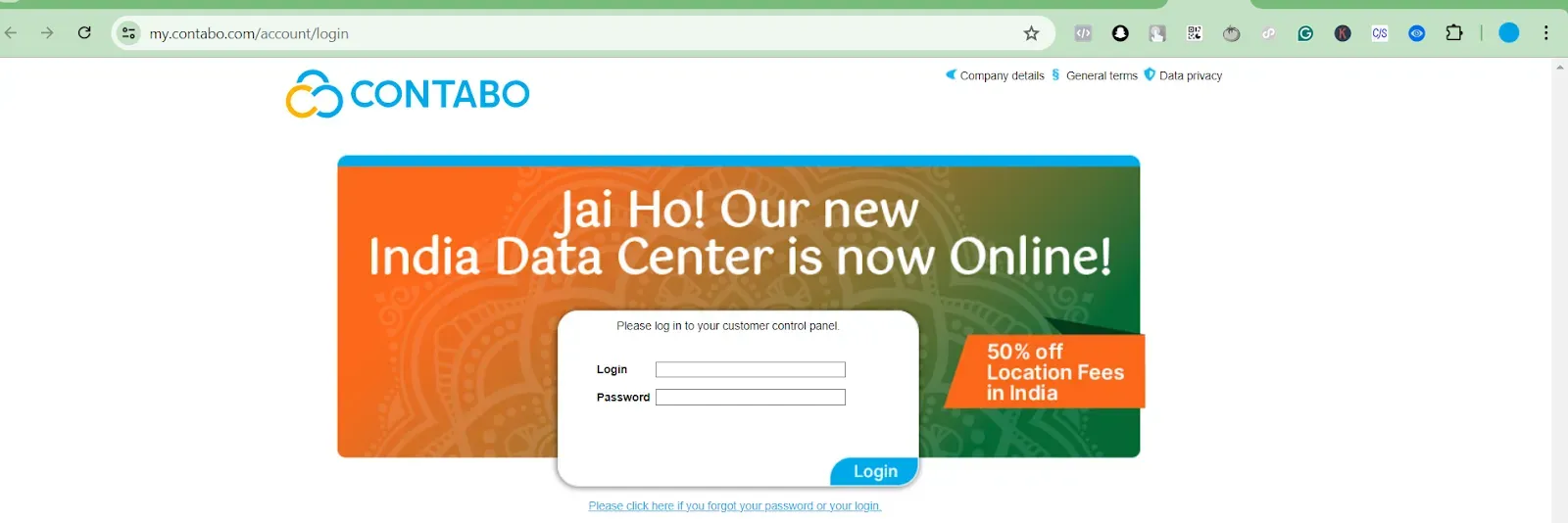
The Contabo sign-in page, with Login and Password fields and a promotional banner for the India data center above them. 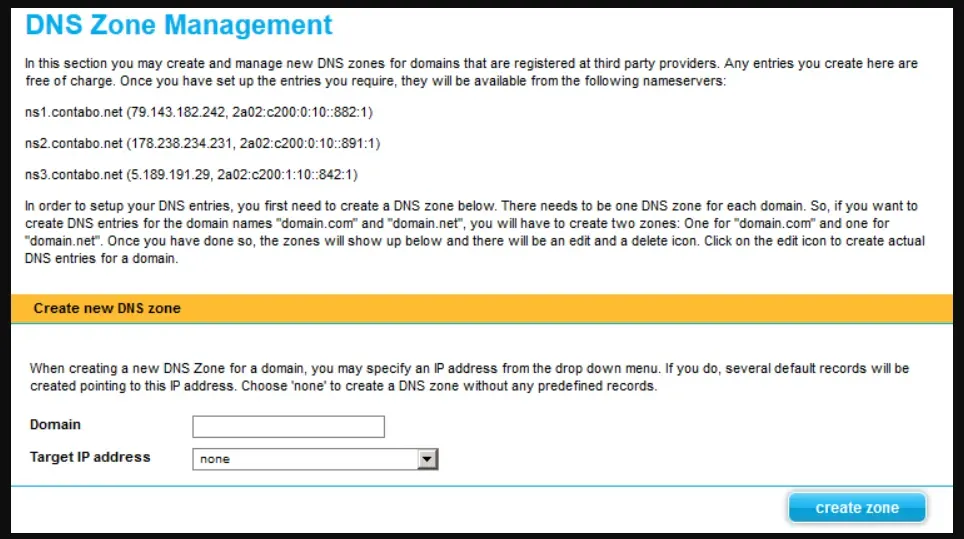
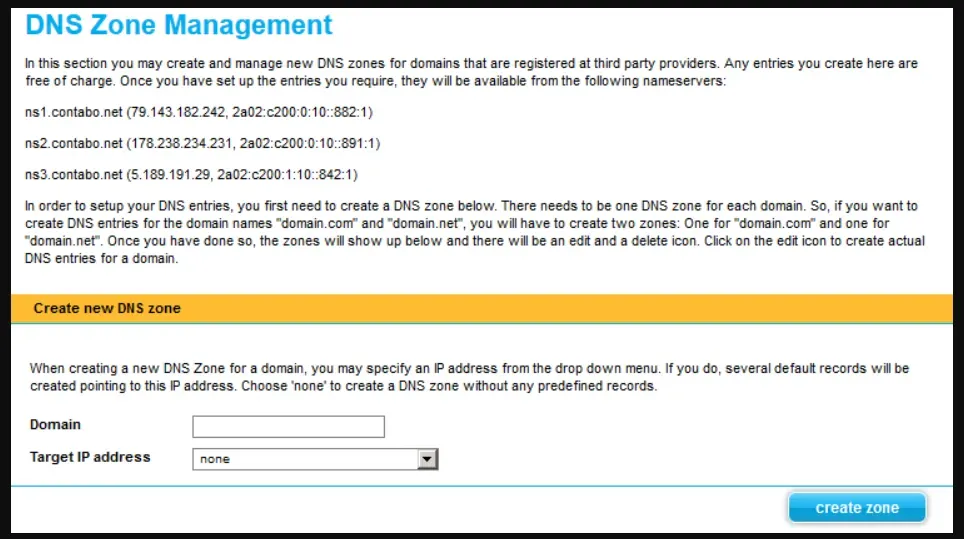
DNS Zone Management, listing the three Contabo nameservers and the Create new DNS zone form with Domain and Target IP address fields. 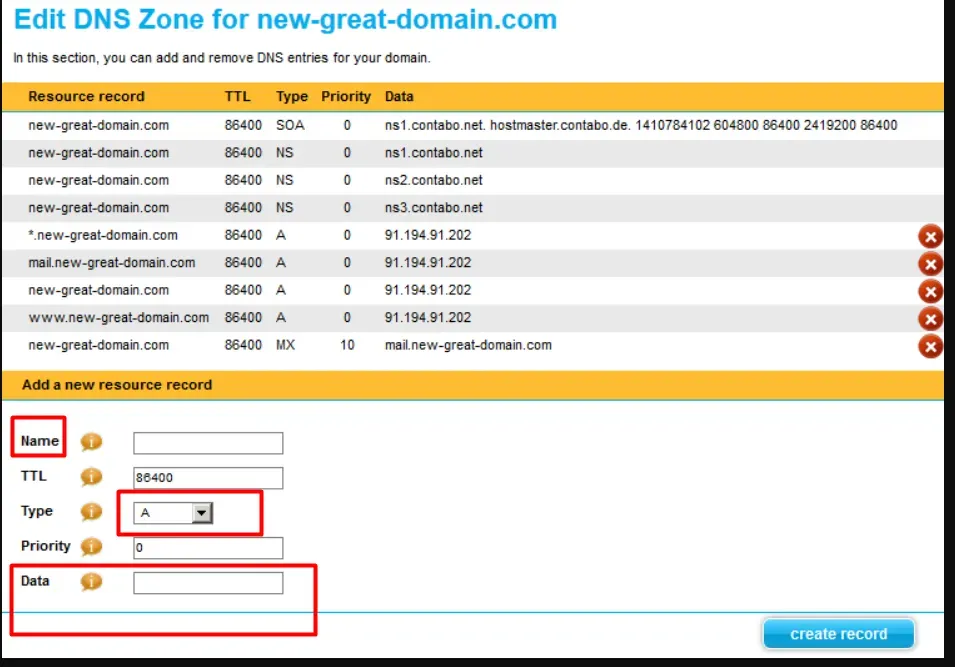
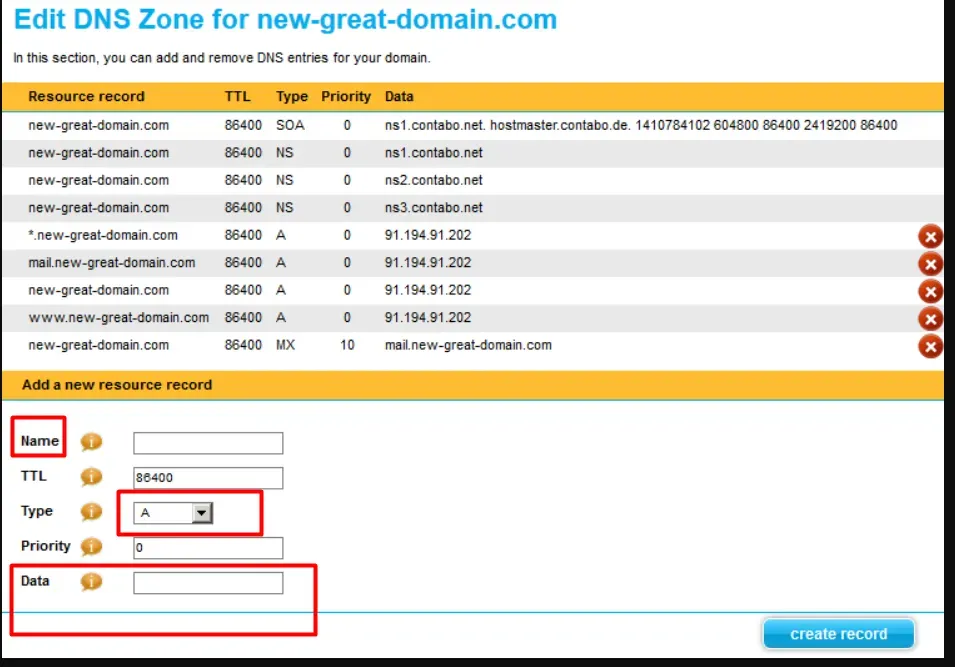
The Edit DNS Zone page for a domain, listing its existing SOA, NS, A and MX records, with the Name, Type and Data fields of the new resource record form boxed.
Adding NS records
Section titled “Adding NS records”-
Sign in to Contabo.
-
Click DNS Zone Management.
-
Click Add Record, choose NS as the record type, and enter one nameserver value.
You will have been given four nameserver values. Repeat the last two steps until all four records exist. A delegation with one of the four missing looks complete in DNS Zone Management and does not resolve.
Every screenshot for this record type is in Getting to the DNS records panel at the top of the page.
Adding a CNAME record
Section titled “Adding a CNAME record”-
Sign in to Contabo and click DNS Zone Management.
-
Click Add Record, choose CNAME as the record type, and paste the value you were given.
Every screenshot for this record type is in Getting to the DNS records panel at the top of the page.