Add DNS records at GreenGeeks
These are the steps for GreenGeeks. For what the records do and how to check the setup afterwards, see Subdomain setup.
Datahash tells you which record type to use and gives you the values. Follow the matching section below and enter the values you were given.
Adding NS records
Section titled “Adding NS records”-
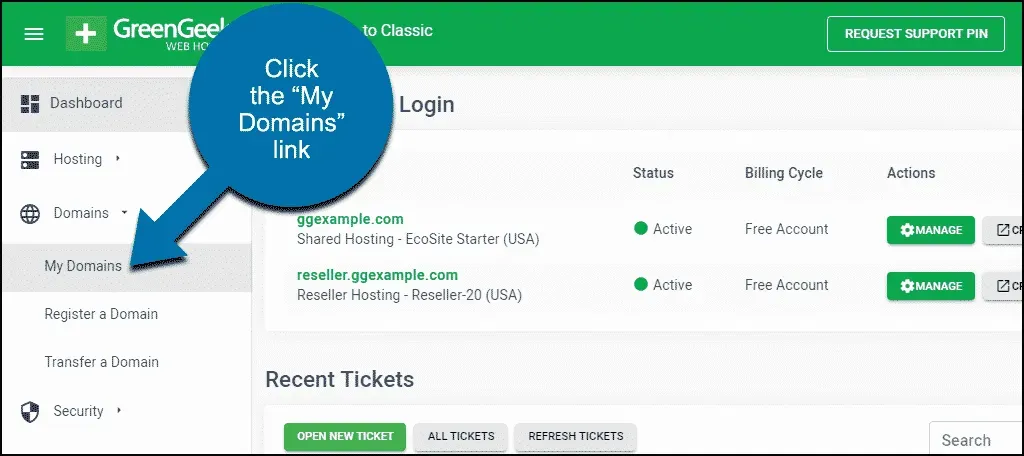
Sign in to GreenGeeks and click My Domains in the navigation.
-
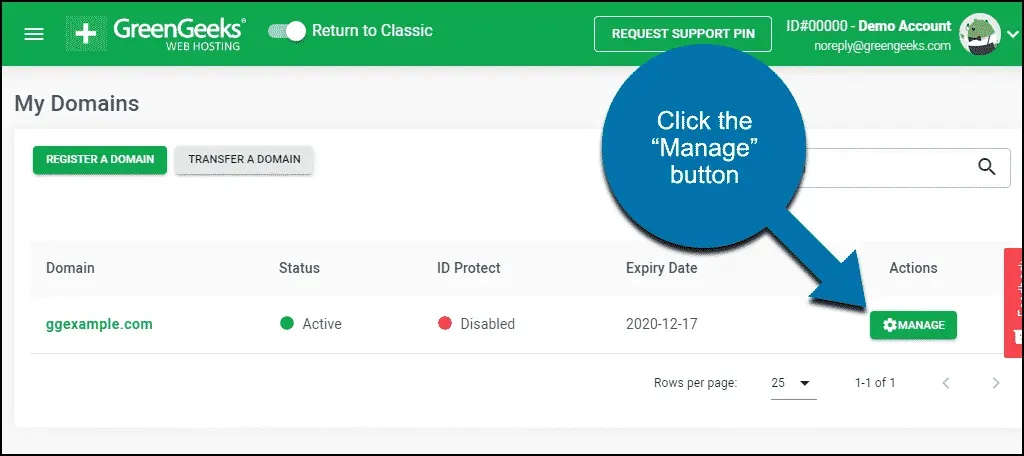
Click Manage for the domain.
-
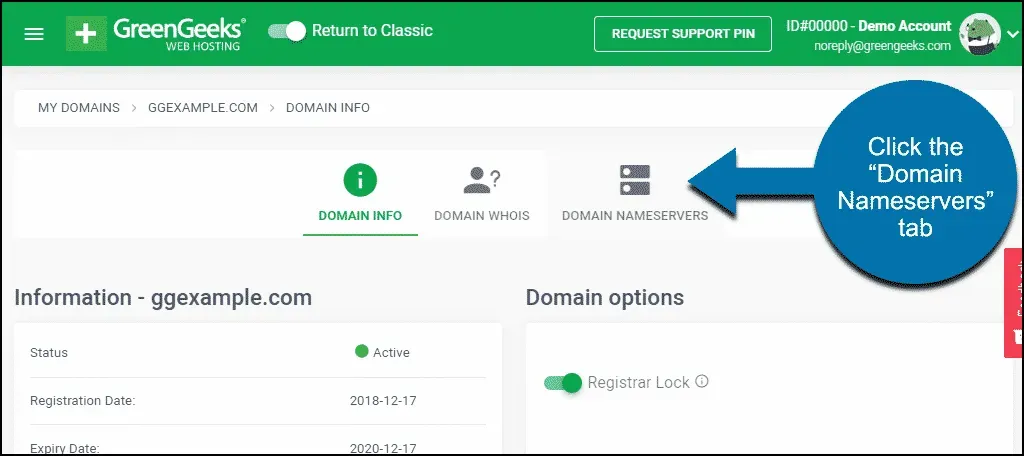
Click the Domain Nameservers tab.
-
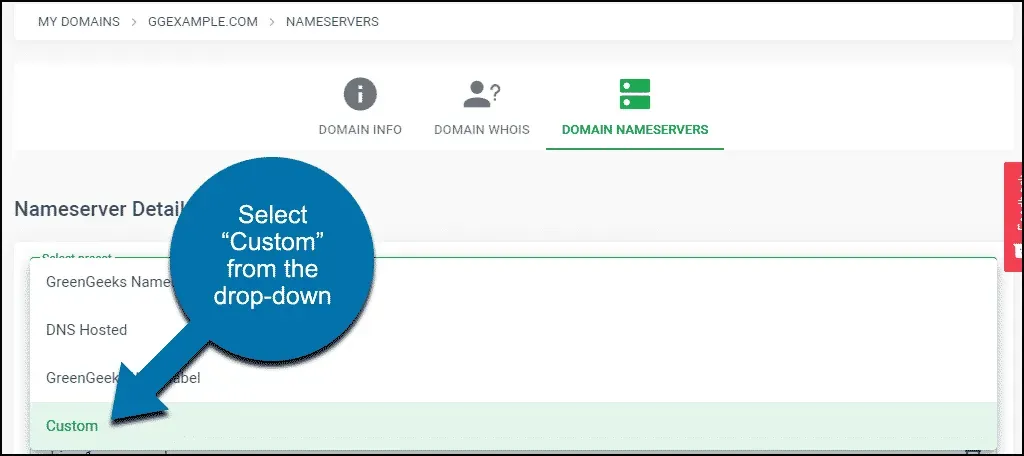
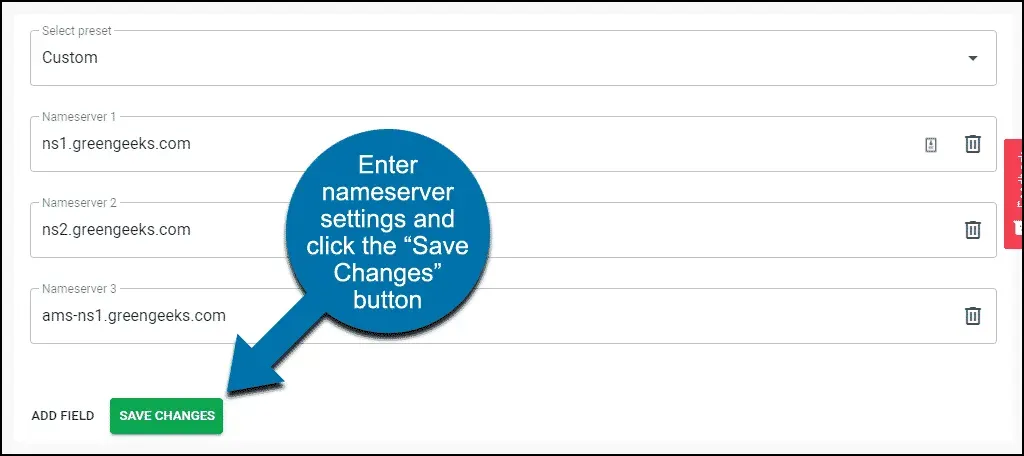
Select Custom from the dropdown, since you are entering values Datahash gave you rather than GreenGeeks nameservers.
-
Enter one nameserver value and click Save Changes.
You will have been given four nameserver values. Repeat the last two steps until all four records exist. A delegation with one of the four missing looks complete on the Domain Nameservers tab and does not resolve.
NS record walkthrough7 screenshots
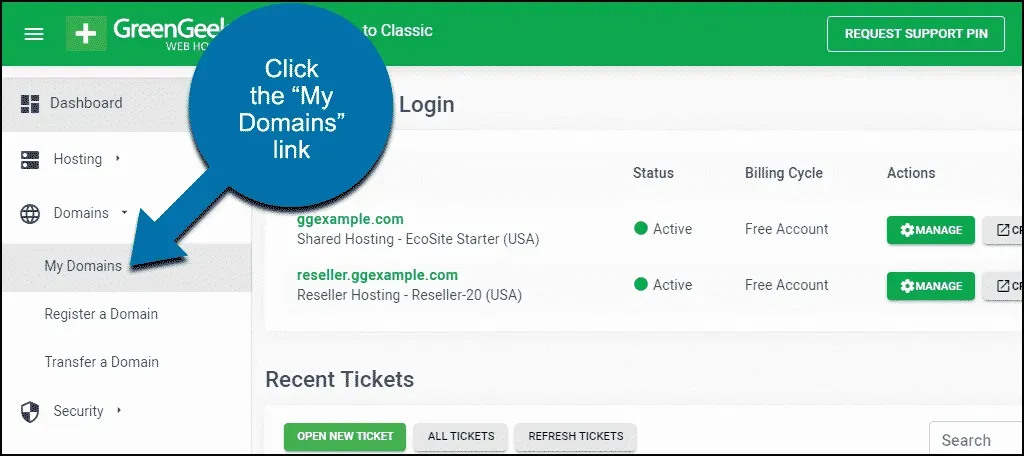
The dashboard of the GreenGeeks demo account, listing two active hosting accounts, with a blue callout pointing at My Domains under Domains in the left navigation. 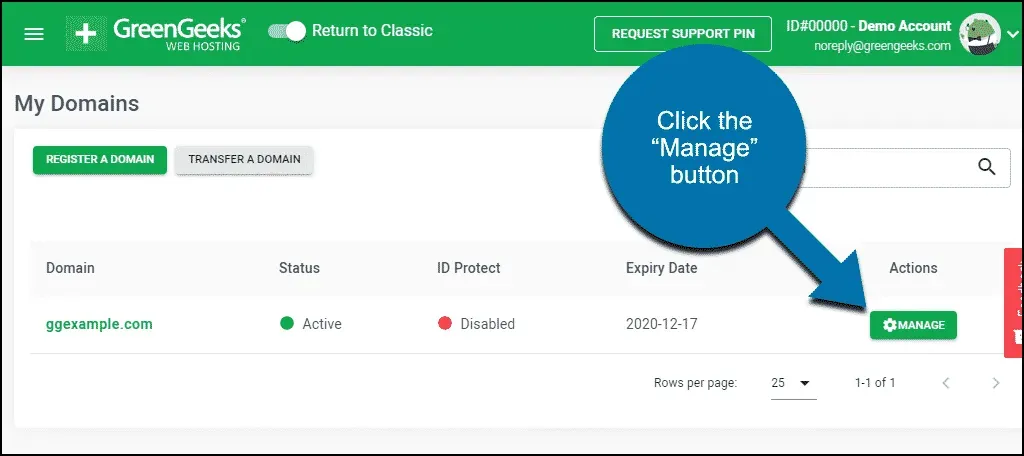
The My Domains list, with a blue callout pointing at the Manage button in the Actions column. 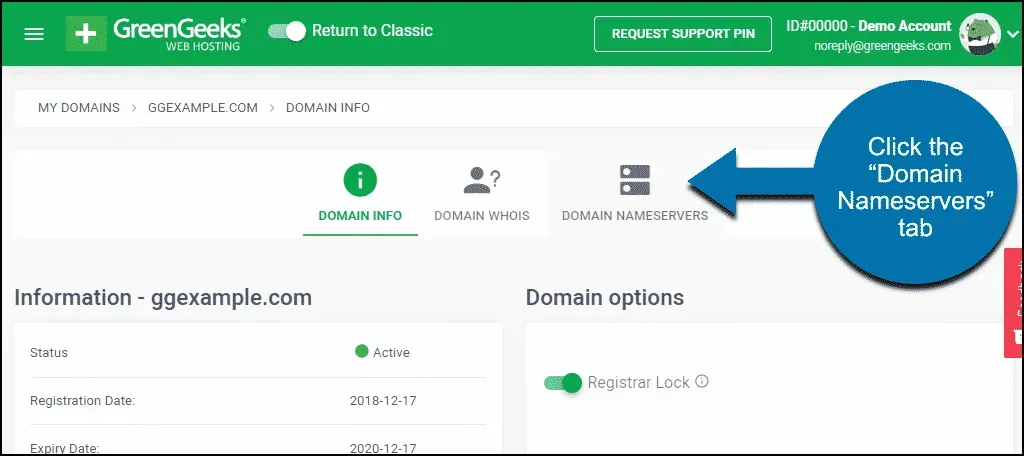
The Domain Info tab, with a blue callout pointing at the Domain Nameservers tab beside it. 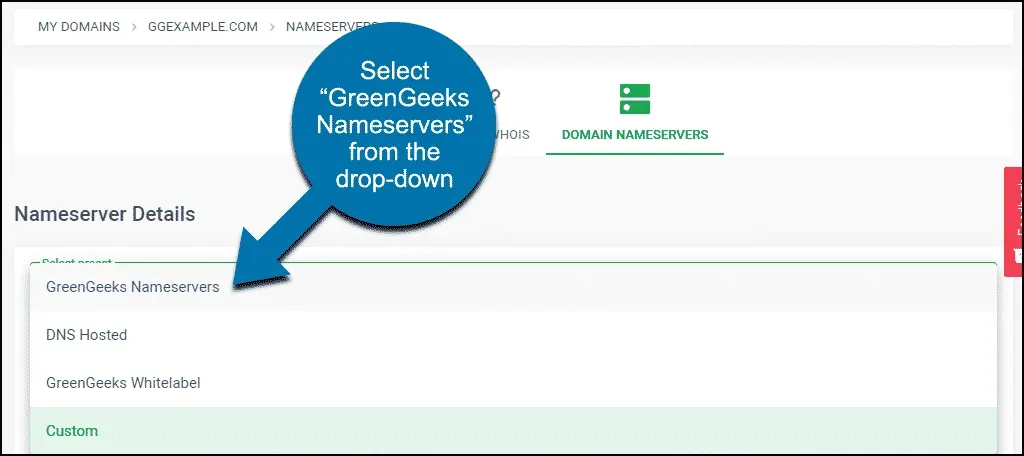
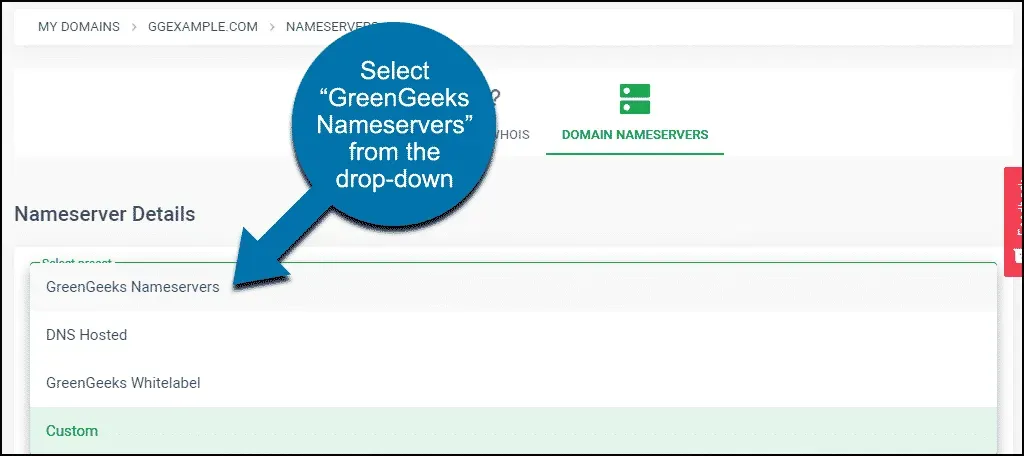
The Nameserver Details preset list open, with a blue callout pointing at GreenGeeks Nameservers at the top of it. 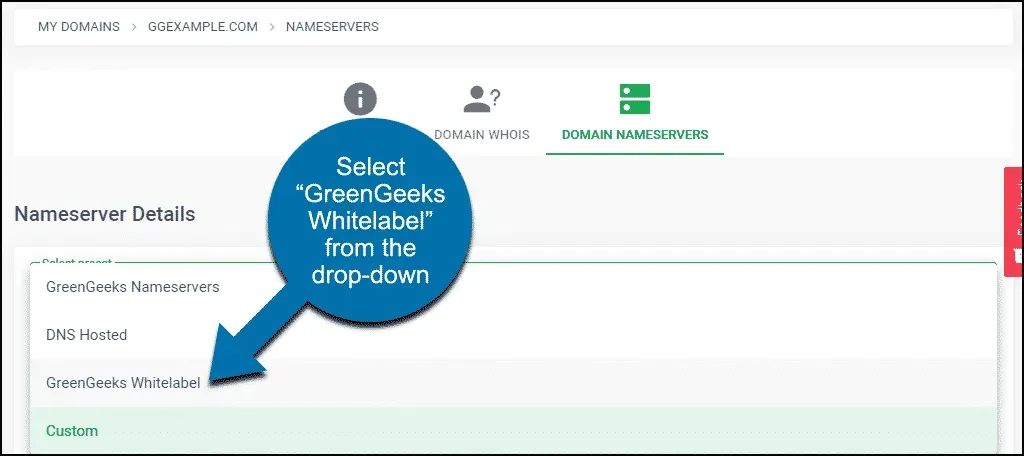
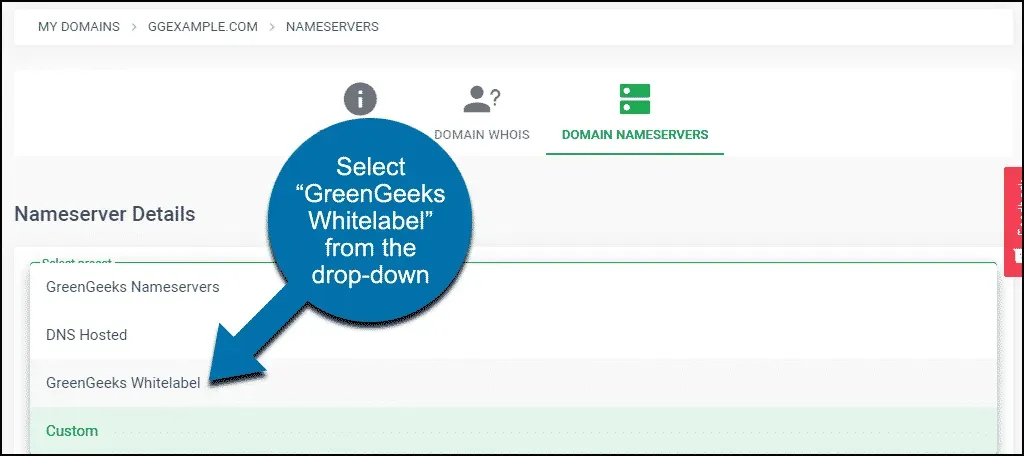
The same preset list, with the callout pointing at GreenGeeks Whitelabel, the third entry. 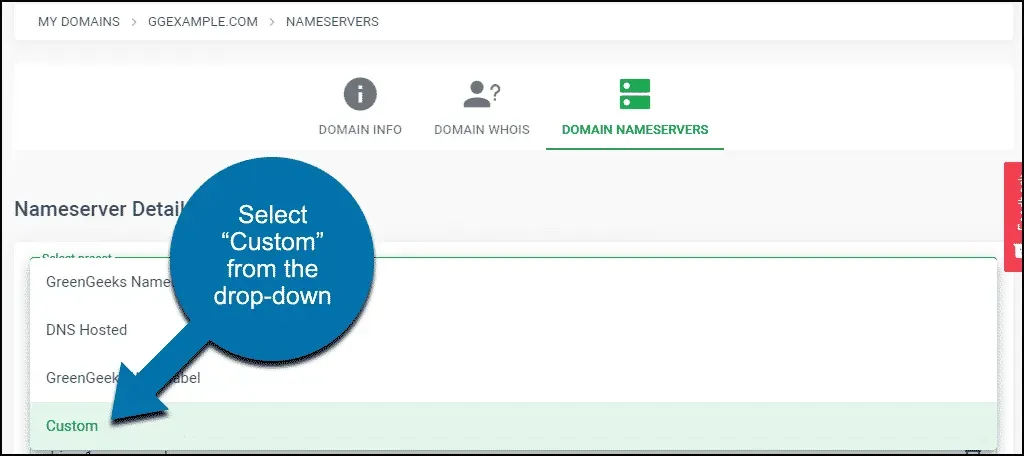
The same preset list, with the callout pointing at Custom, the last entry. 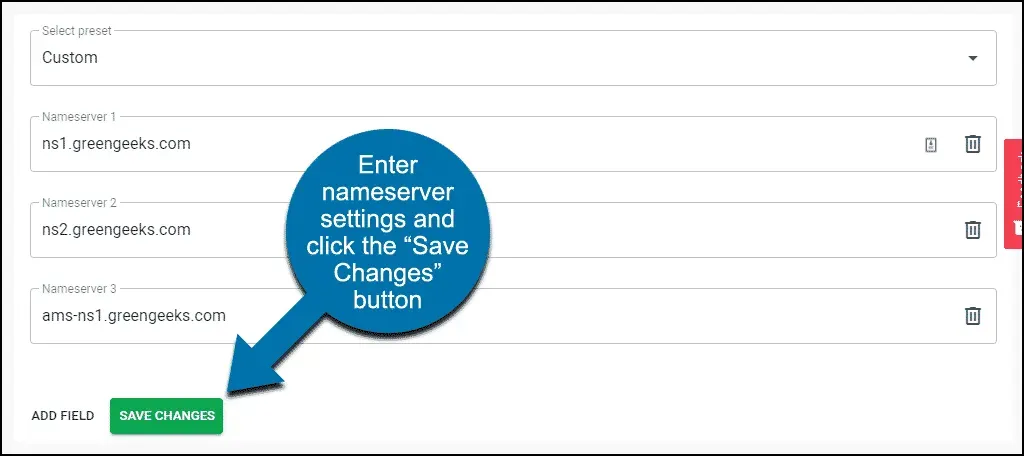
The Custom preset expanded into three nameserver fields, with a blue callout pointing at Save Changes beside Add Field.
Adding a CNAME record
Section titled “Adding a CNAME record”-
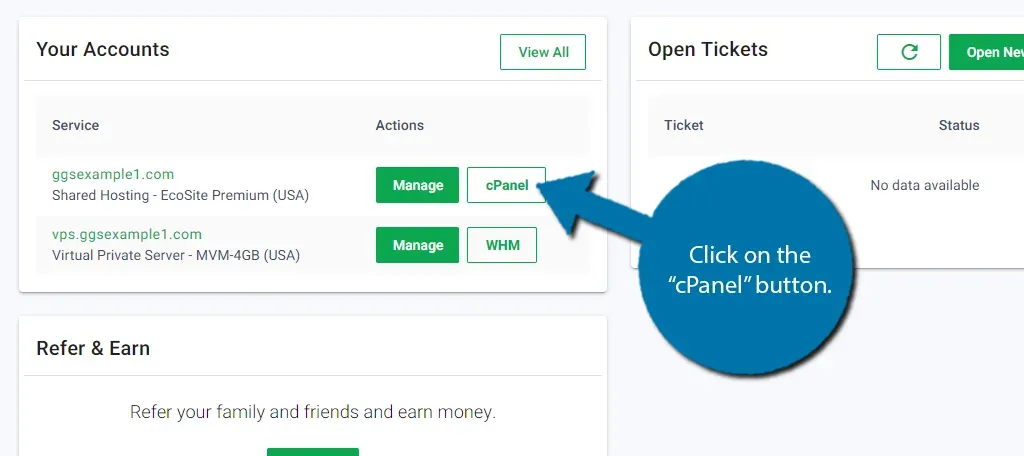
Sign in to your GreenGeeks dashboard and open cPanel with the cPanel Login button in Quick Server Login.
-
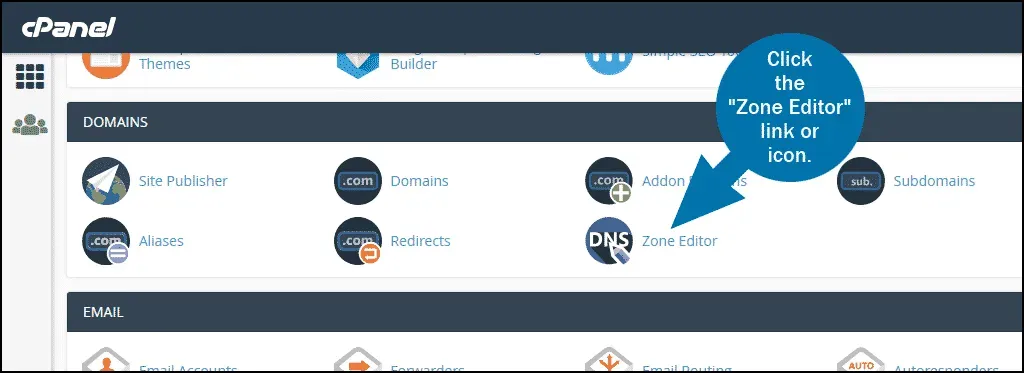
In cPanel, find the DOMAINS section and click Zone Editor.
-
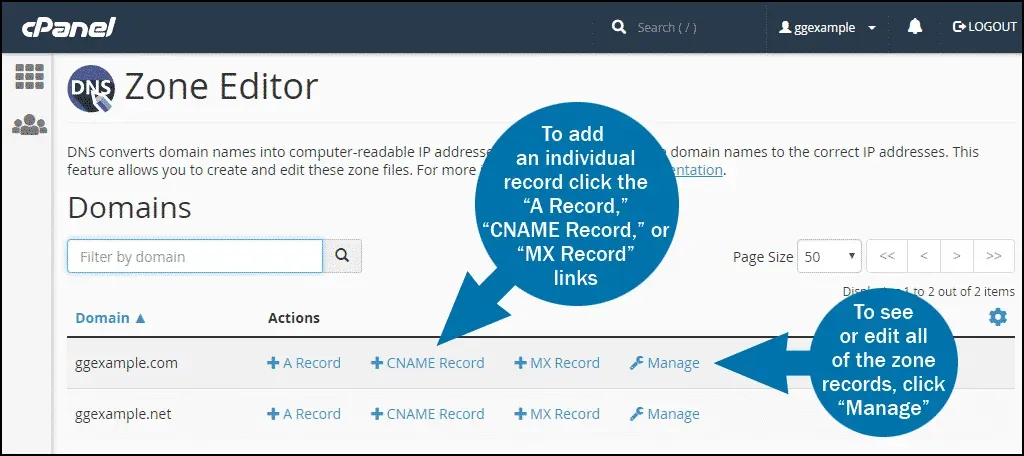
Choose CNAME as the record type, paste the value you were given, and submit.
CNAME record walkthrough3 screenshots
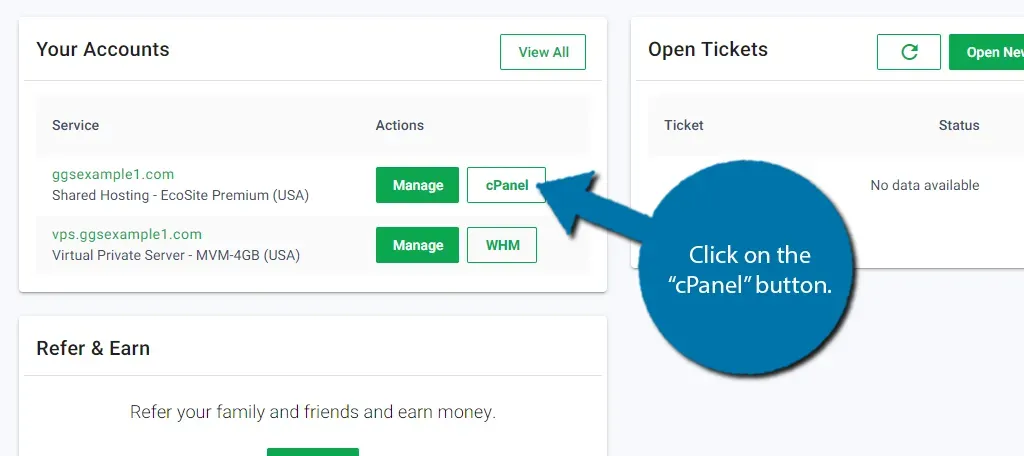
The Your Accounts panel, with a blue callout pointing at the cPanel button on the shared hosting row, above a VPS row offering WHM instead. 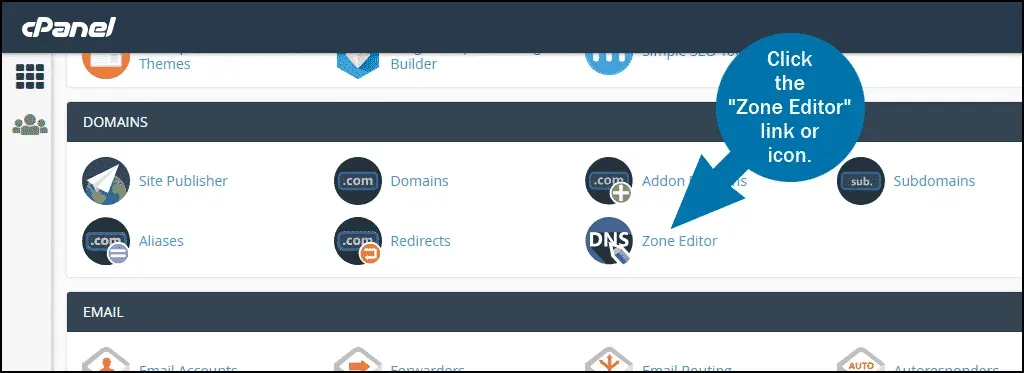
The DOMAINS section of cPanel, with a blue callout pointing at the Zone Editor icon. 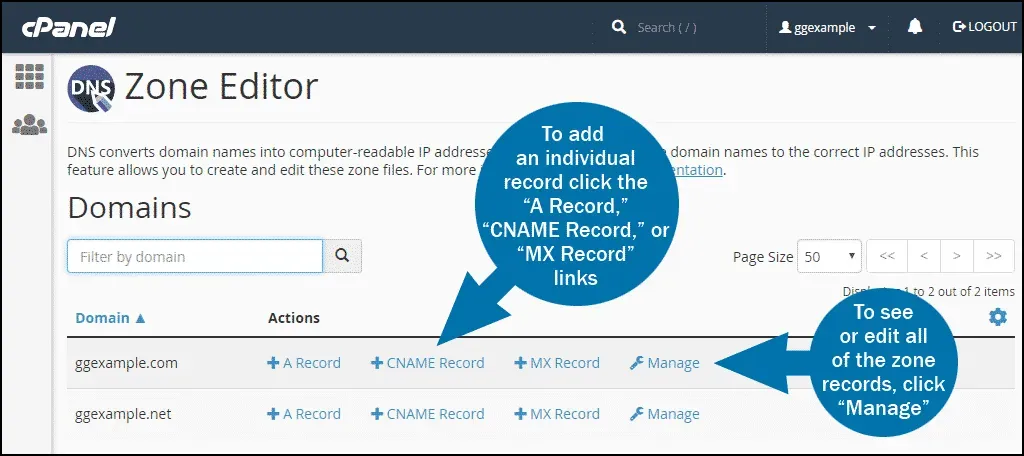
The Zone Editor Domains list, with one blue callout pointing at the CNAME Record link on the domain row and a second pointing at Manage beside it.