

Add DNS records at Pairdomains
These are the steps for Pairdomains. For what the records do and how to check the setup afterwards, see Subdomain setup.
Datahash tells you which record type to use and gives you the values. Follow the matching section below and enter the values you were given.
Both record types start the same way in Pairdomains, so this screenshot covers either one.
Getting to the DNS records panel1 screenshot
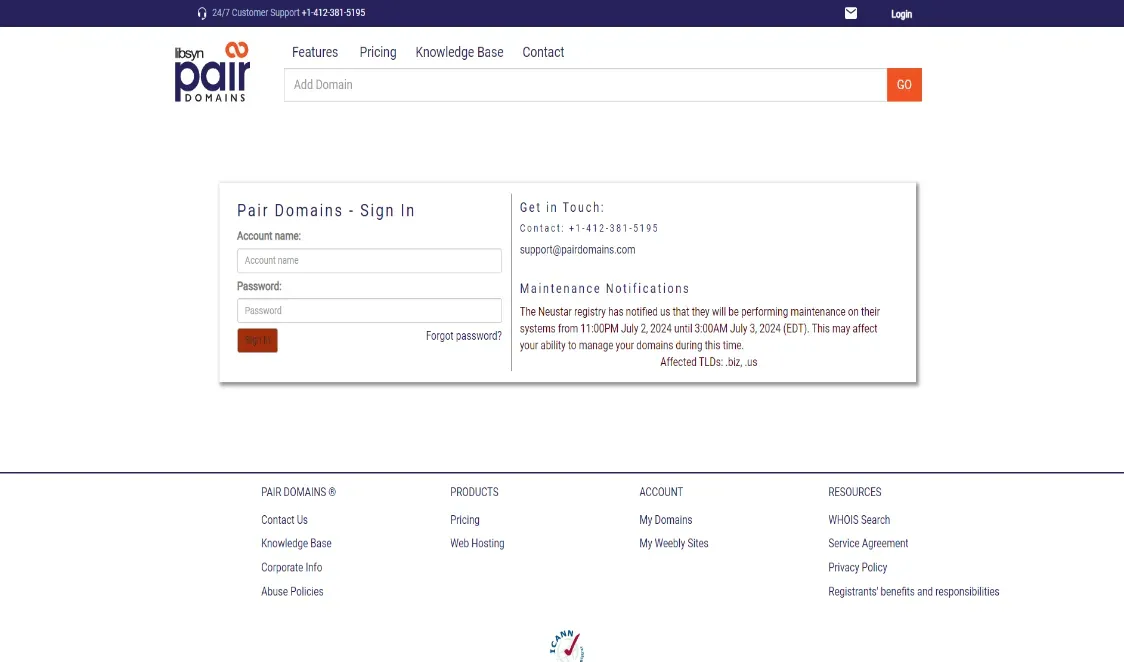
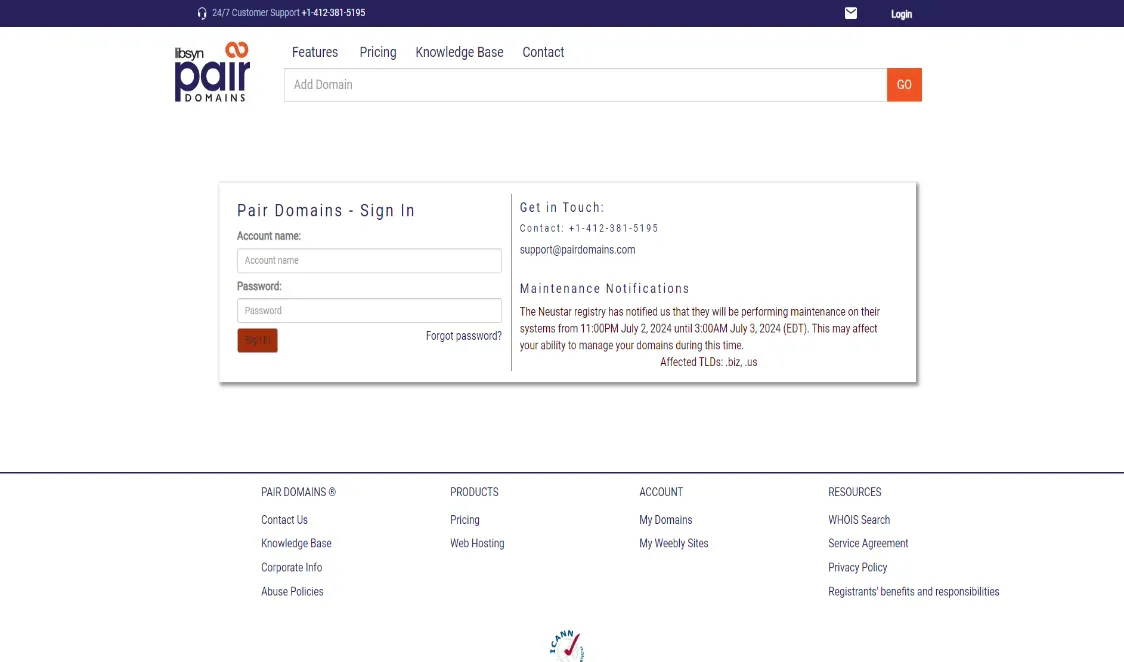
The Pair Domains sign-in page, with Account name and Password fields and the Sign In button.
Adding NS records
Section titled “Adding NS records”-
Sign in to your Pairdomains account.
-
Select the domain.
-
Enter the record name and one nameserver value.
-
Click Modify to submit.
You will have been given four nameserver values. Repeat the last two steps until all four records exist. A delegation with one of the four missing looks complete in the domain settings and does not resolve.
NS record walkthrough1 screenshot
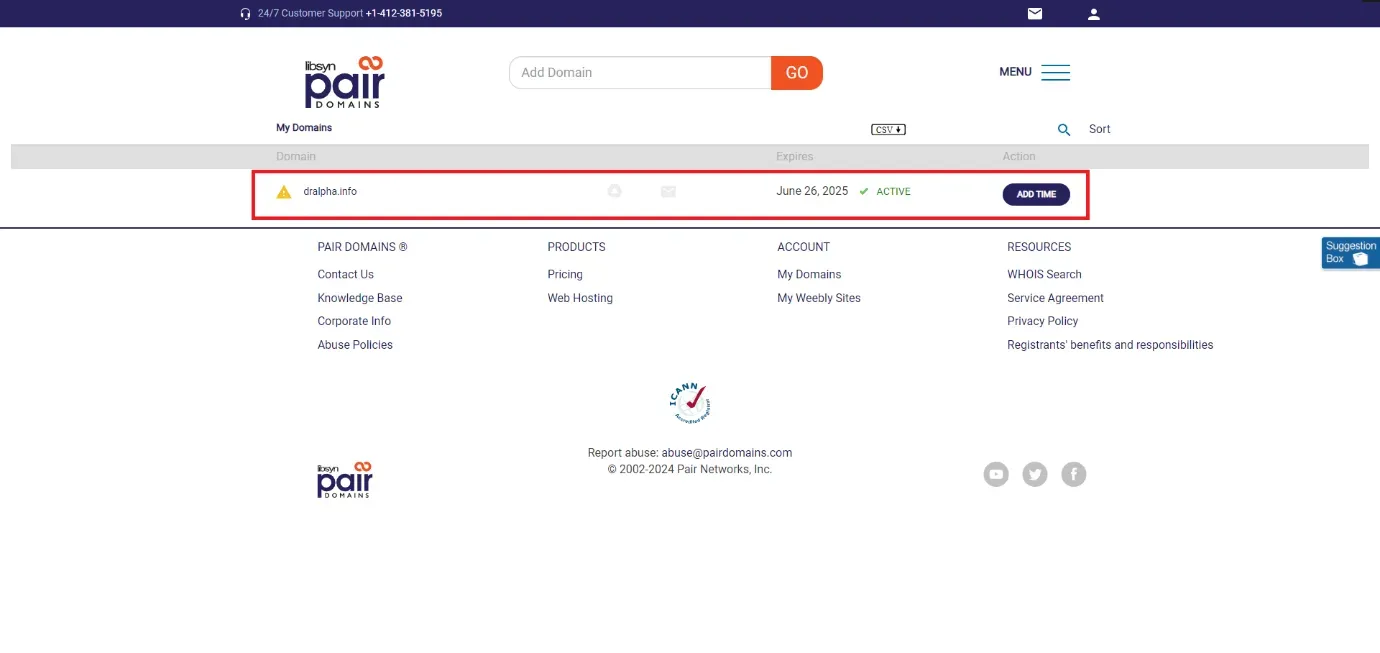
My Domains, with the domain row boxed, showing its Active status, expiration date and Add Time action.
Adding a CNAME record
Section titled “Adding a CNAME record”-
Sign in to Pairdomains and choose the domain.
-
Click Domain Address Setting, then Add New Record.
-
Choose CNAME as the type and paste the value you were given.
-
Click Add Record.
CNAME record walkthrough4 screenshots
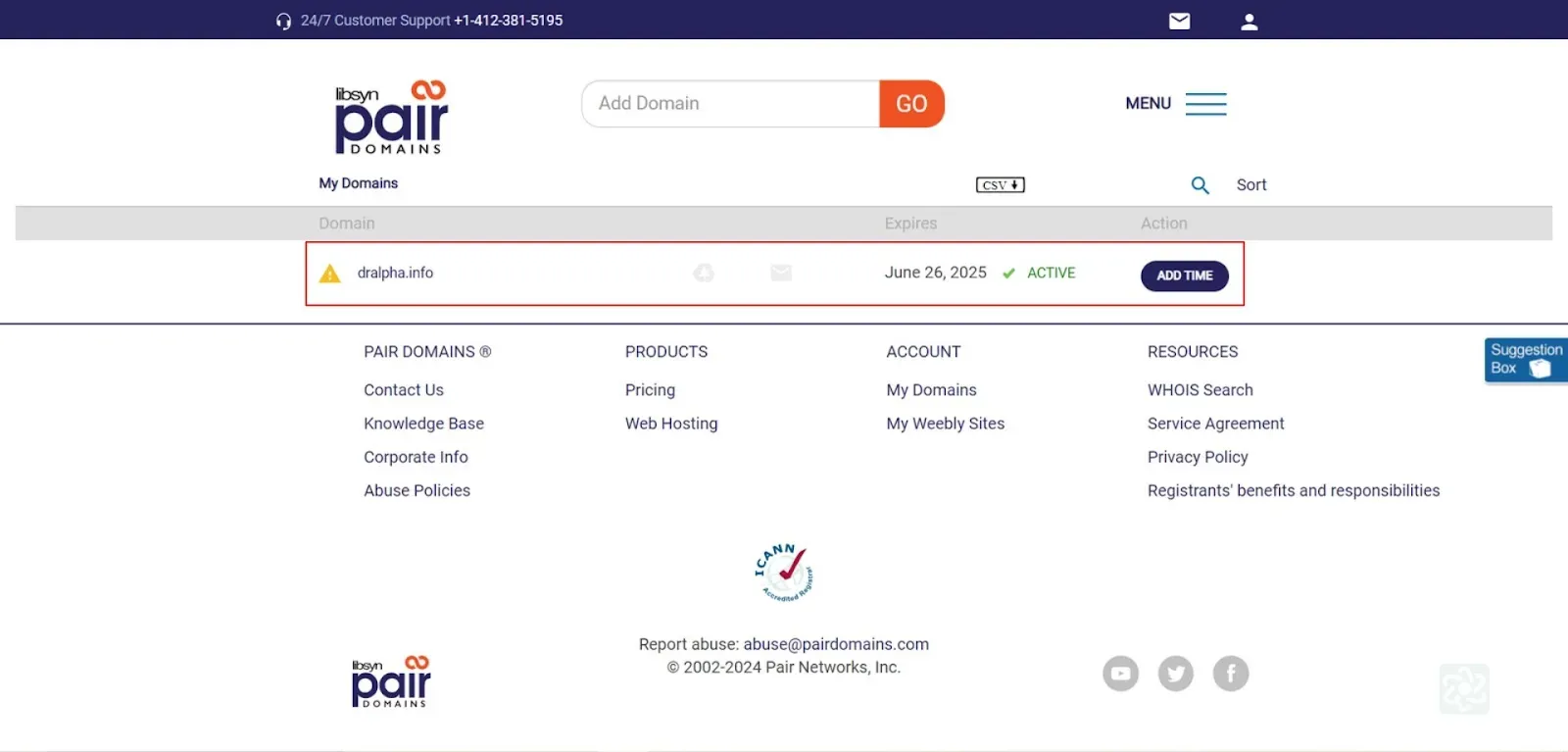
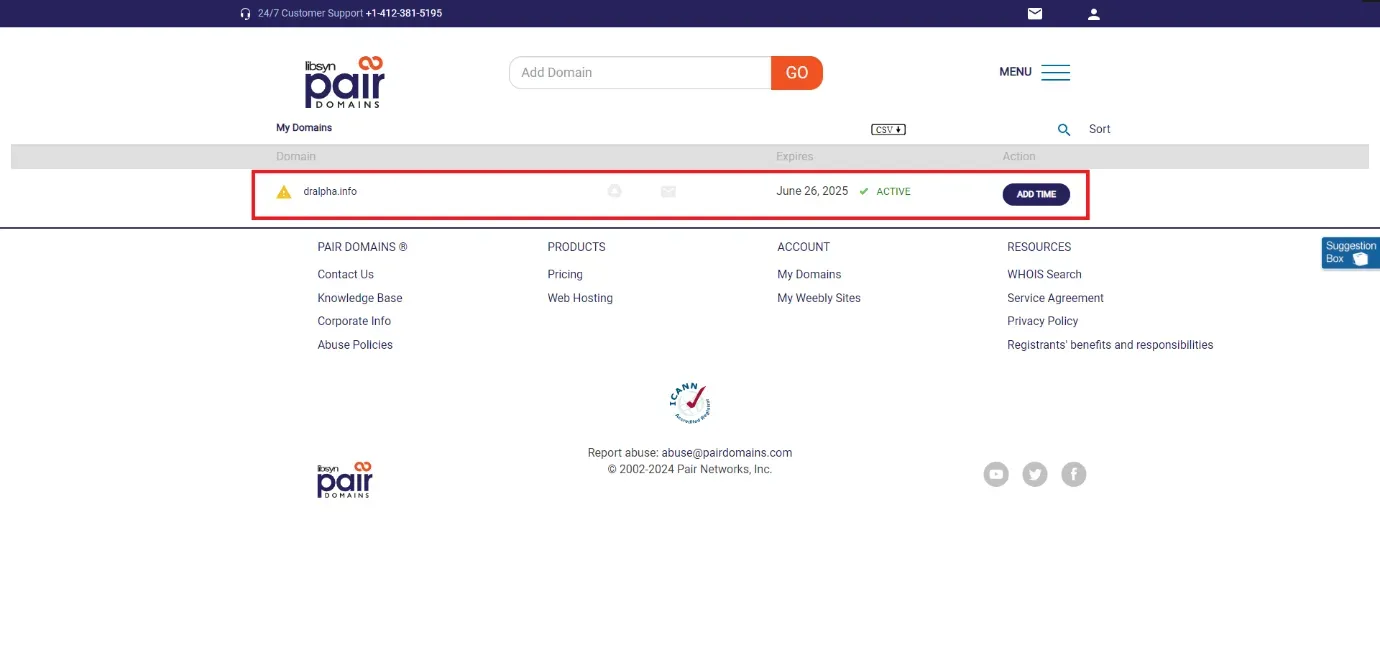
My Domains, with the domain row boxed, showing its Active status, expiration date and Add Time action. 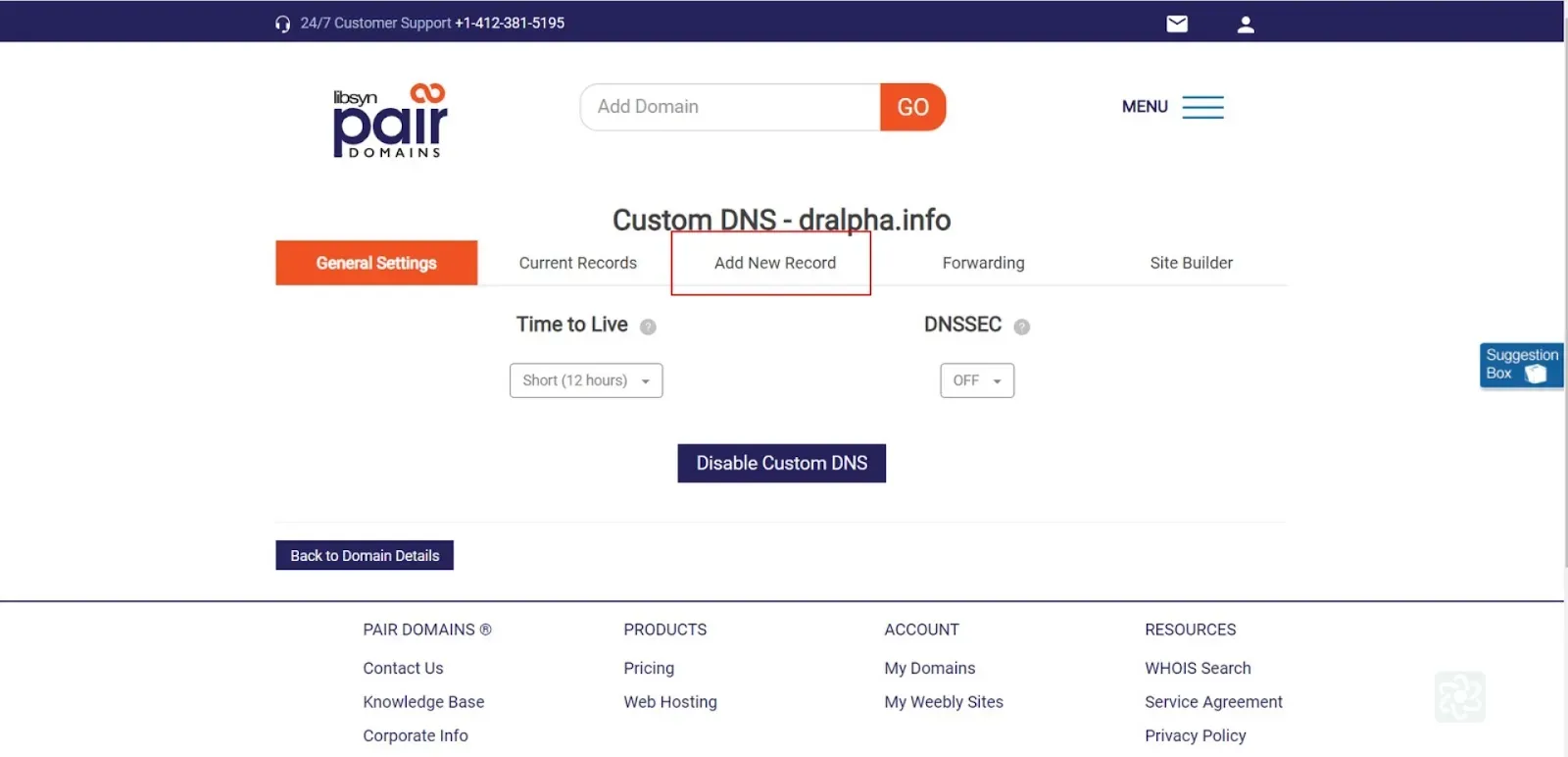
Custom DNS for the domain, with the Add New Record tab boxed among General Settings, Current Records, Forwarding and Site Builder. 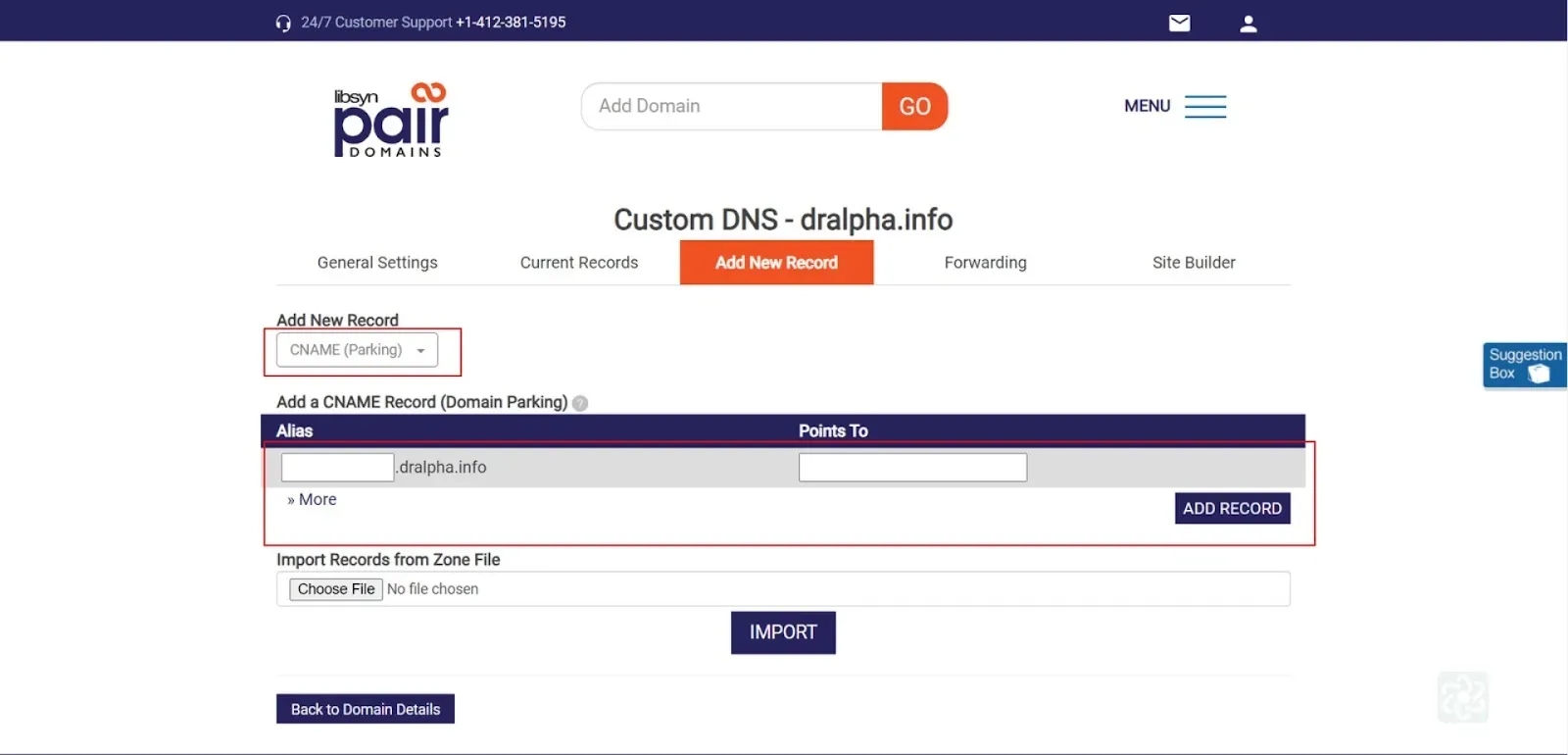
Add New Record, with CNAME (Parking) boxed as the record type and the Alias and Points To fields plus Add Record boxed below. 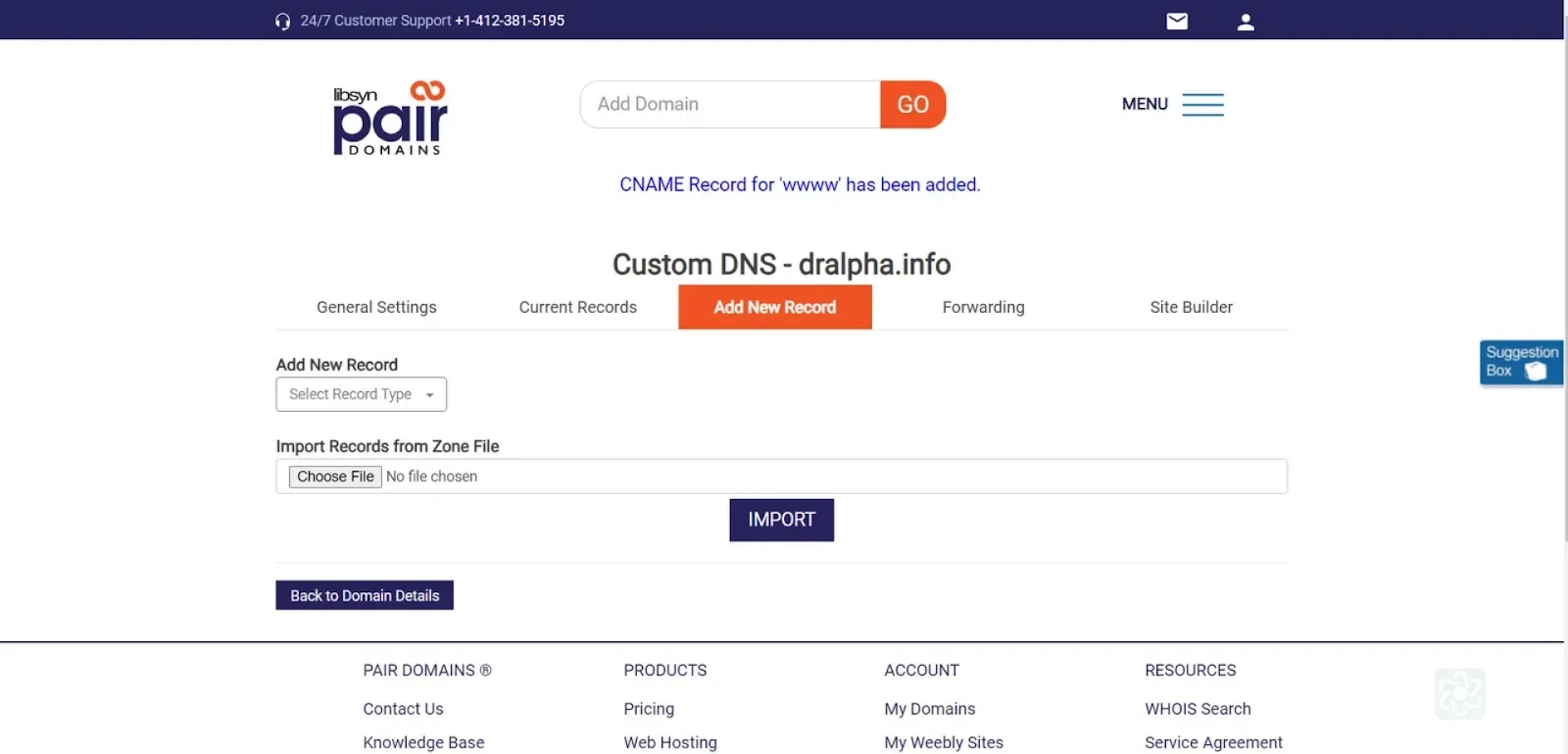
Add New Record, showing a confirmation that a CNAME record for www has been added, above the Add New Record form.