

Add DNS records at Ionos
These are the steps for Ionos. For what the records do and how to check the setup afterwards, see Subdomain setup.
Datahash tells you which record type to use and gives you the values. Follow the matching section below and enter the values you were given.
Both record types start the same way in IONOS, so these screenshots cover either one.
Getting to the DNS records panel4 screenshots
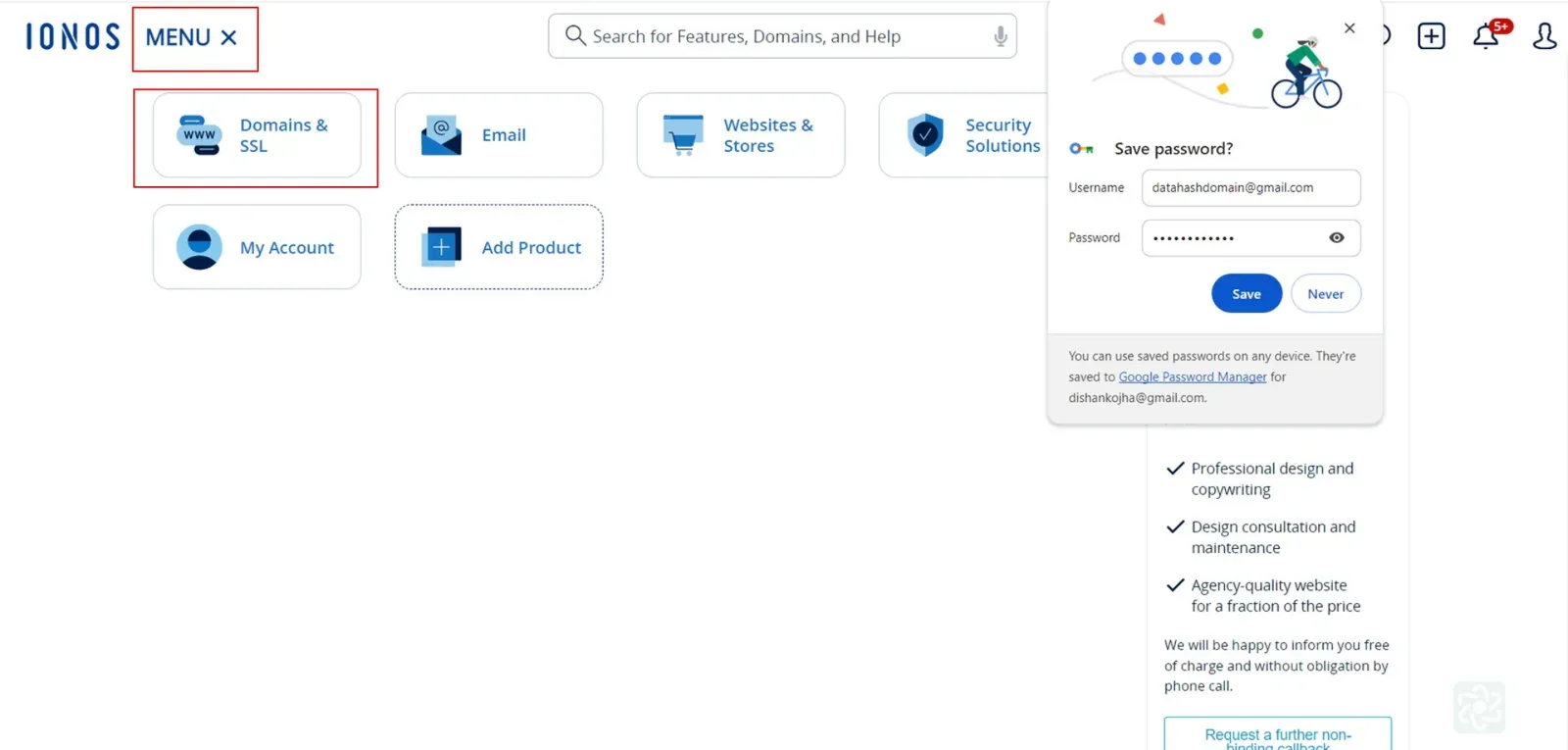
The IONOS product menu, with MENU and the Domains & SSL card boxed in red, while a browser save password prompt sits open over the right of the page. 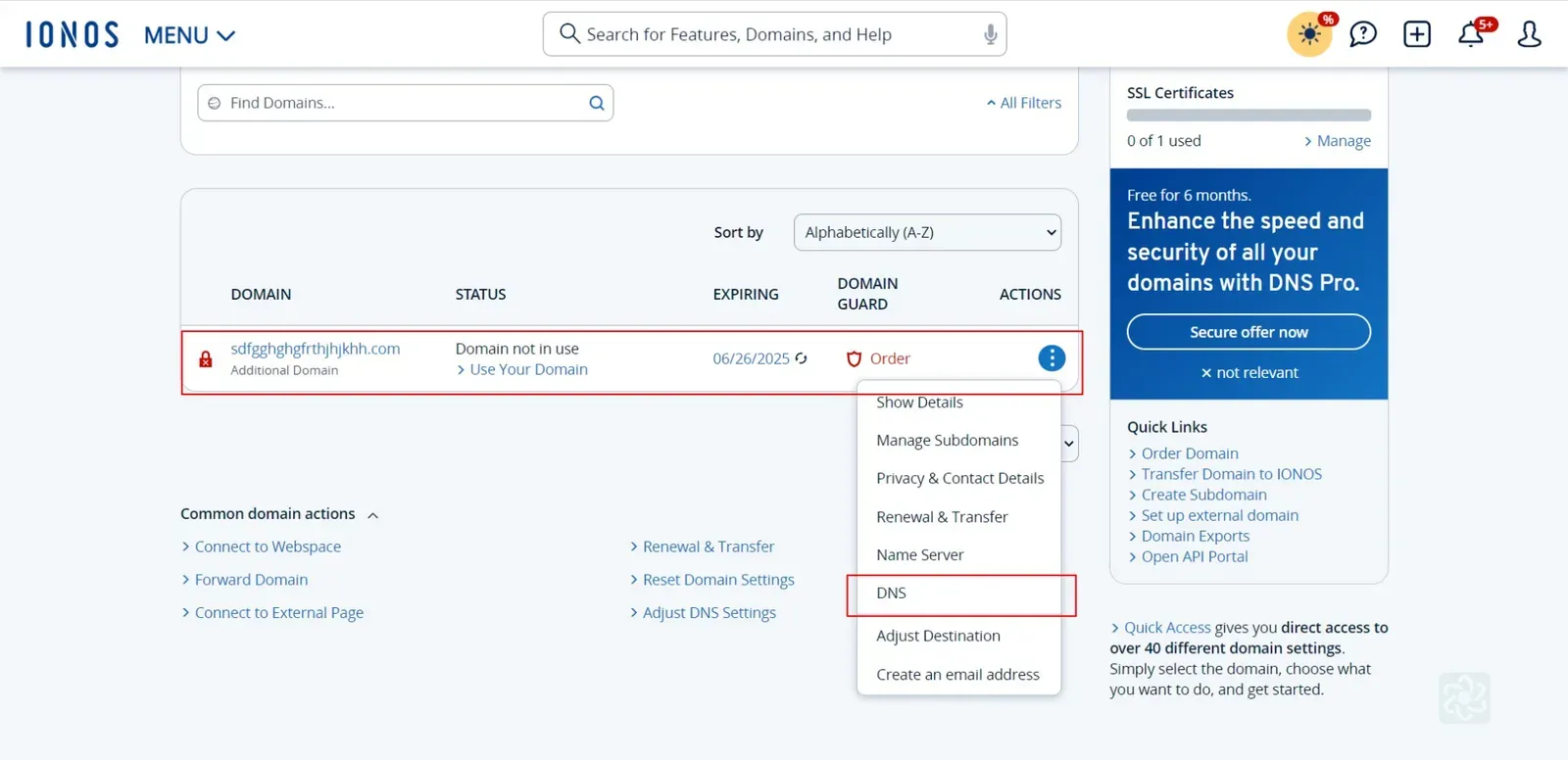
The domain list, with the domain row boxed in red and DNS boxed in the actions menu open beside it. 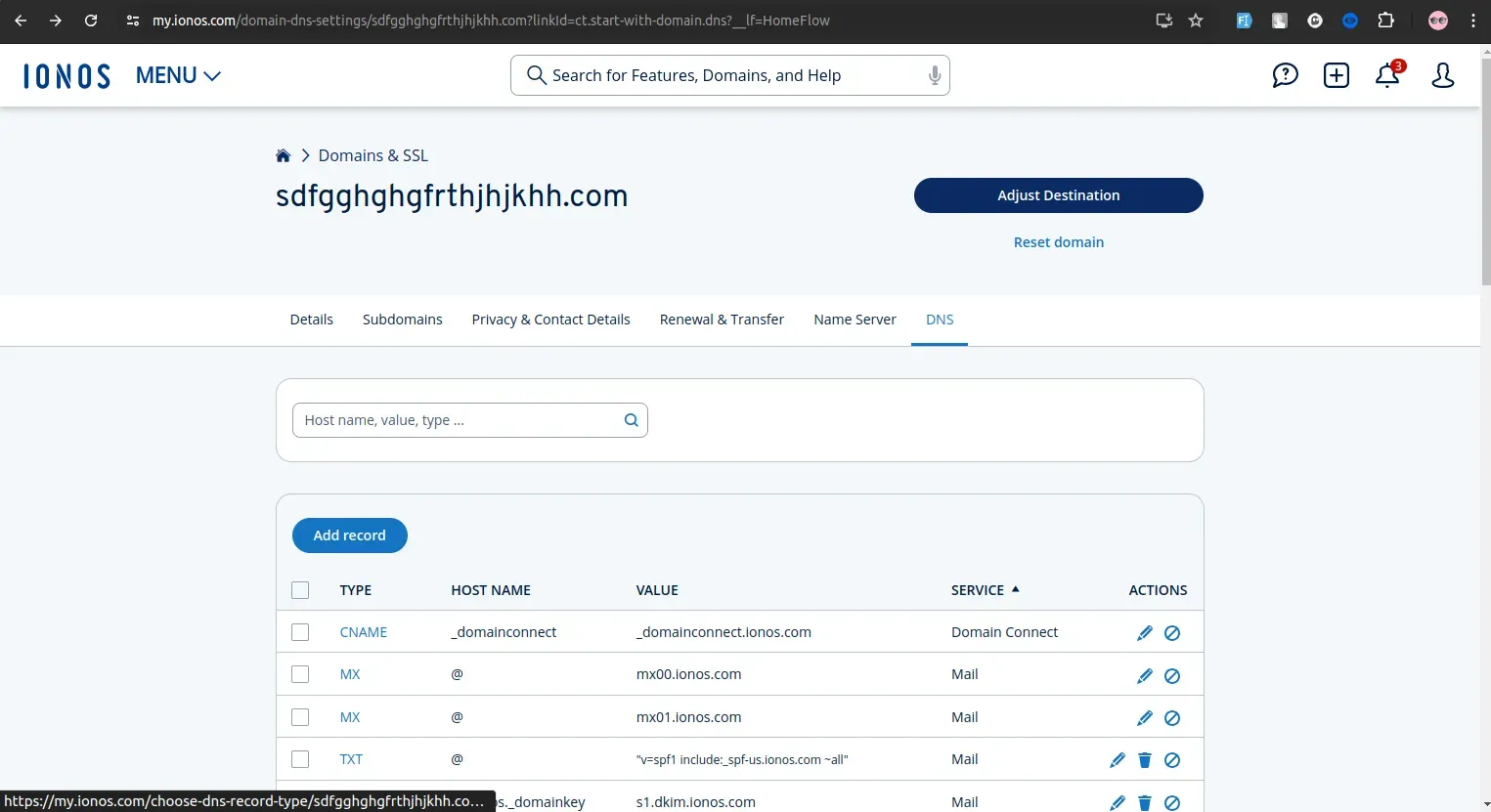
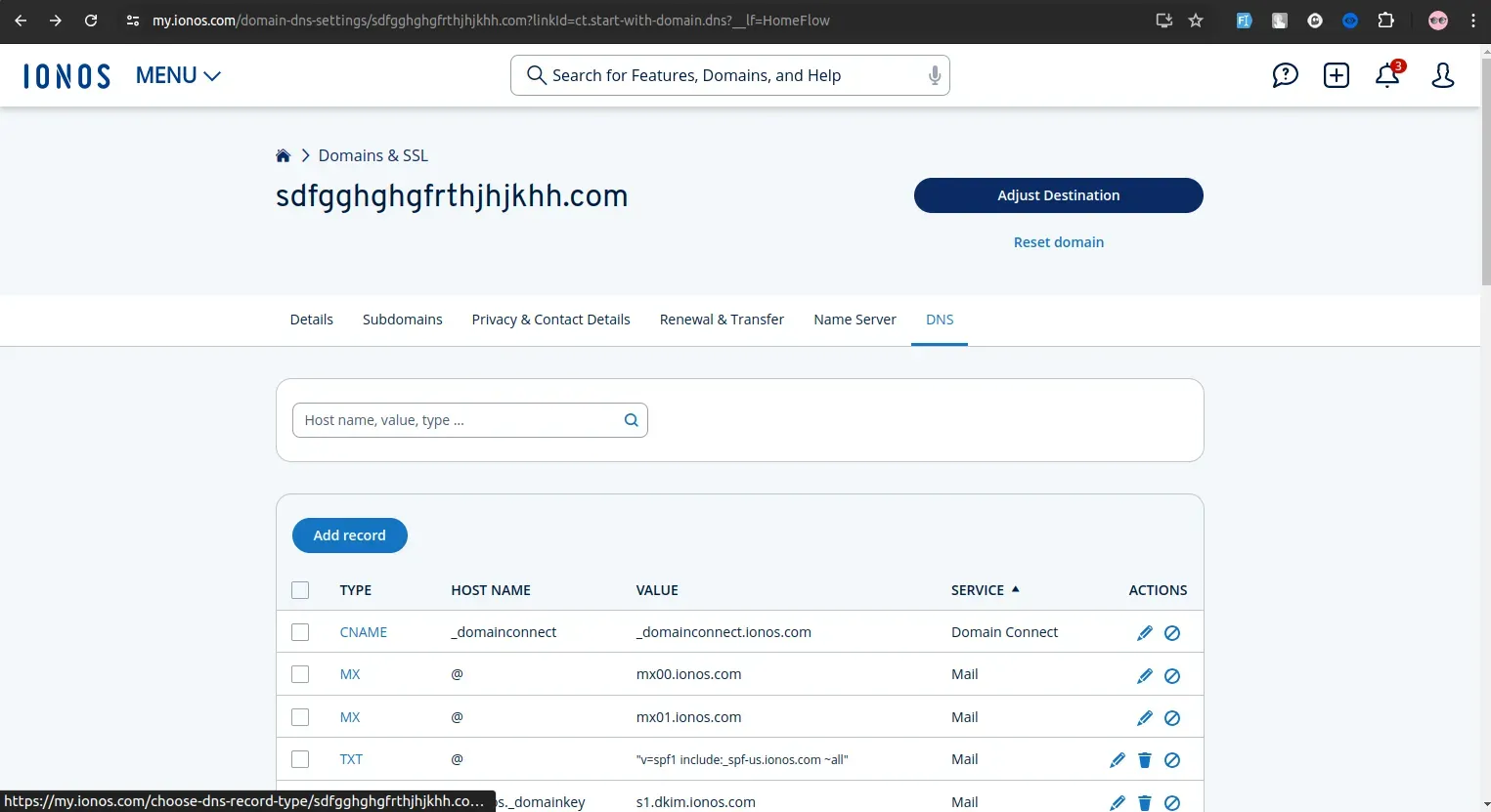
The domain's DNS tab, with Add record above the records table and the existing CNAME, MX and TXT rows listed under Service. 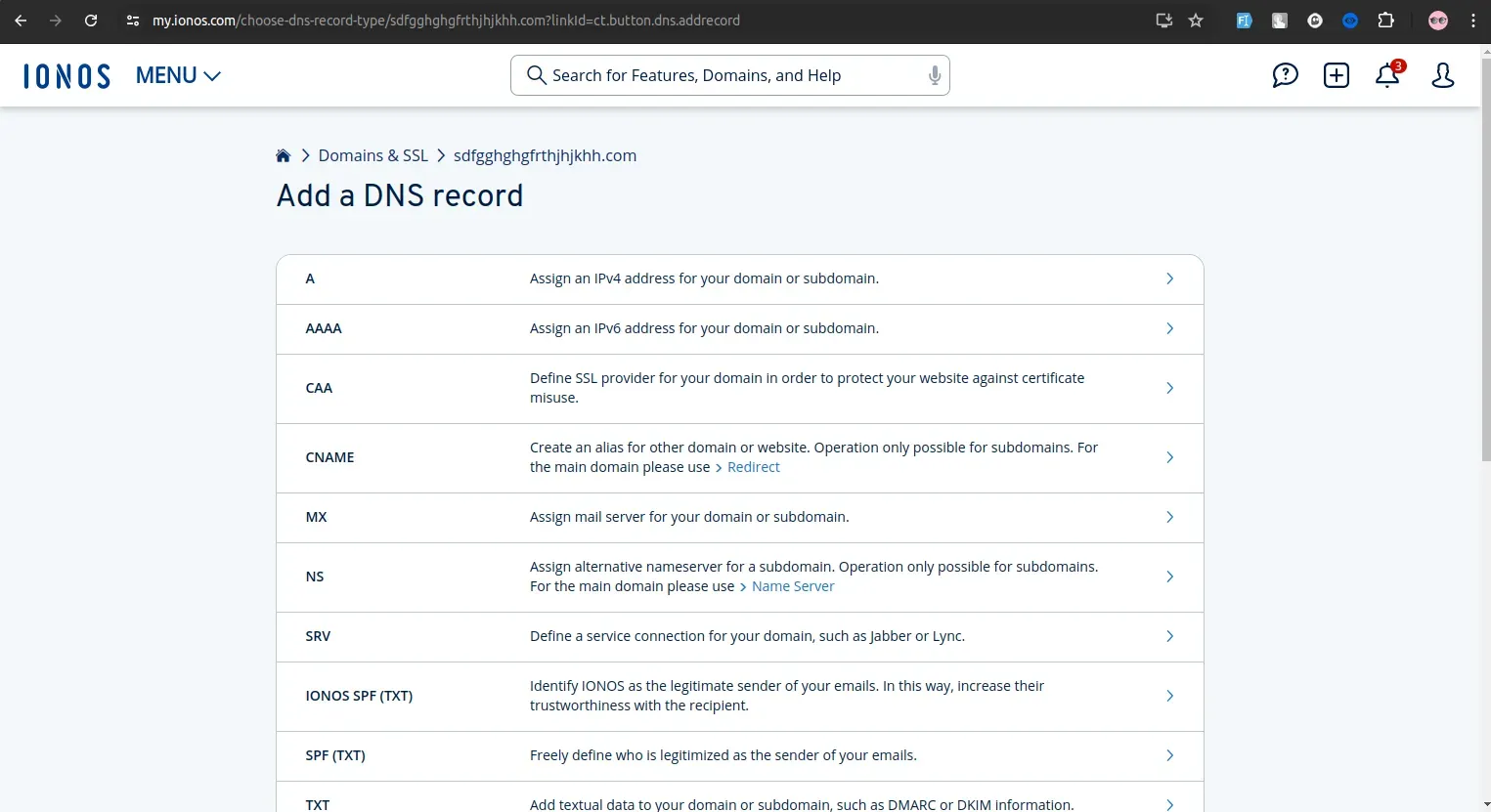
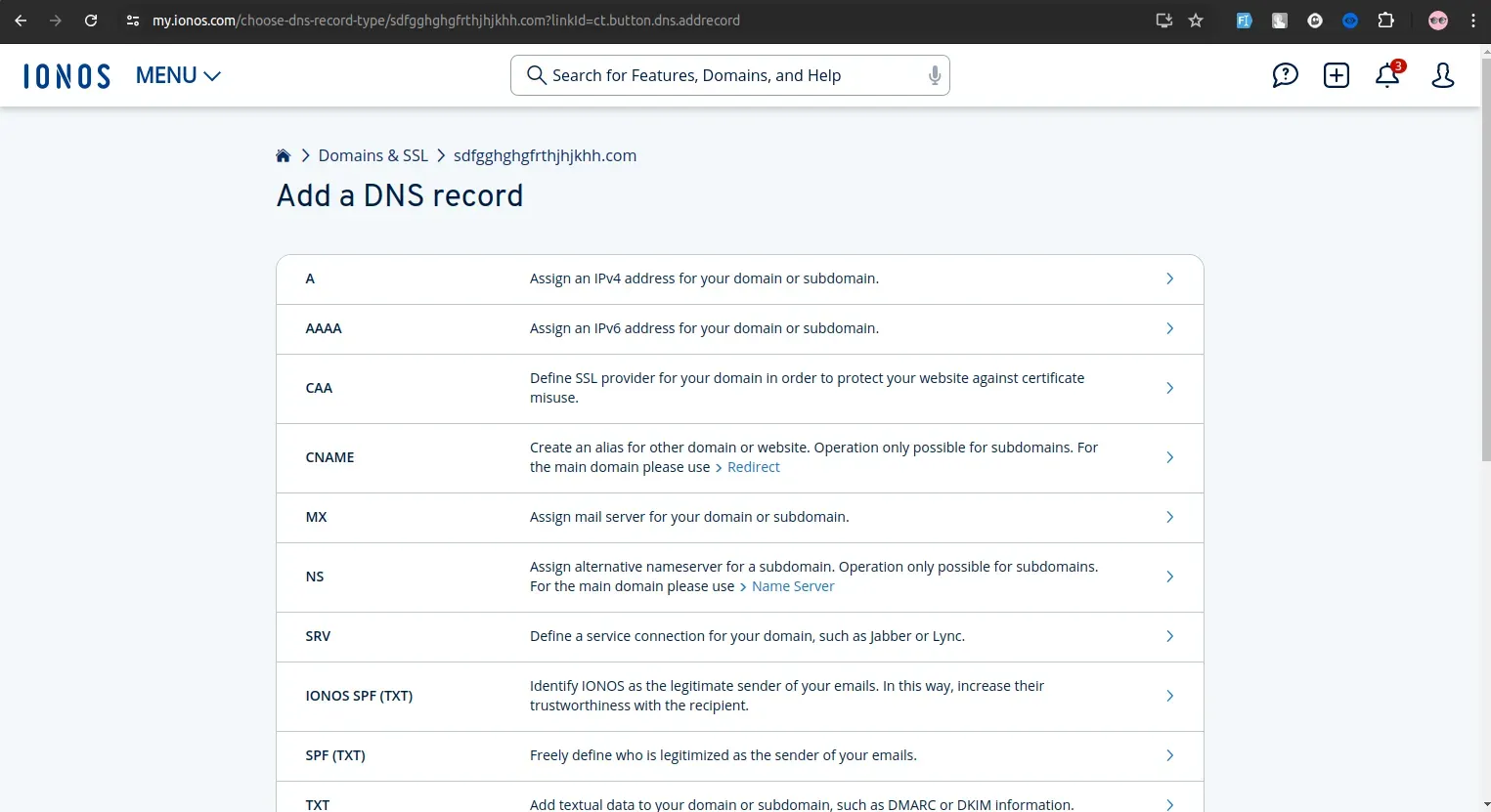
The Add a DNS record type list, with one row per record type, CNAME described as an alias for another domain and NS as an alternative nameserver for a subdomain.
Adding NS records
Section titled “Adding NS records”-
Sign in to IONOS and click the Domain & SSL card.
-
Click Adjust DNS Setting at the bottom of the screen.
-
Click Add Record.
-
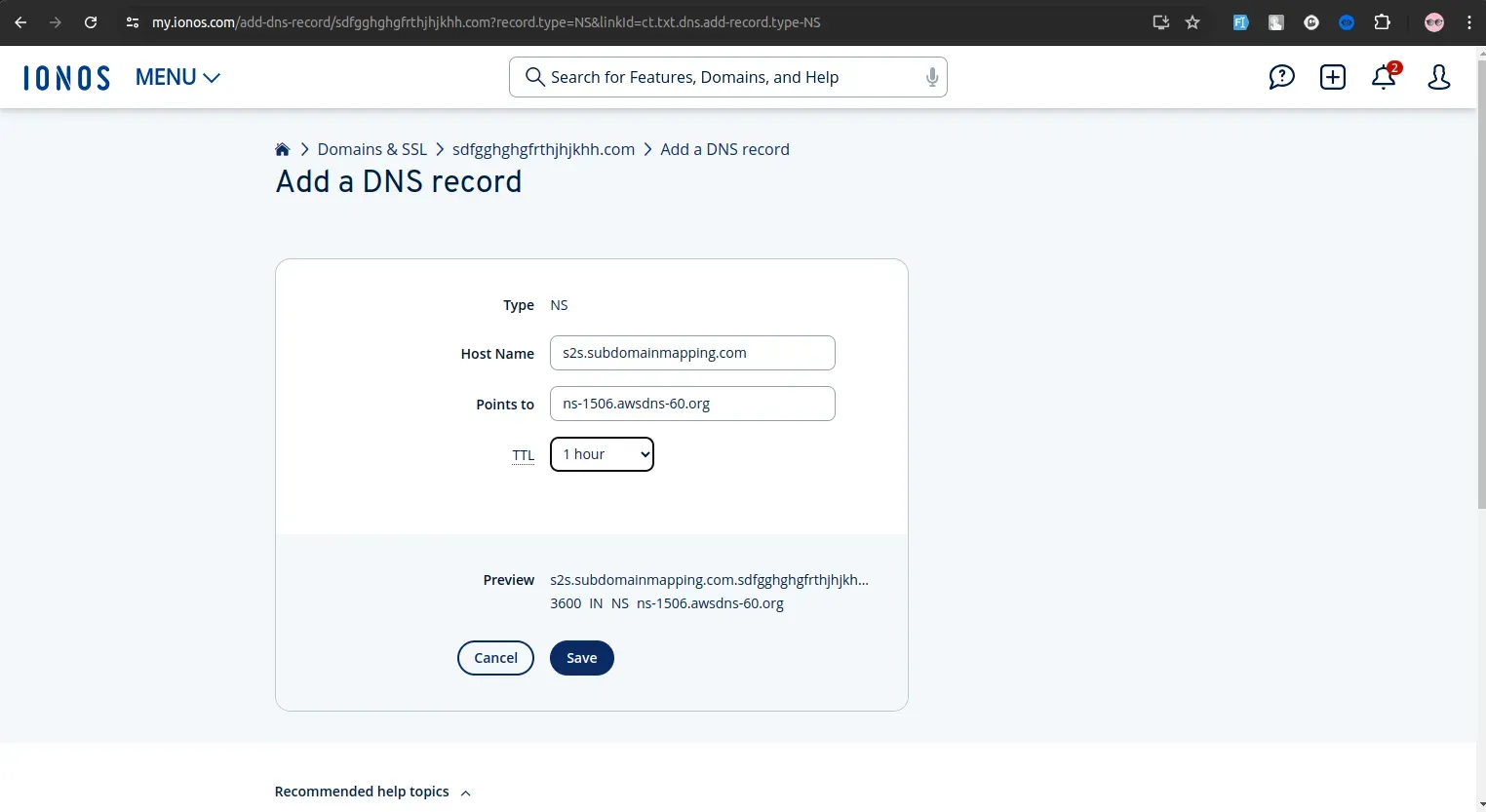
Choose NS as the record type and enter one nameserver value.
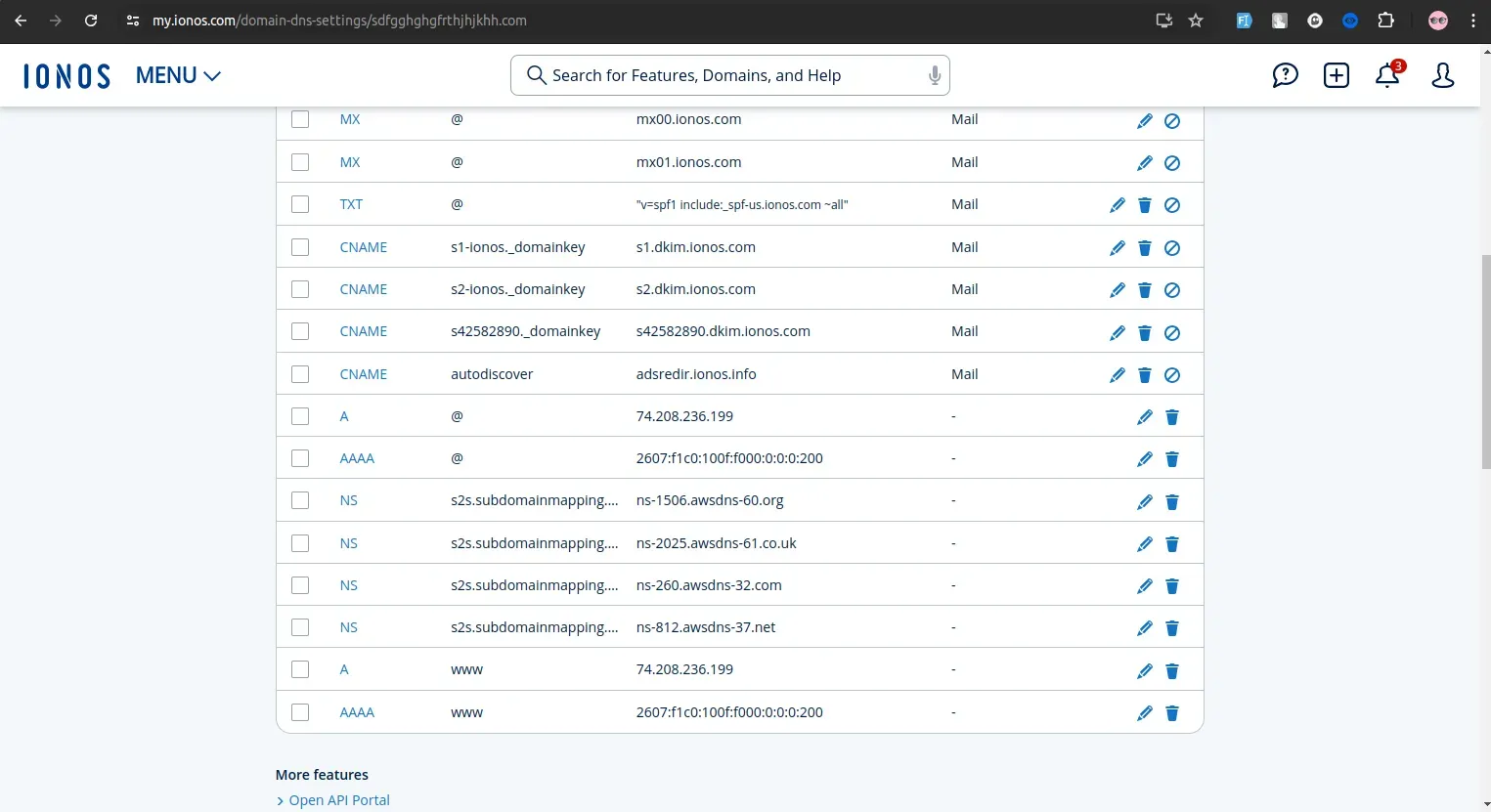
You will have been given four nameserver values. Repeat the last two steps until all four records exist. A delegation with one of the four missing looks complete in the DNS settings and does not resolve.
NS record walkthrough2 screenshots
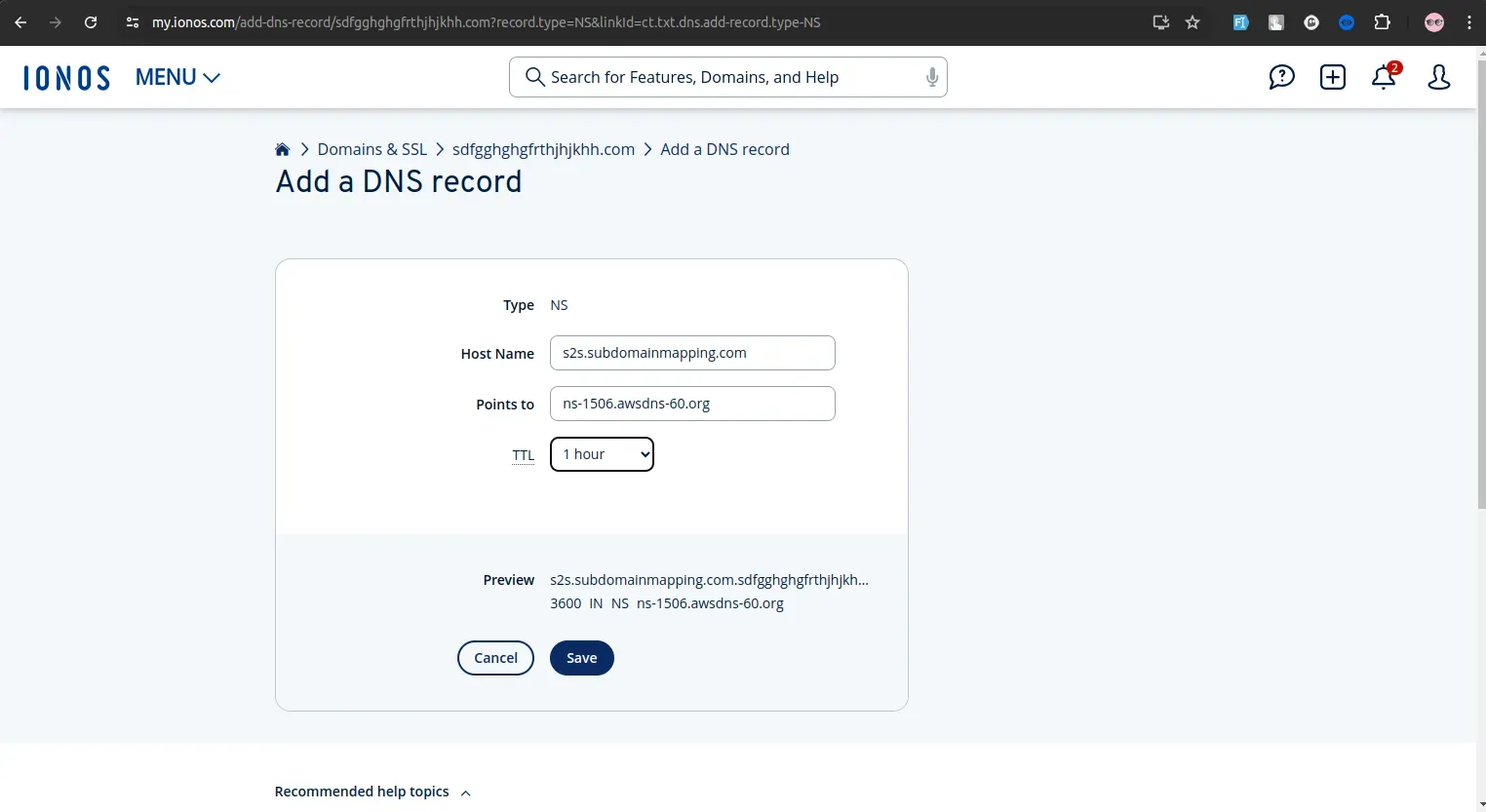
The Add a DNS record form with Type fixed to NS, a subdomain host name, one nameserver in Points to, a one hour TTL, and the Preview line showing the resulting 3600 IN NS record above Save. 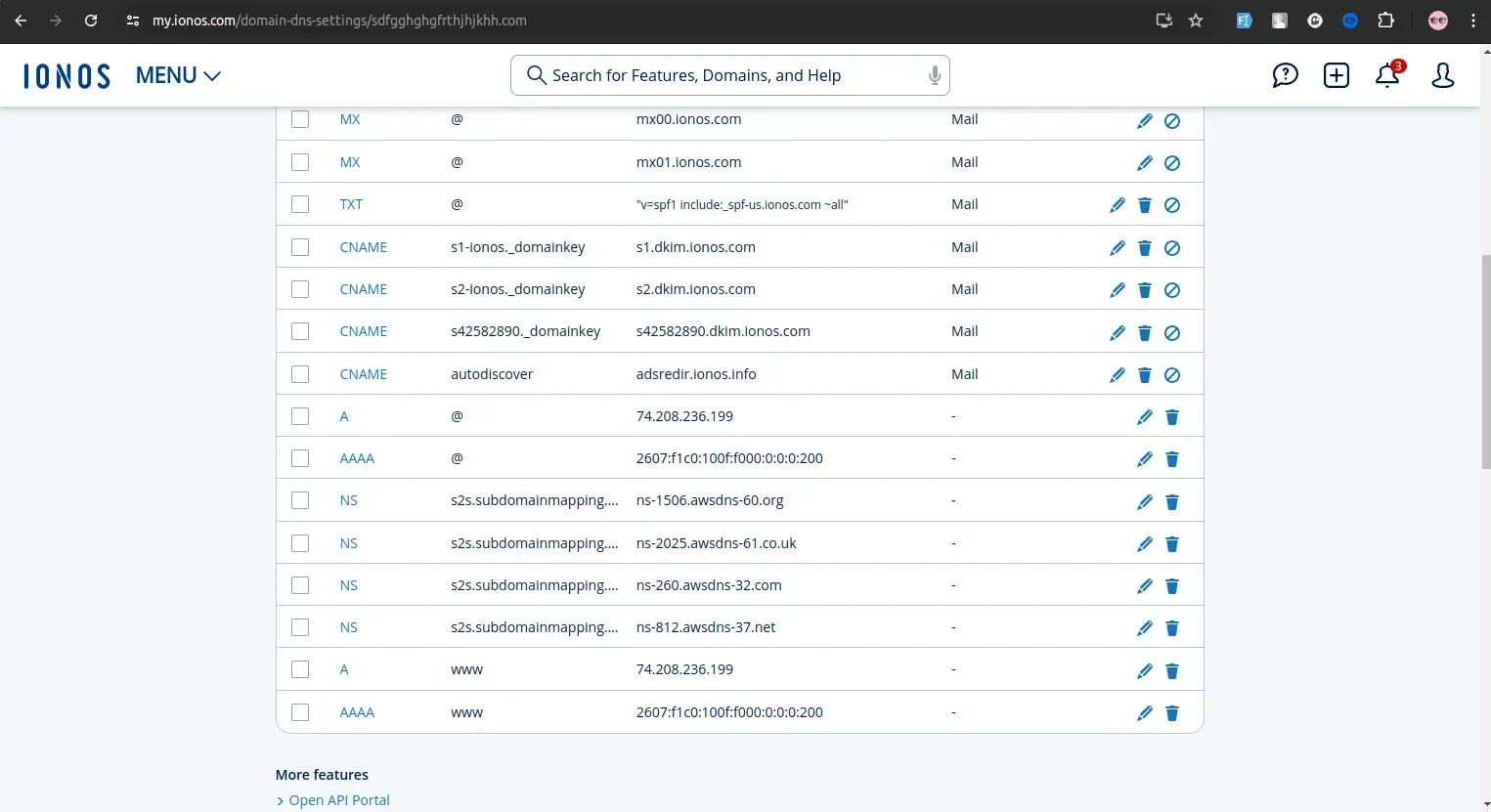
The DNS records table scrolled to the four saved NS rows, all under the same host name and each pointing to a different nameserver.
Adding a CNAME record
Section titled “Adding a CNAME record”-
Sign in to IONOS and click the Domain & SSL card.
-
Choose the domain and click DNS.
-
Click Add Record.
-
Choose CNAME as the record type, paste the value you were given, and click Save.
CNAME record walkthrough2 screenshots
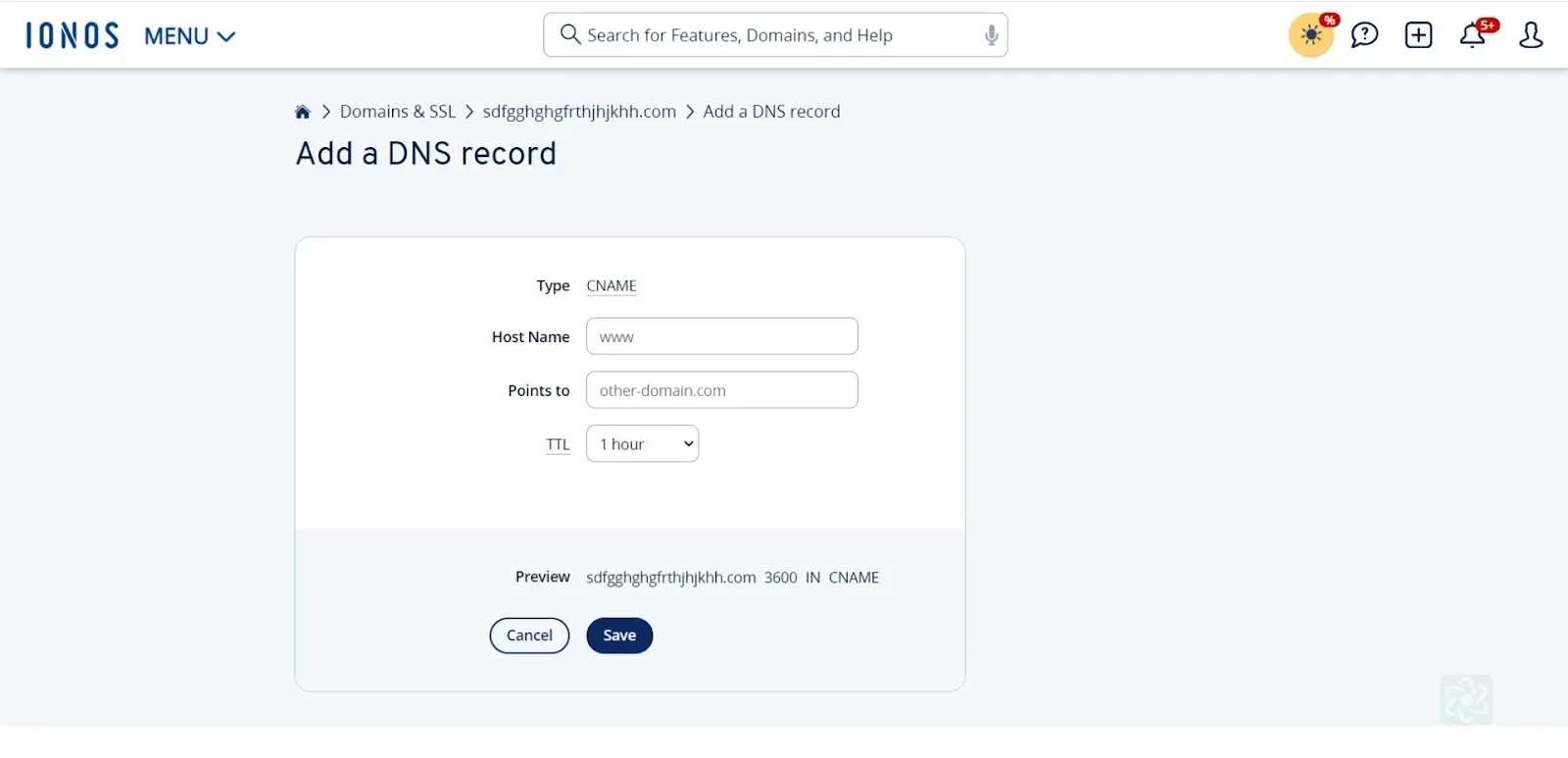
The Add a DNS record form with Type fixed to CNAME, Host Name and Points to still showing their placeholder text, and a one hour TTL above Save. The DNS records table scrolled to the four saved NS rows, all under the same host name and each pointing to a different nameserver.
Worth knowing
Section titled “Worth knowing”IONOS advises a TTL of at least one hour, which also sets how long the previous answer can be served after you change a record.