Add DNS records at Dyn Oracle
These are the steps for Dyn Oracle. For what the records do and how to check the setup afterwards, see Subdomain setup.
Datahash tells you which record type to use and gives you the values. Follow the matching section below and enter the values you were given.
Adding NS records
Section titled “Adding NS records”-
Sign in to Dyn.
-
Click Overview in the Managed DNS application.
-
Scroll to the Customer Account Info section.
-
Click Edit on the External Nameservers line.
-
Enter one nameserver value and click Save Defaults.
You will have been given four nameserver values. Repeat the last two steps until all four records exist. A delegation with one of the four missing looks complete on the External Nameservers line and does not resolve.
NS record walkthrough4 screenshots

The Manage DNS tab in the top navigation, highlighted between Overview and Add-Ons. 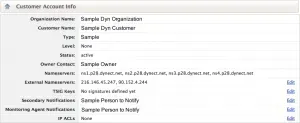
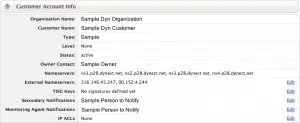
The Customer Account Info panel, using Dyn's sample organization and customer identity, with the External Nameservers row and its Edit link. 
A cropped view of only the Edit link, too small to show any surrounding panel. 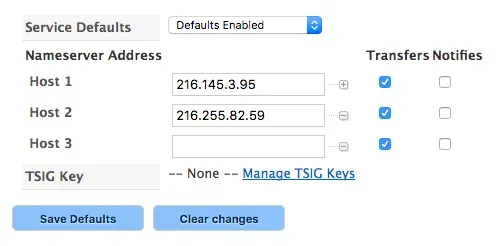
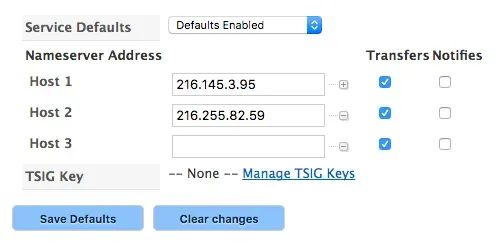
The Nameserver Address fields, with two host values filled in, the Transfers checkboxes ticked, and Save Defaults below.


Adding a CNAME record
Section titled “Adding a CNAME record”-
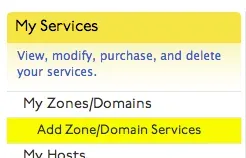
Sign in to Dyn and find My Services.
-
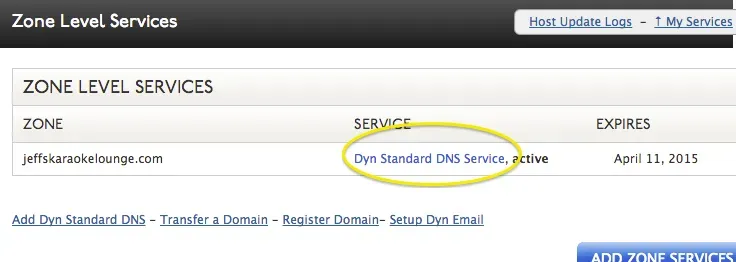
Find the zone and click Dyn Standard DNS Service to the right of its name.
-
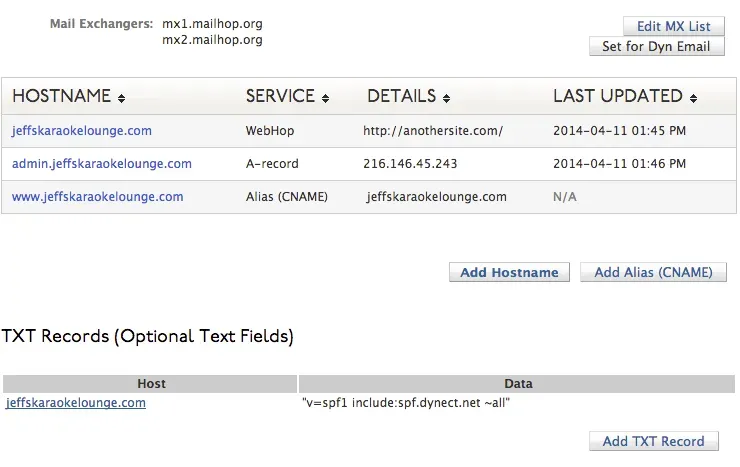
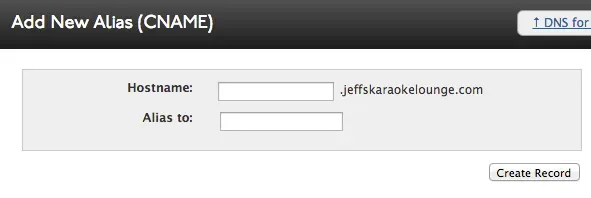
Click Add Alias (CNAME), paste the value you were given, and click Create Record.
CNAME record walkthrough4 screenshots
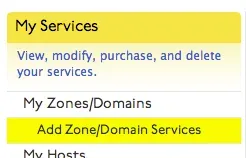
The My Services sidebar, with Add Zone/Domain Services highlighted between My Zones/Domains and My Hosts. 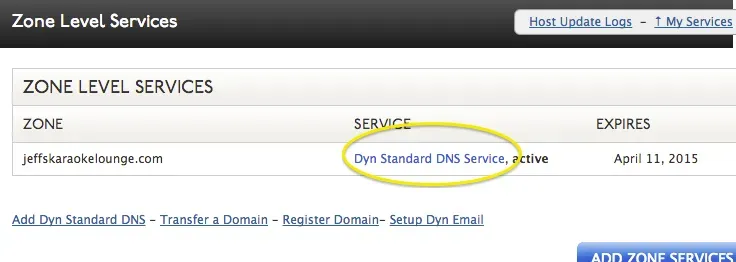
The Zone Level Services list, with the zone's Dyn Standard DNS Service link circled and its expiry date shown. 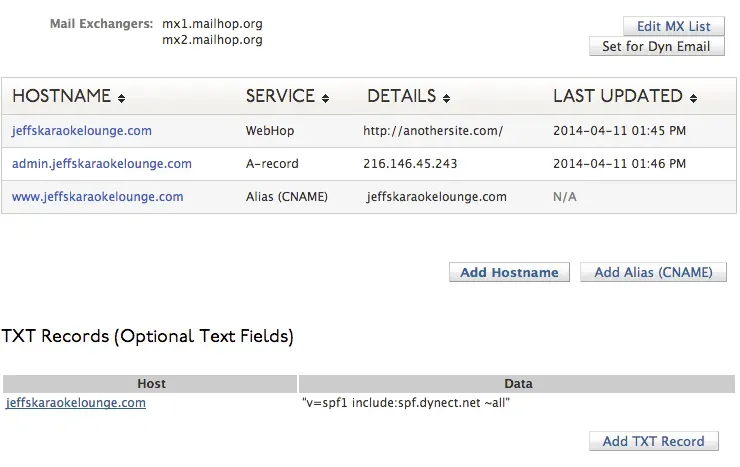
The zone's host record table, with the existing Alias (CNAME) row and the Add Alias (CNAME) button beside Add Hostname. 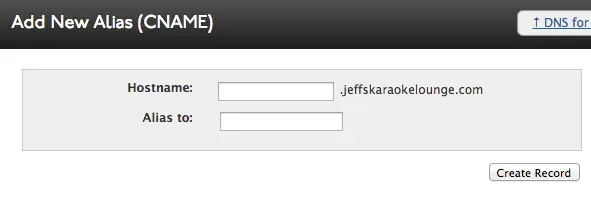
The Add New Alias (CNAME) form, with the Hostname and Alias to fields empty and Create Record below them.