

Add DNS records at GoDaddy
These are the steps for GoDaddy. For what the records do and how to check the setup afterwards, see Subdomain setup.
Datahash tells you which record type to use and gives you the values. Follow the matching section below and enter the values you were given.
Adding NS records
Section titled “Adding NS records”-
Sign in to GoDaddy and choose My Products from the account menu.
-
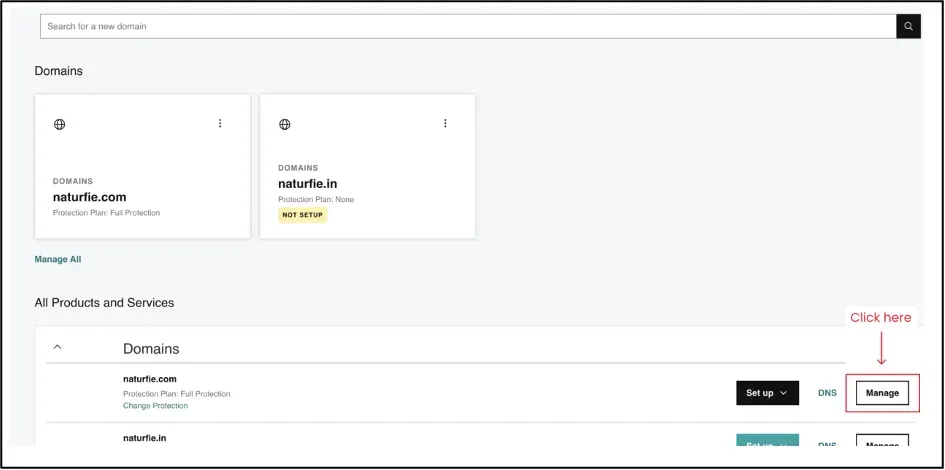
Find the domain under Domains, open its settings menu and choose Manage DNS.
-
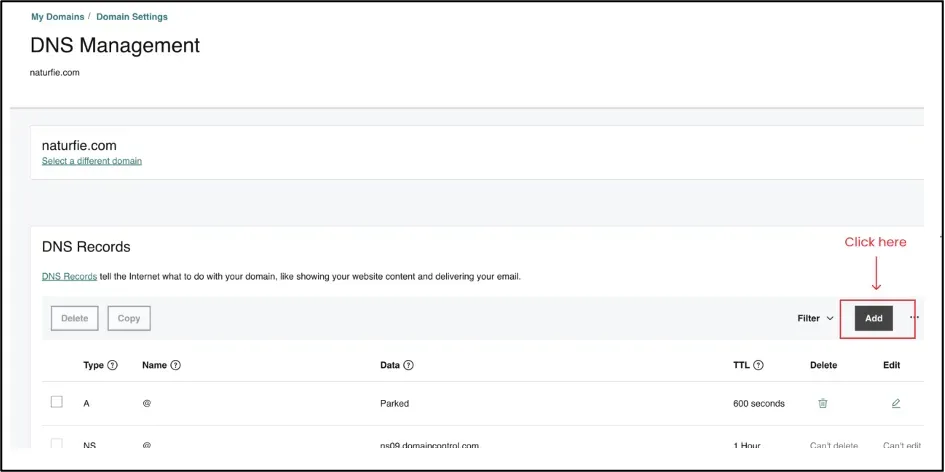
Click Add in the DNS records list.
-
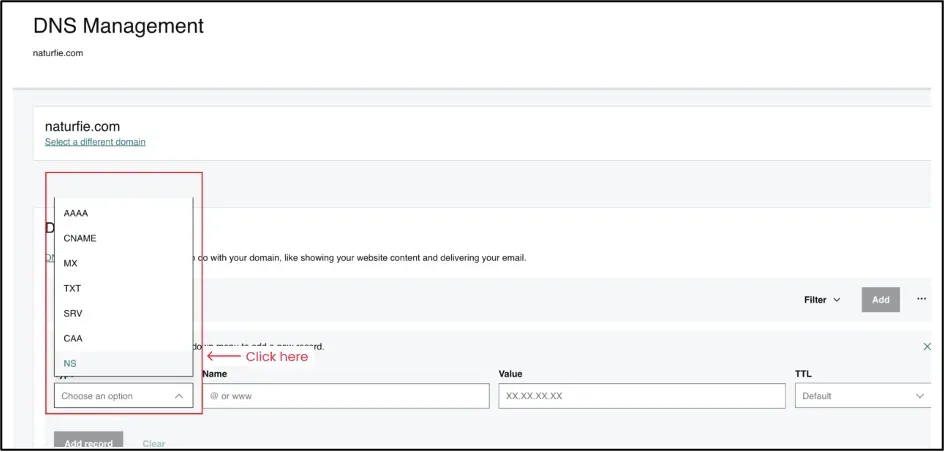
Choose NS as the record type.
-
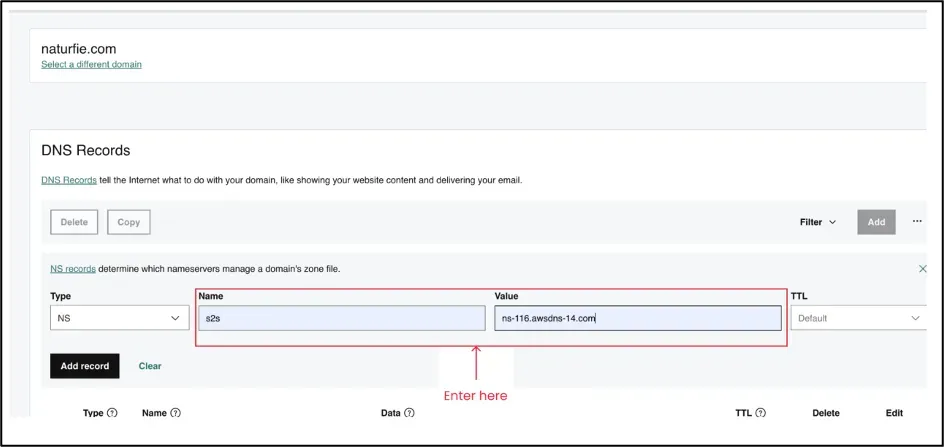
Enter the record name and one nameserver value from the Datahash setup window, and save.
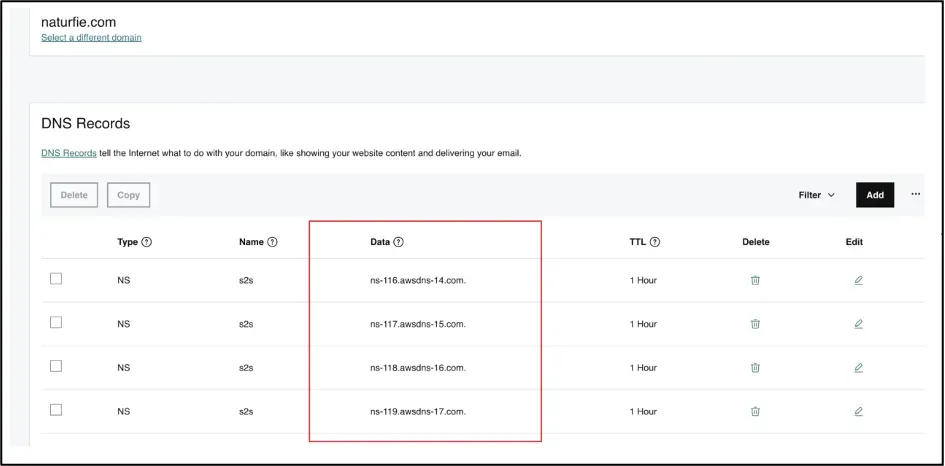
You will have been given four nameserver values. Repeat the last two steps until all four records exist. A delegation with one of the four missing looks complete in the records list and does not resolve.
NS record walkthrough6 screenshots

The GoDaddy account menu, with My Products under Account. 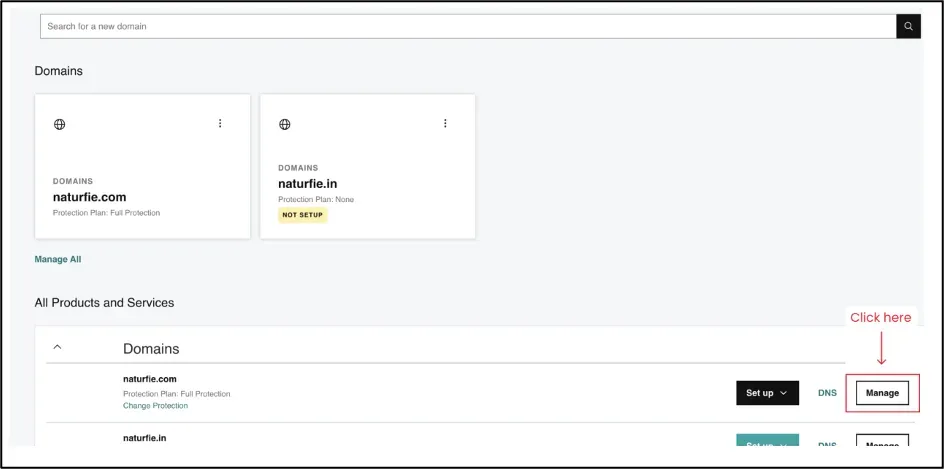
The My Products page, with the Manage button on the domain row under All Products and Services. 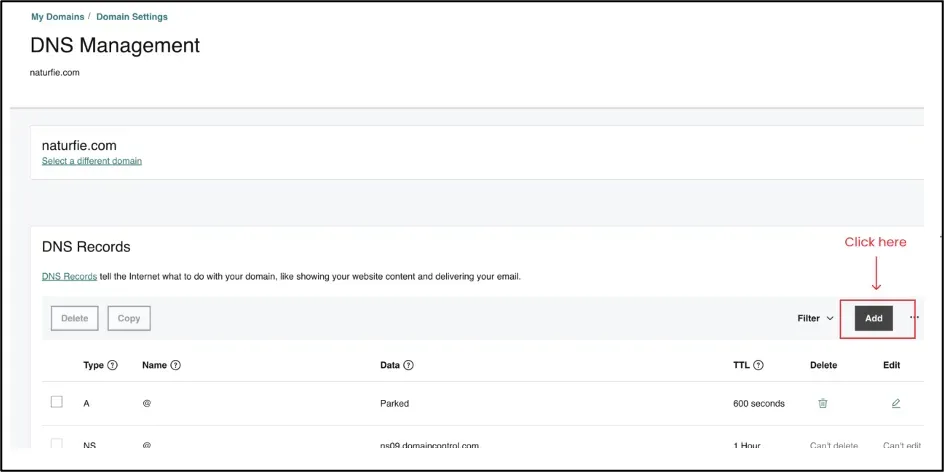
The DNS Management page, with Add above the DNS records table. 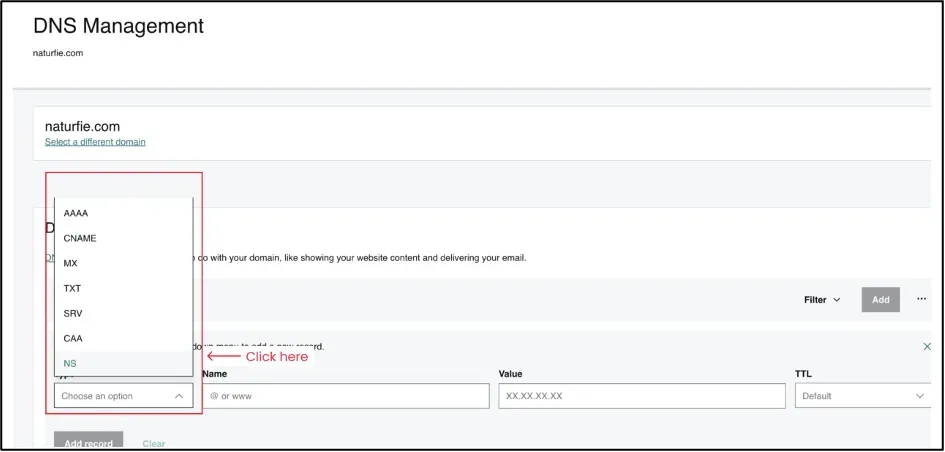
The record type list open on the new record row, with NS highlighted in the list. 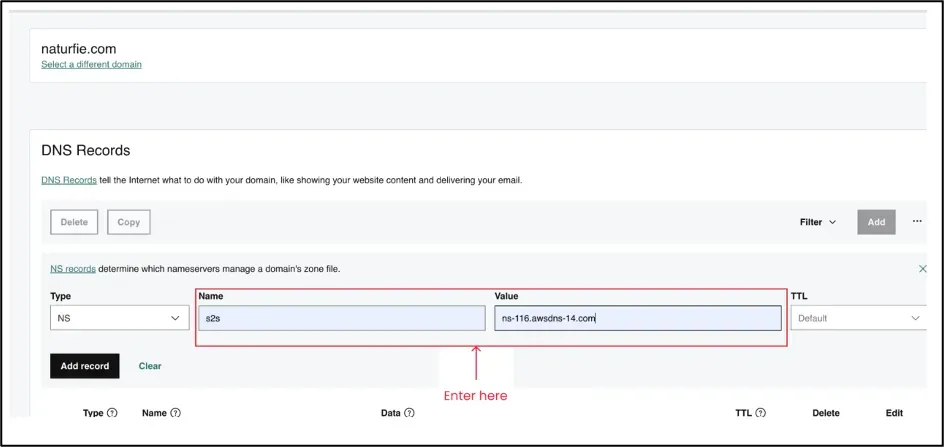
The NS record row, with the record name in Name and one nameserver value in Value. 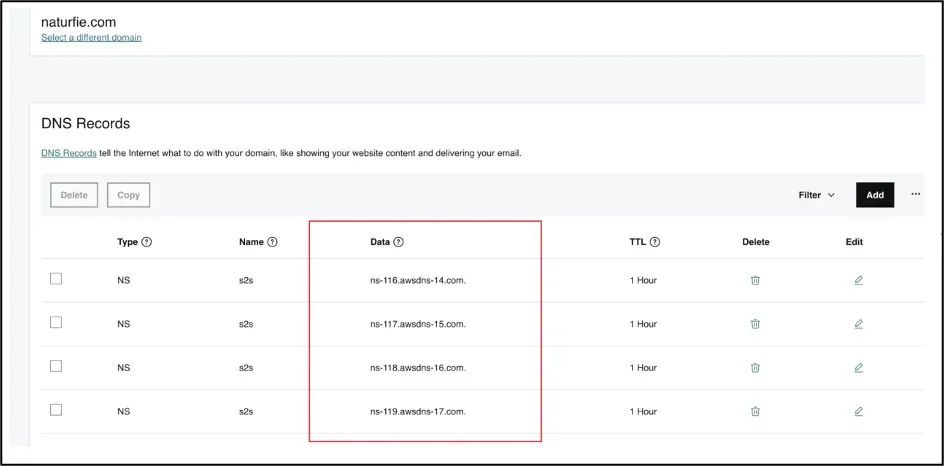
The DNS records table after saving, with the Data column showing a different nameserver on each of the four NS records, which all share the name s2s.

Adding a CNAME record
Section titled “Adding a CNAME record”-
Sign in to GoDaddy and choose My Products.
-
Under Domains, select the domain and click DNS.
-
In the DNS records section, click Add record.
-
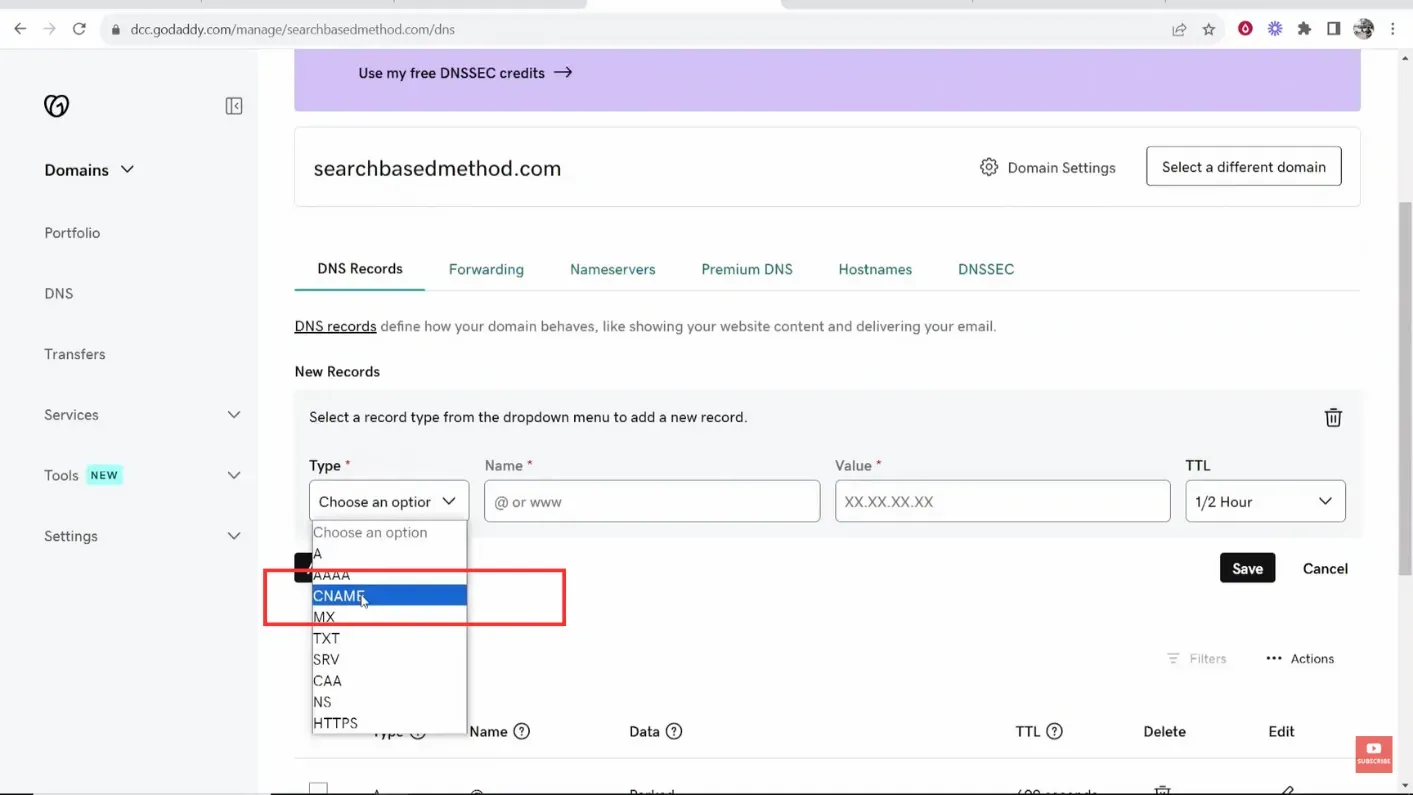
Choose CNAME as the type.
-
Paste the CNAME value Datahash gave you, set the TTL, and save.
CNAME record walkthrough7 screenshots
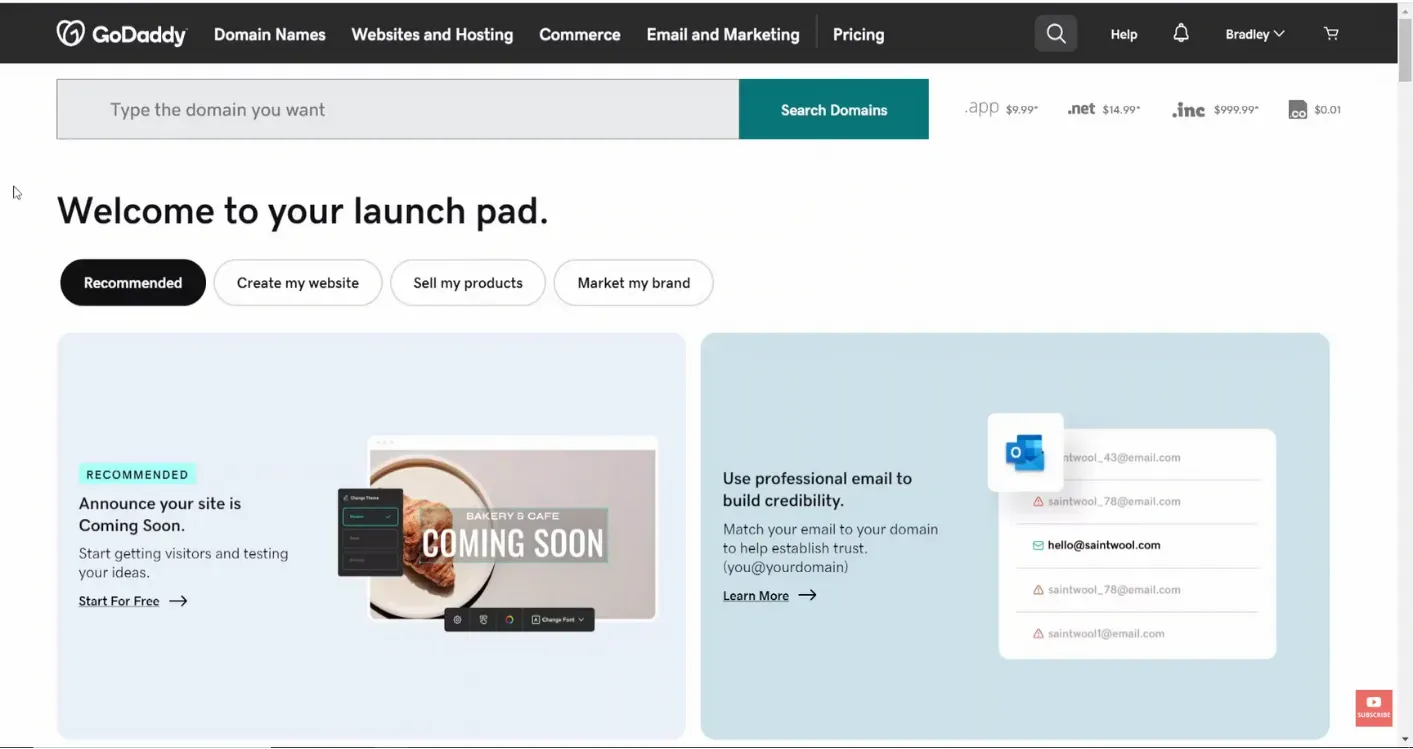
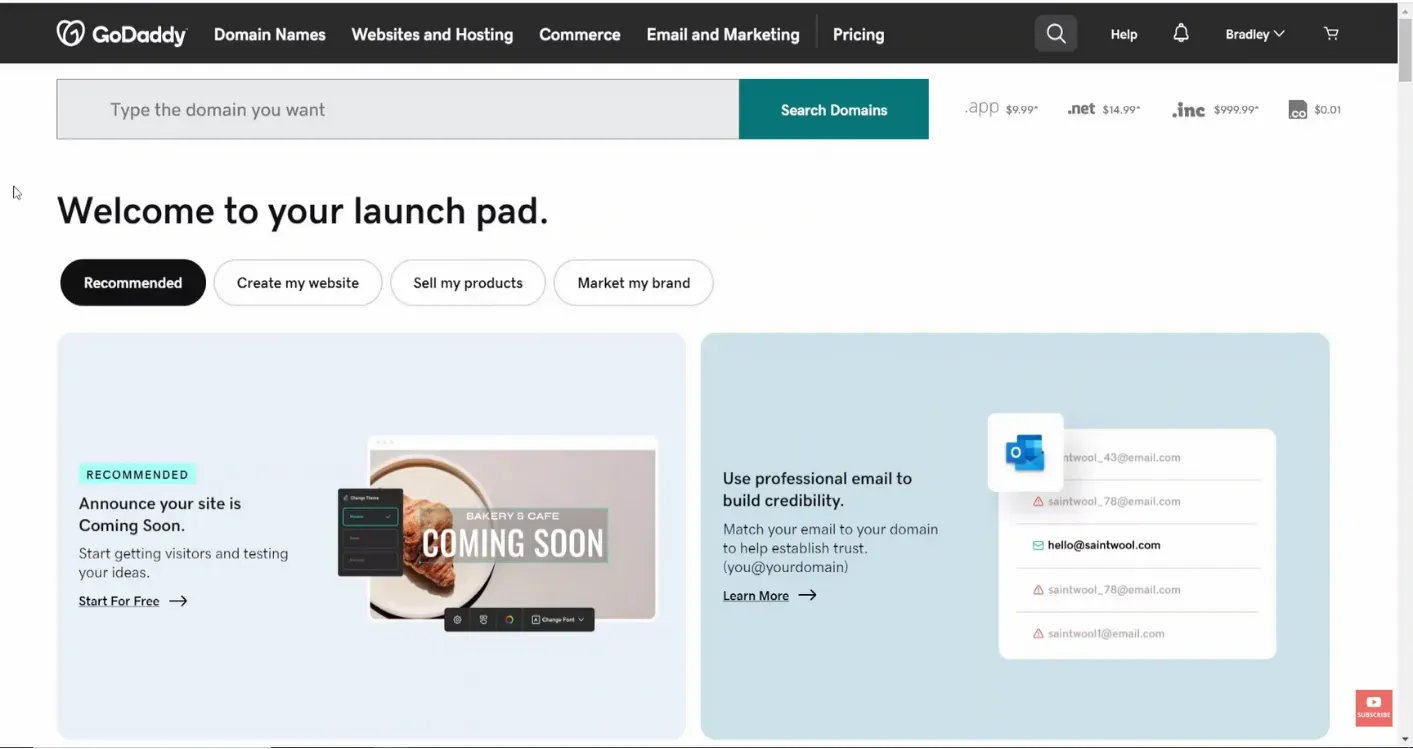
The GoDaddy home page after you sign in, with the account name at the top right. 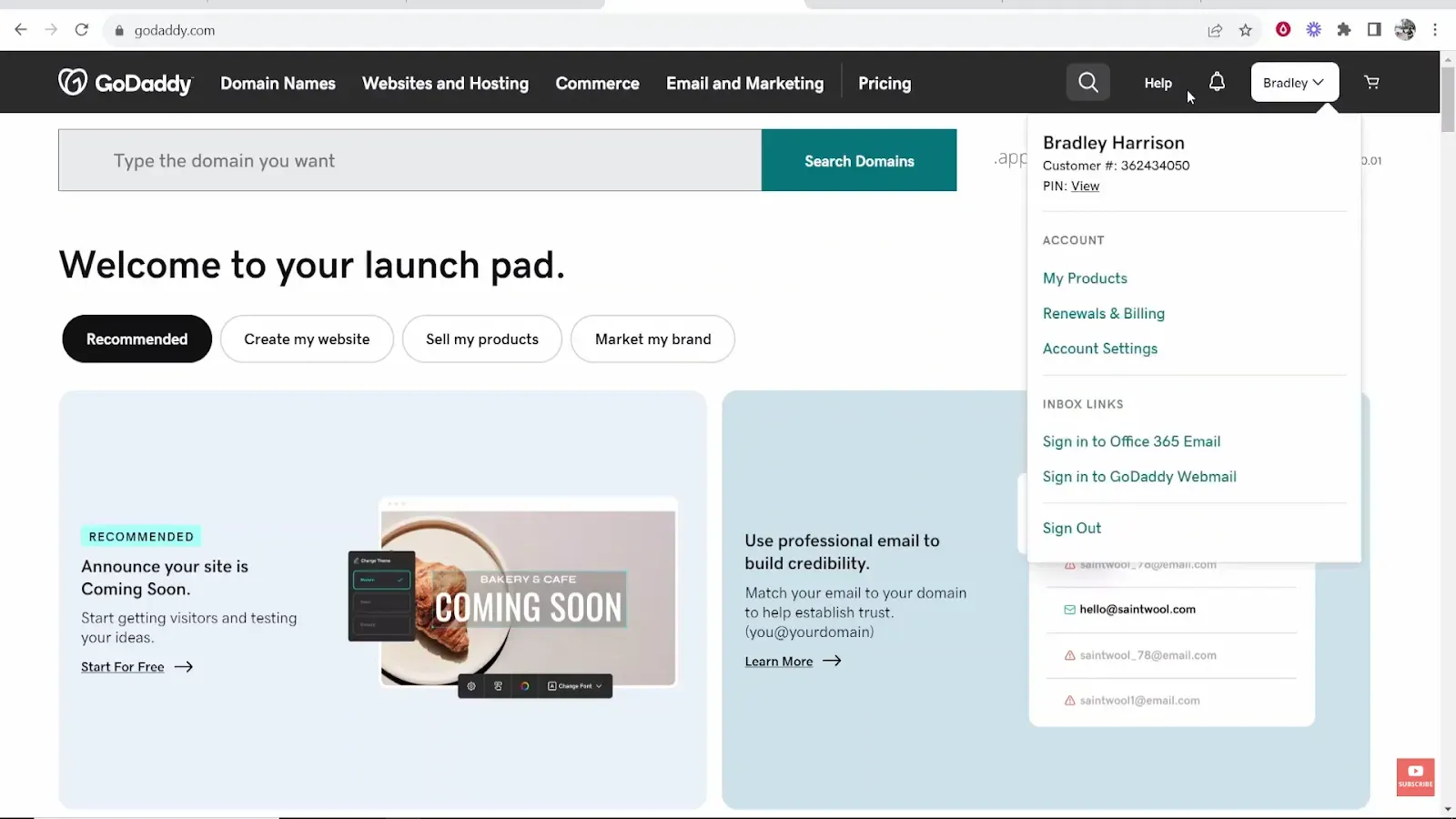
The account menu open, with My Products under Account. 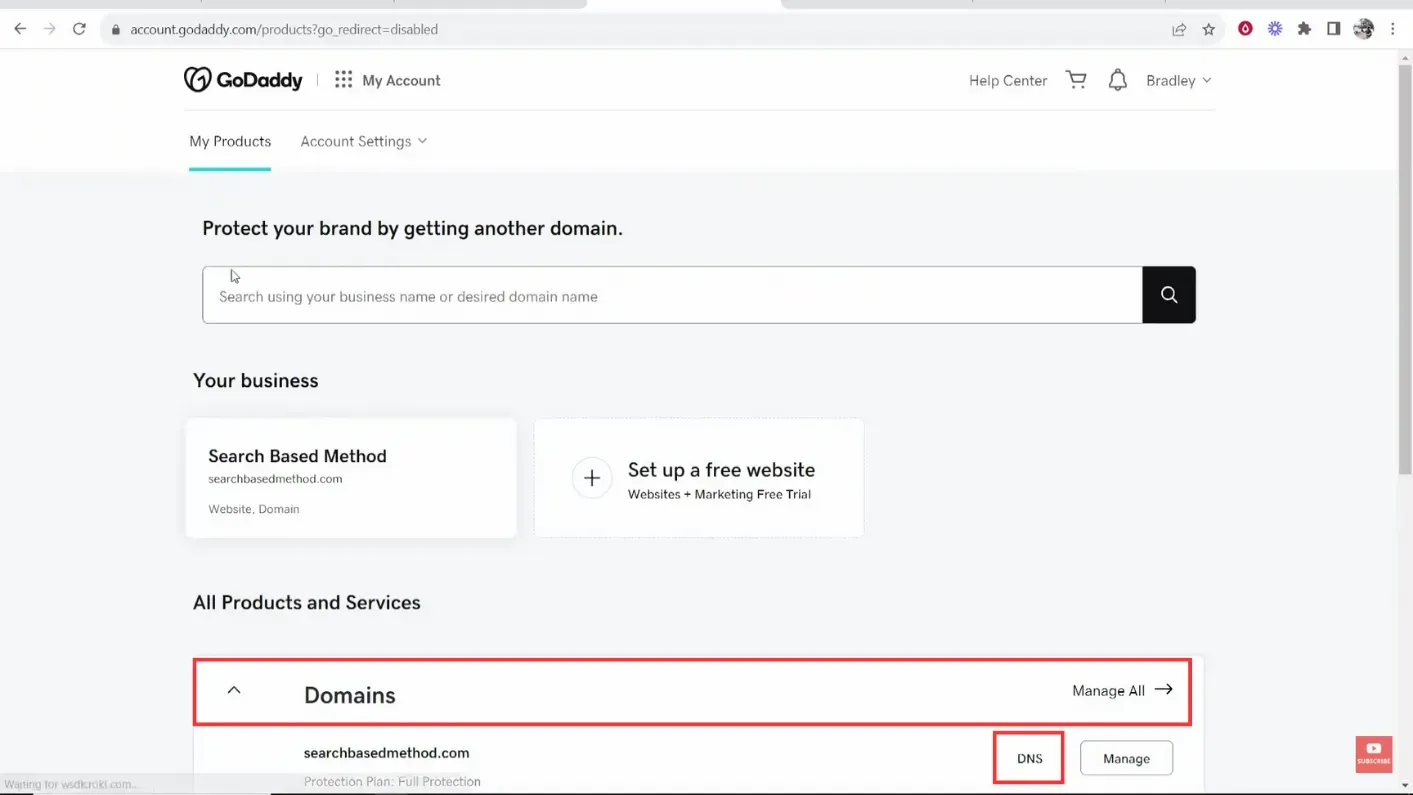
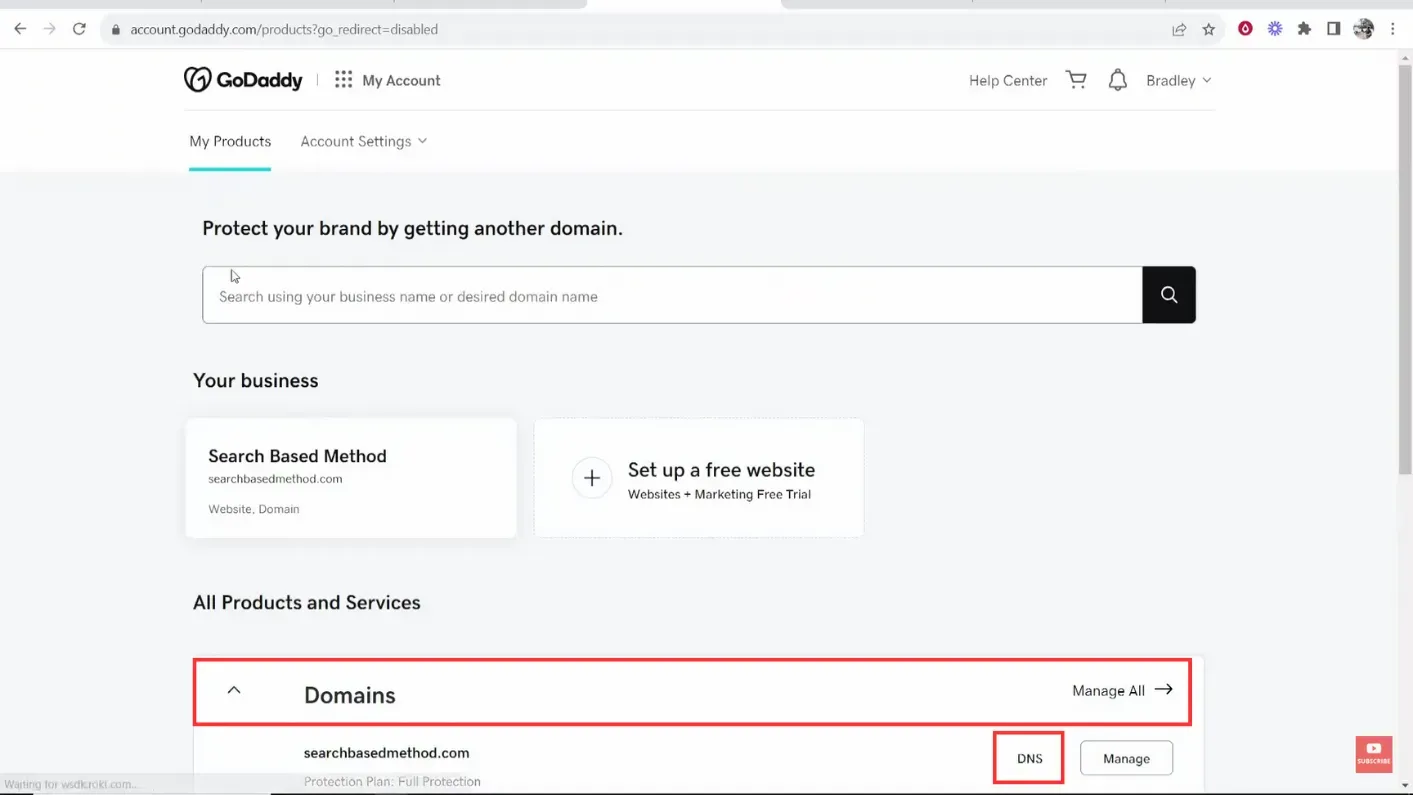
The Domains section of My Products, with the DNS link on the domain row. 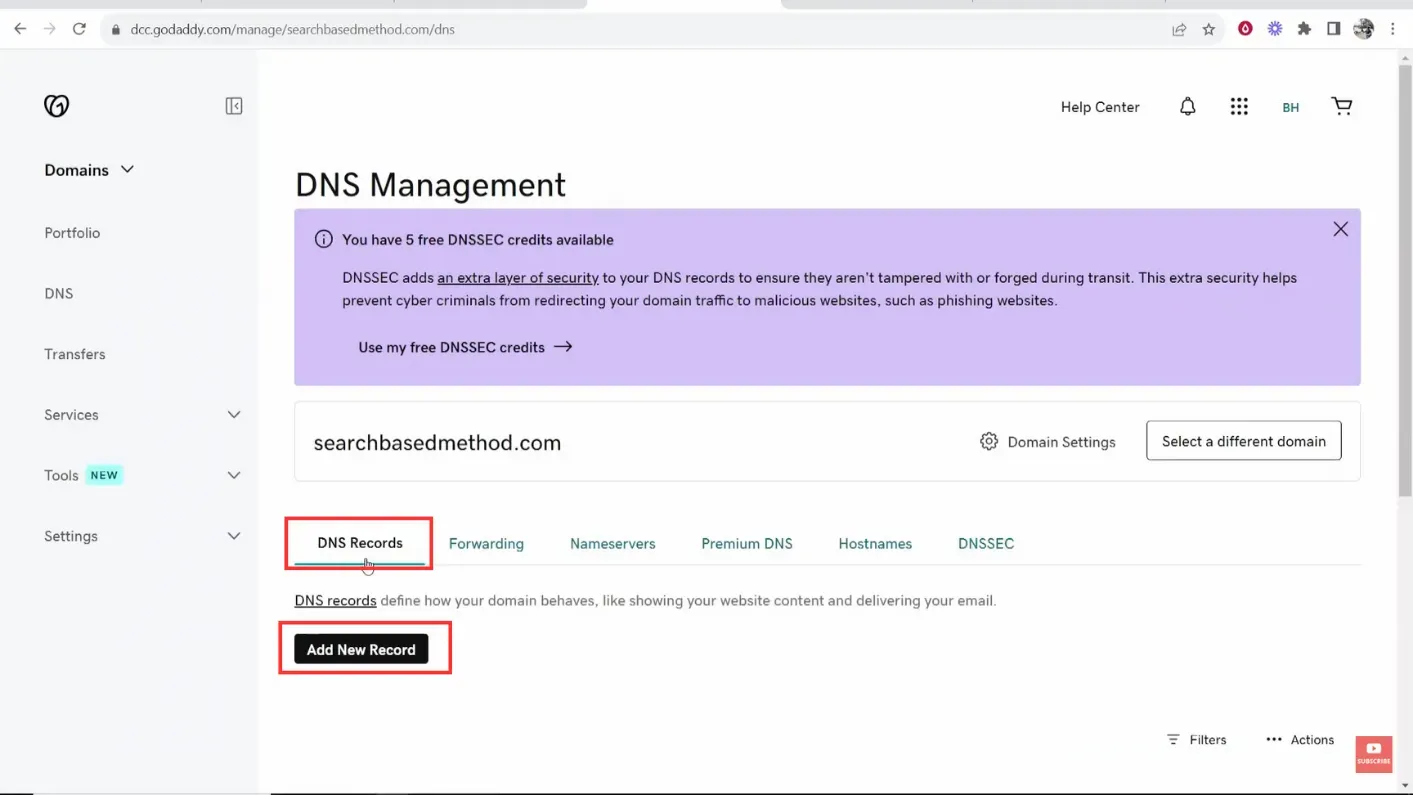
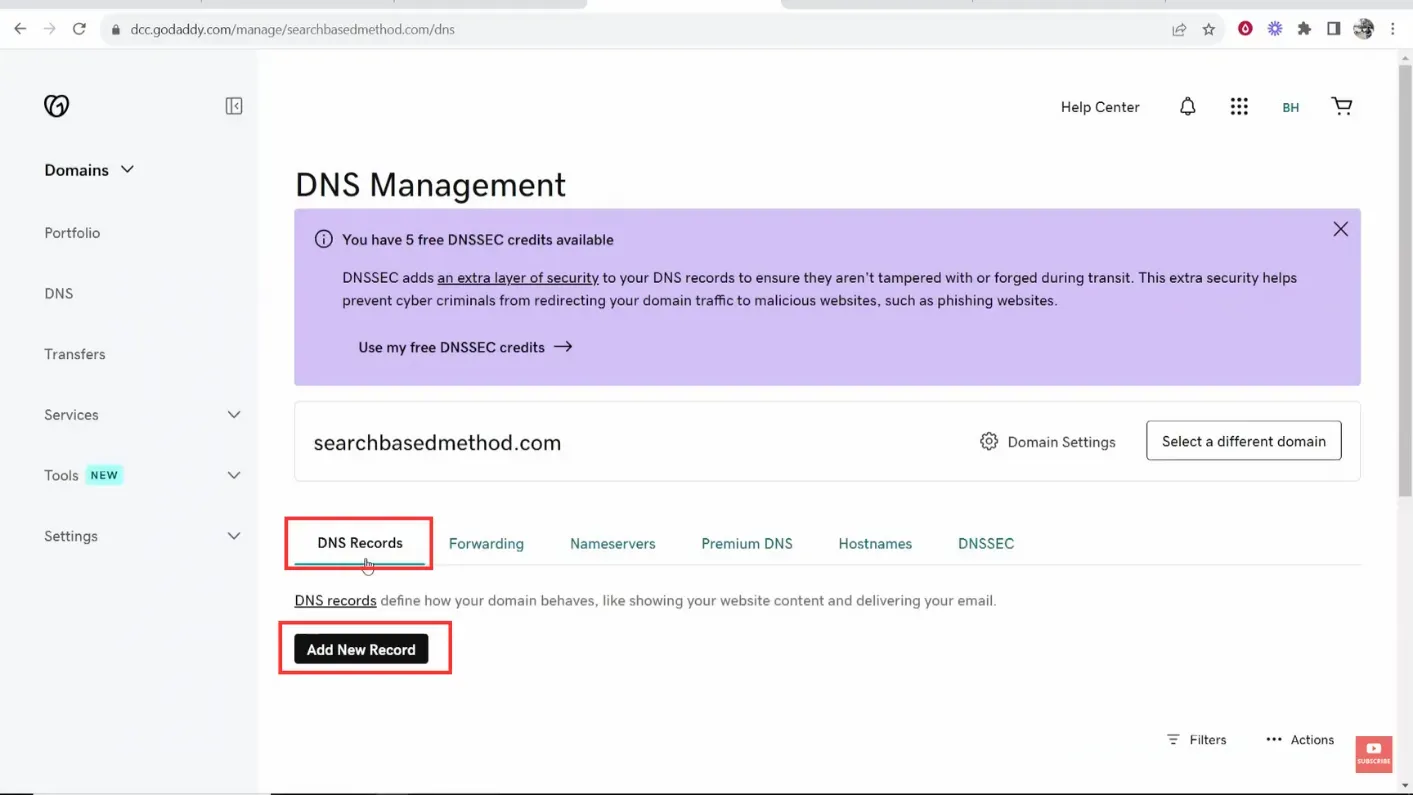
The DNS Records tab of DNS Management, with Add New Record below it. 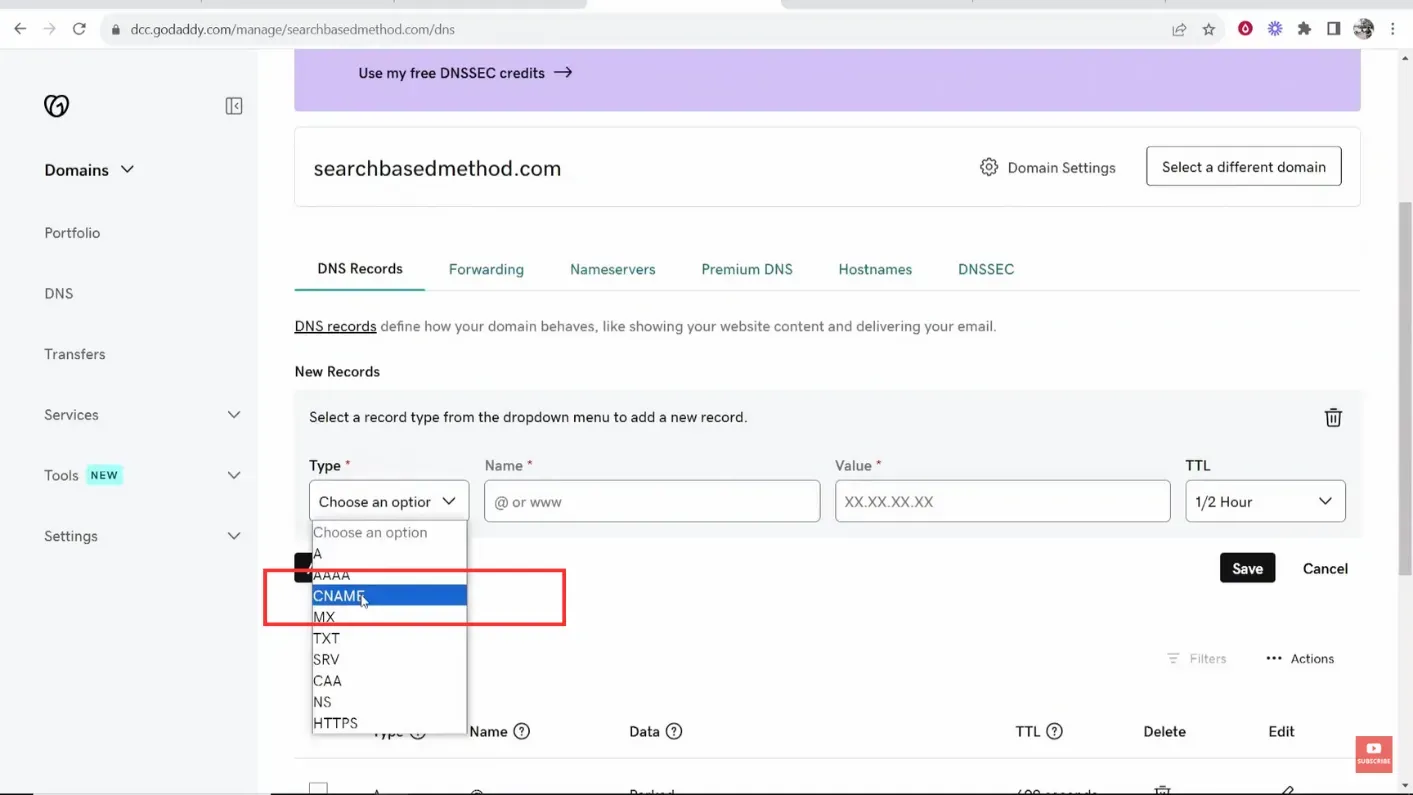
The Type list open on the new record row, with CNAME highlighted in the list. 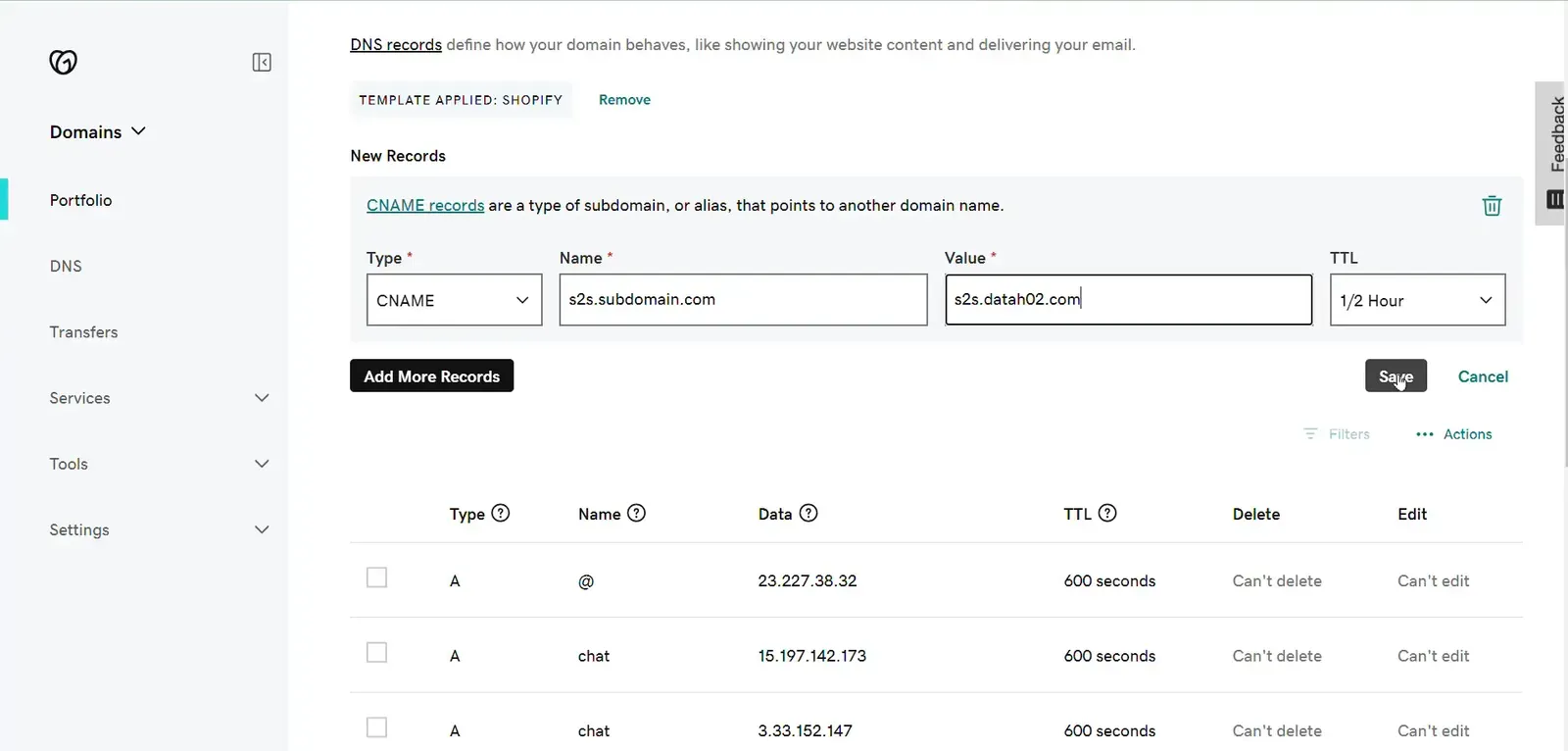
The CNAME row filled in, with the subdomain in Name, the Datahash value in Value, and Save to the right. 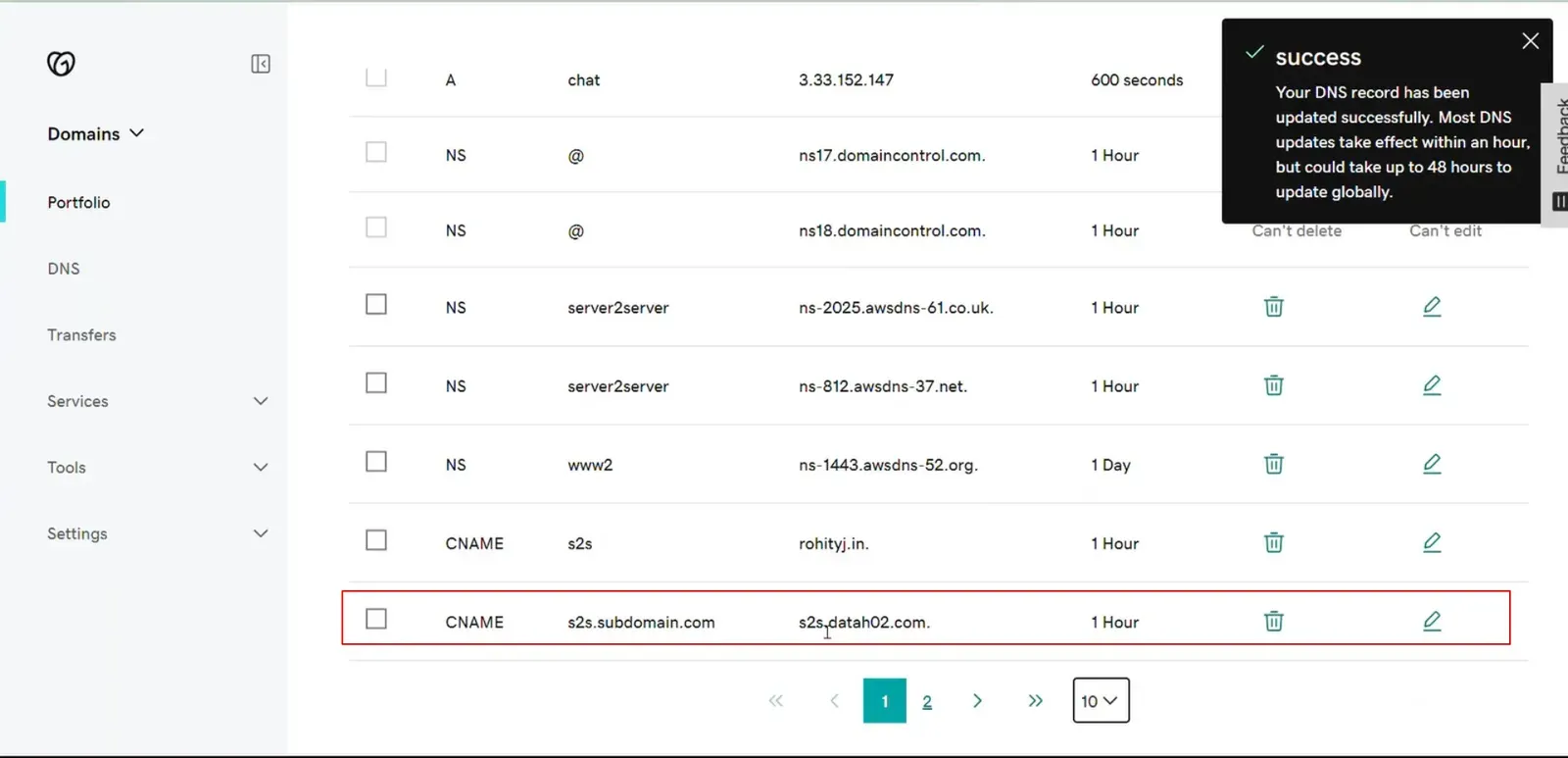
The saved CNAME in the records table, with the GoDaddy notice that the change can take up to 48 hours to update globally.
Worth knowing
Section titled “Worth knowing”GoDaddy states that a CNAME change can take up to 48 hours to update globally. This is the only propagation figure any registrar page gives, so treat it as GoDaddy’s own guidance rather than a general rule.