

Add DNS records at Domain.com
These are the steps for Domain.com. For what the records do and how to check the setup afterwards, see Subdomain setup.
Datahash tells you which record type to use and gives you the values. Follow the matching section below and enter the values you were given.
Both record types start the same way in Domain.com, so these screenshots cover either one.
Getting to the DNS records panel7 screenshots
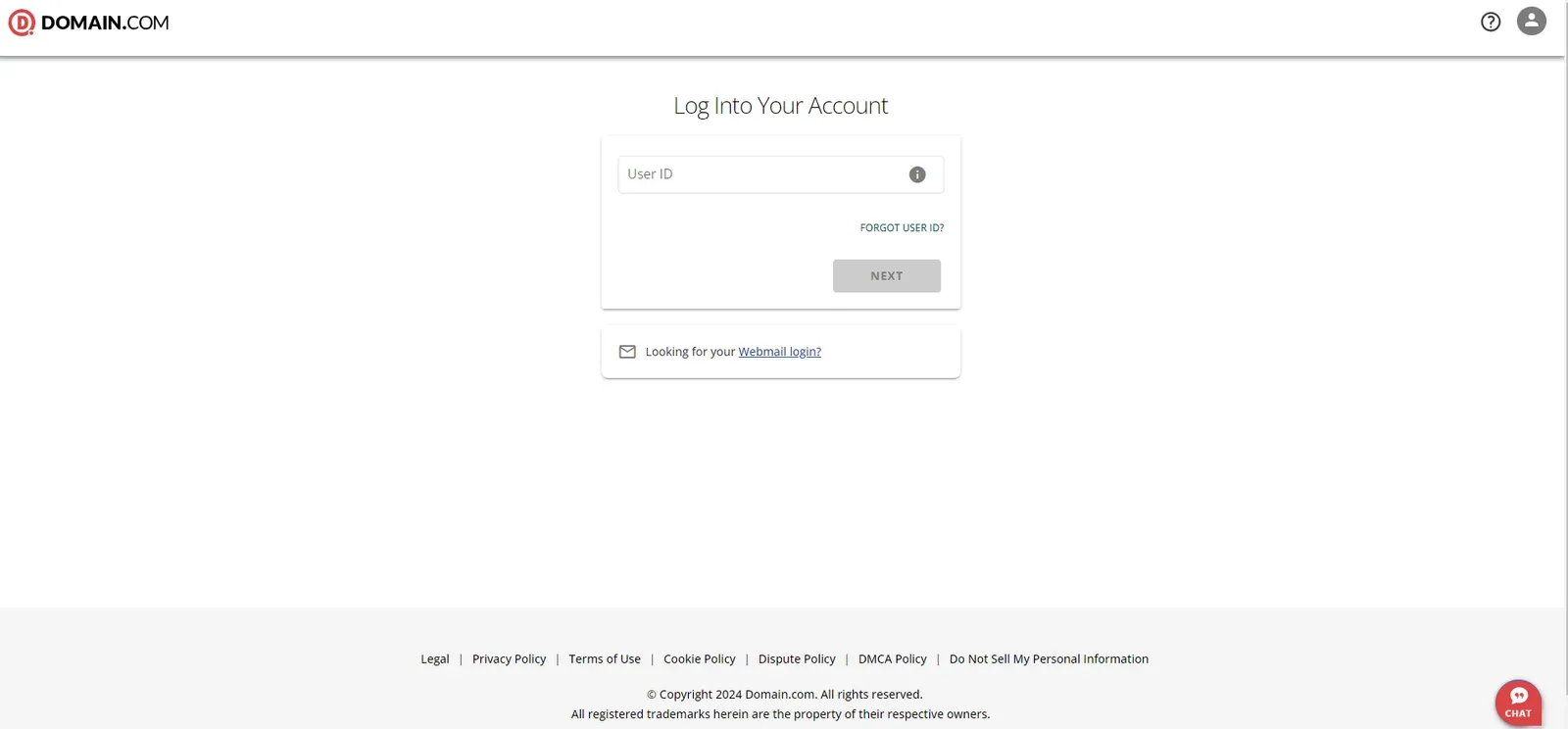
The Log Into Your Account screen, with the User ID field and Next button. 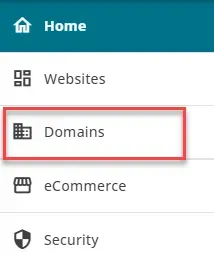
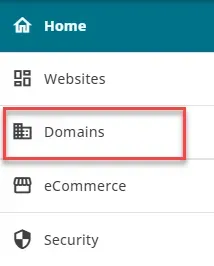
The Home menu in the left sidebar, with Domains highlighted below Websites. 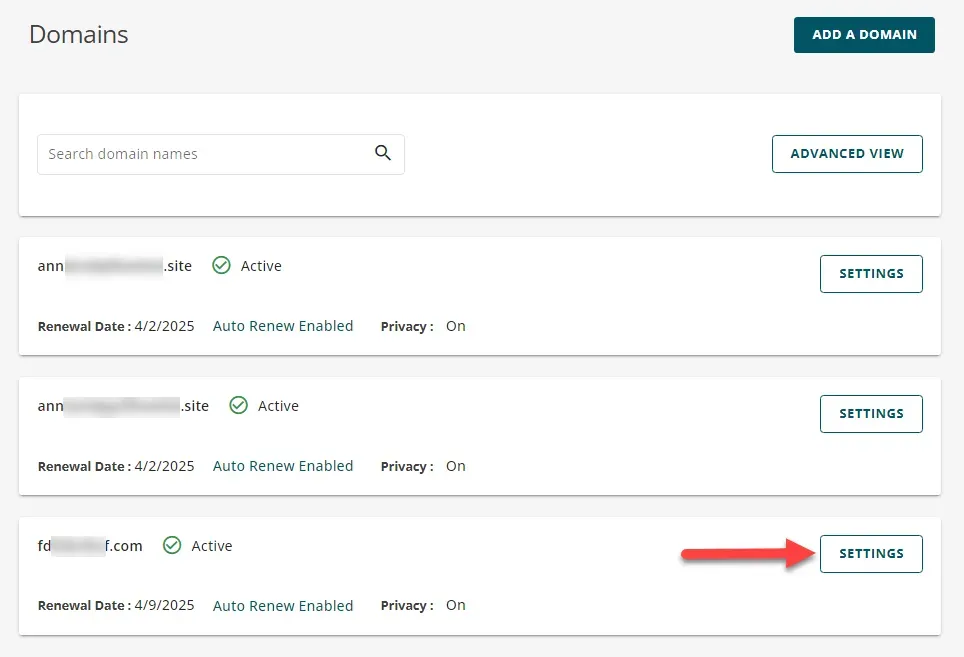
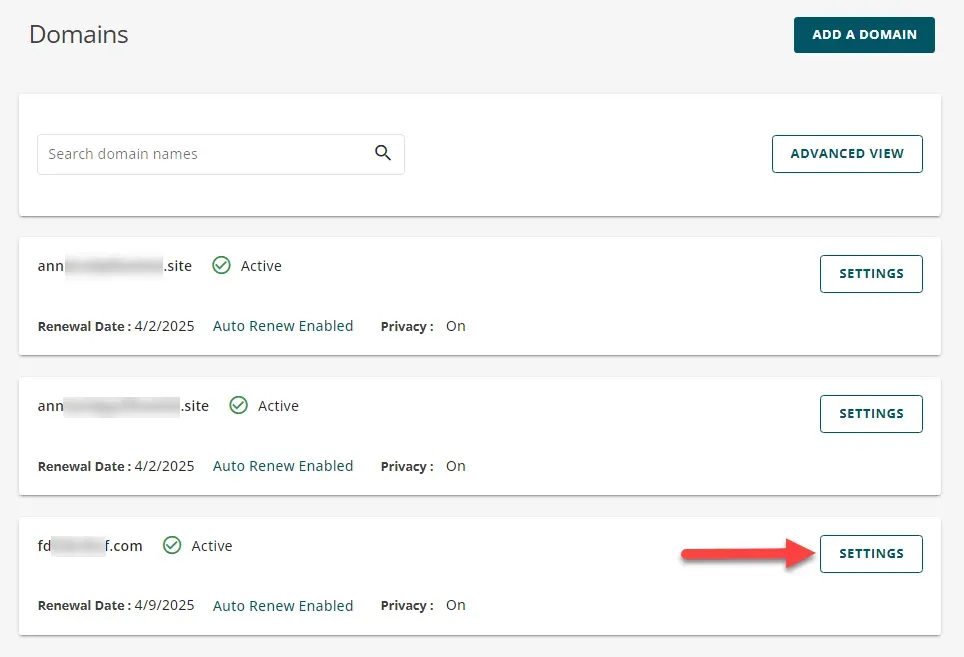
The Domains list, with Settings highlighted on the domain row. 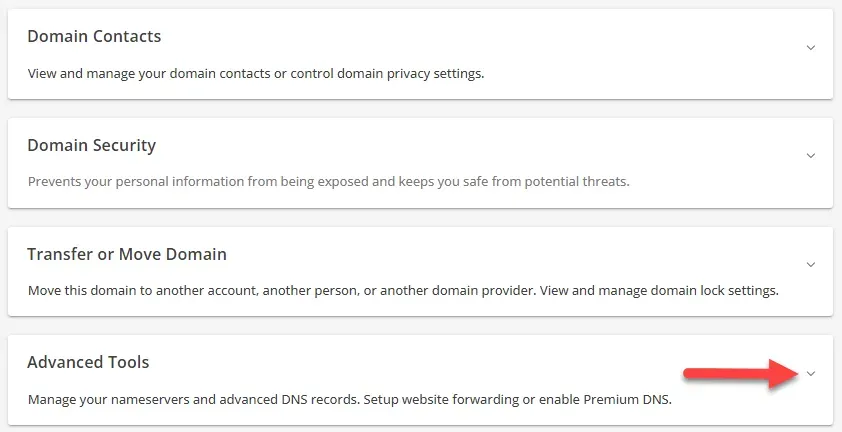
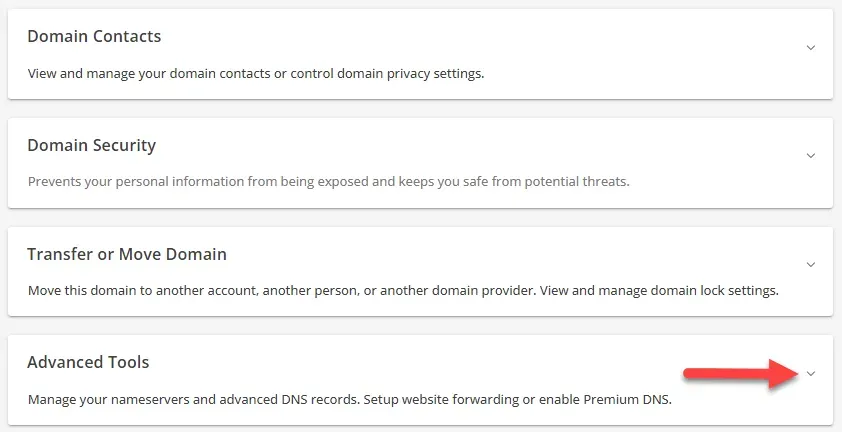
The domain settings page, with Advanced Tools highlighted among the expandable sections. 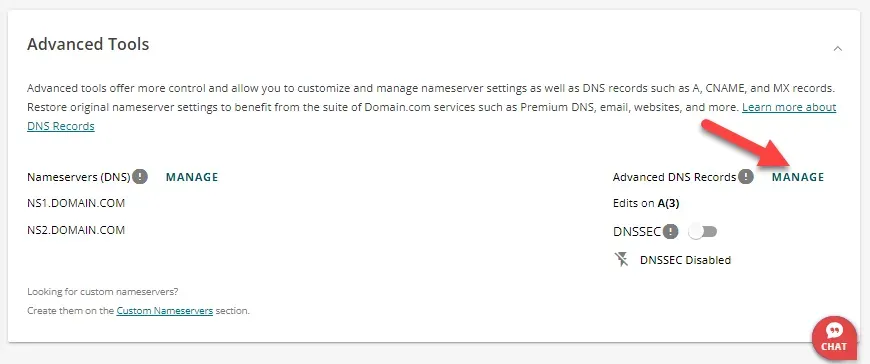
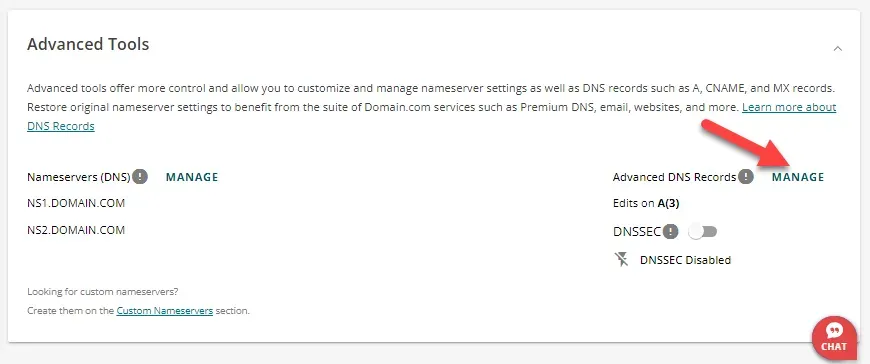
The Advanced Tools panel expanded, with Manage highlighted beside Advanced DNS Records. 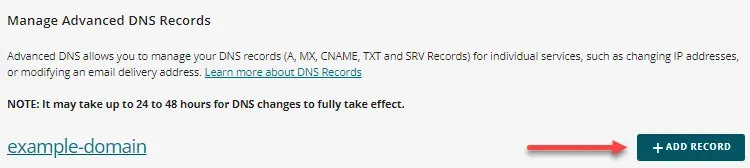
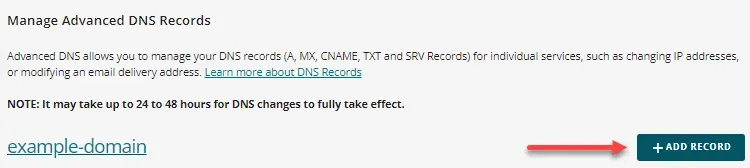
The Manage Advanced DNS Records page, with Add Record highlighted above the domain link. 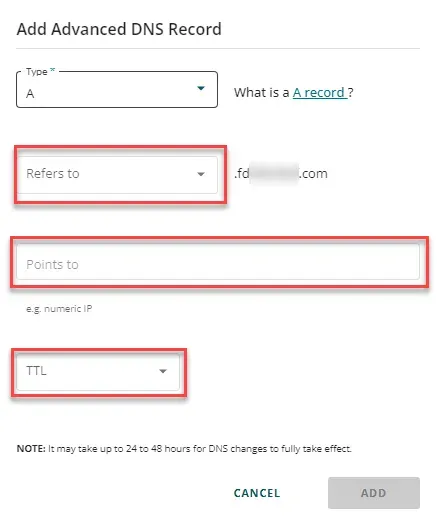
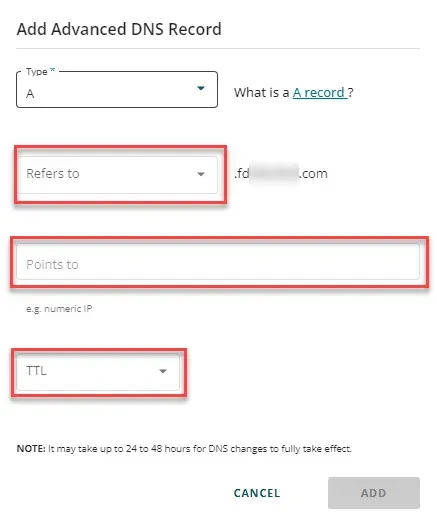
The Add Advanced DNS Record form set to A, with the Refers to, Points to and TTL fields boxed together.
Adding NS records
Section titled “Adding NS records”-
Sign in to Domain.com.
-
Select Domains from the menu on the left.
-
Click SETTINGS for the domain.
-
On the Domain information page, open the Advanced Tools dropdown and click Manage.
-
Click Manage beside Advanced DNS Records.
-
Click + ADD RECORD, choose NS as the type, enter one nameserver value, and click Add.
You will have been given four nameserver values. Repeat the last two steps until all four records exist. A delegation with one of the four missing looks complete in Advanced DNS Records and does not resolve.
Every screenshot for this record type is in Getting to the DNS records panel at the top of the page.
Adding a CNAME record
Section titled “Adding a CNAME record”-
Sign in to Domain.com and select Domains, then SETTINGS for the domain.
-
Open the Advanced Tools dropdown, click Manage, then Manage beside Advanced DNS Records.
-
Click + ADD RECORD, choose CNAME as the type, paste the value you were given, and click ADD.
Every screenshot for this record type is in Getting to the DNS records panel at the top of the page.