

Add DNS records at Network Solutions
These are the steps for Network Solutions. For what the records do and how to check the setup afterwards, see Subdomain setup.
Datahash tells you which record type to use and gives you the values. Follow the matching section below and enter the values you were given.
Adding NS records
Section titled “Adding NS records”-
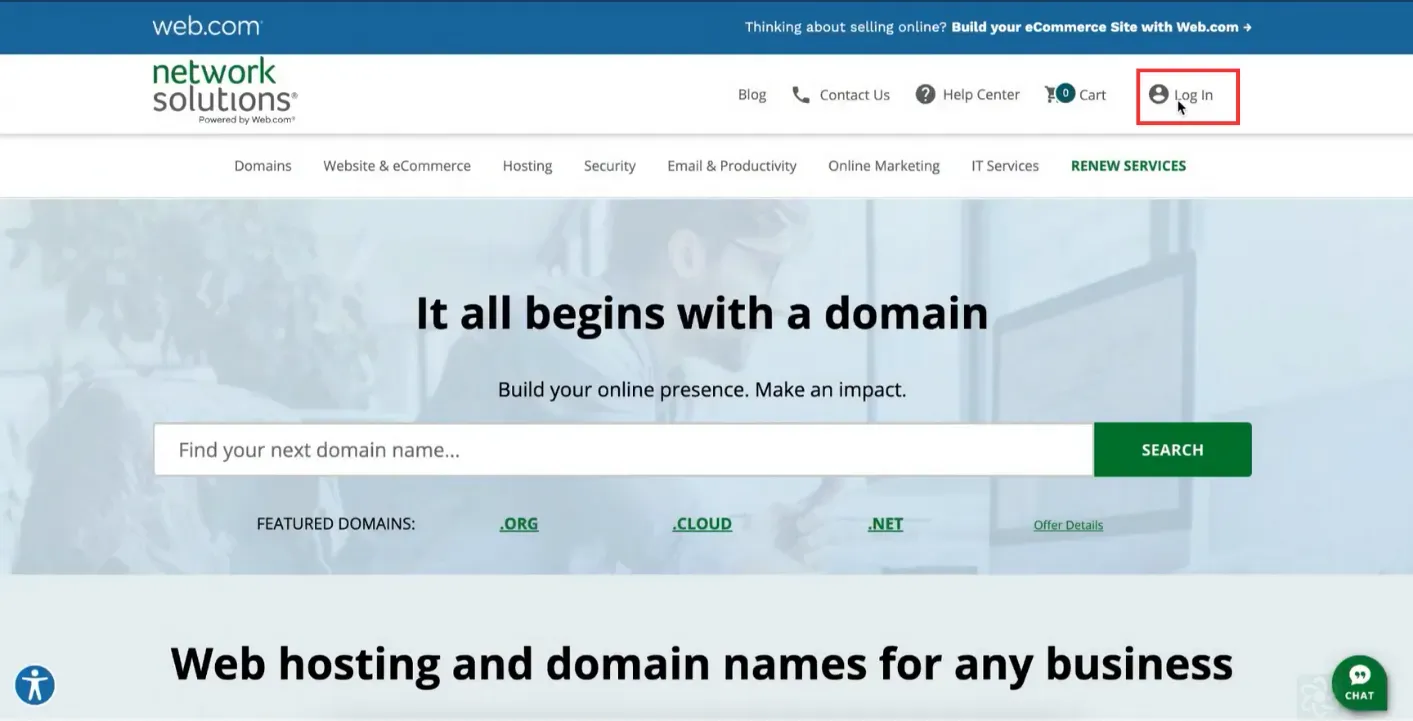
Sign in to Network Solutions.
-
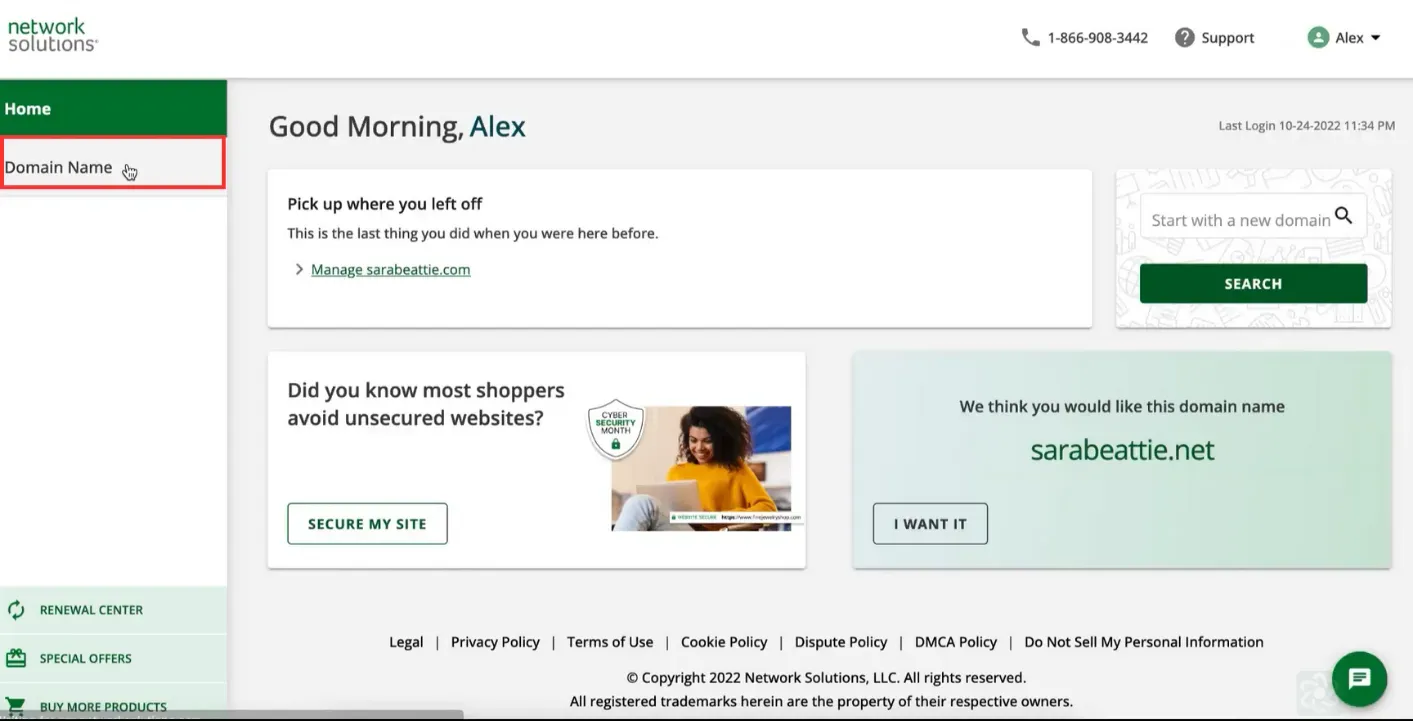
Go to Domain Name.
-
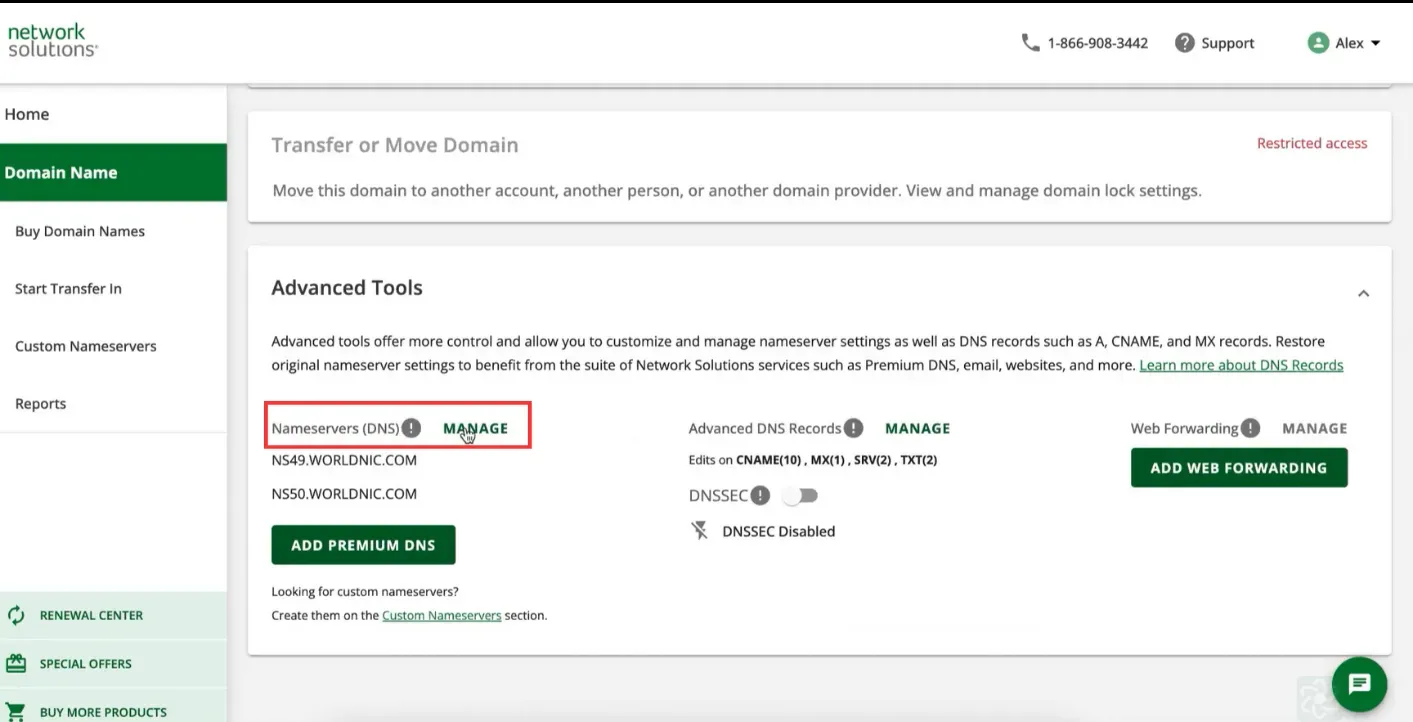
Click Manage under Advanced Tools.
-
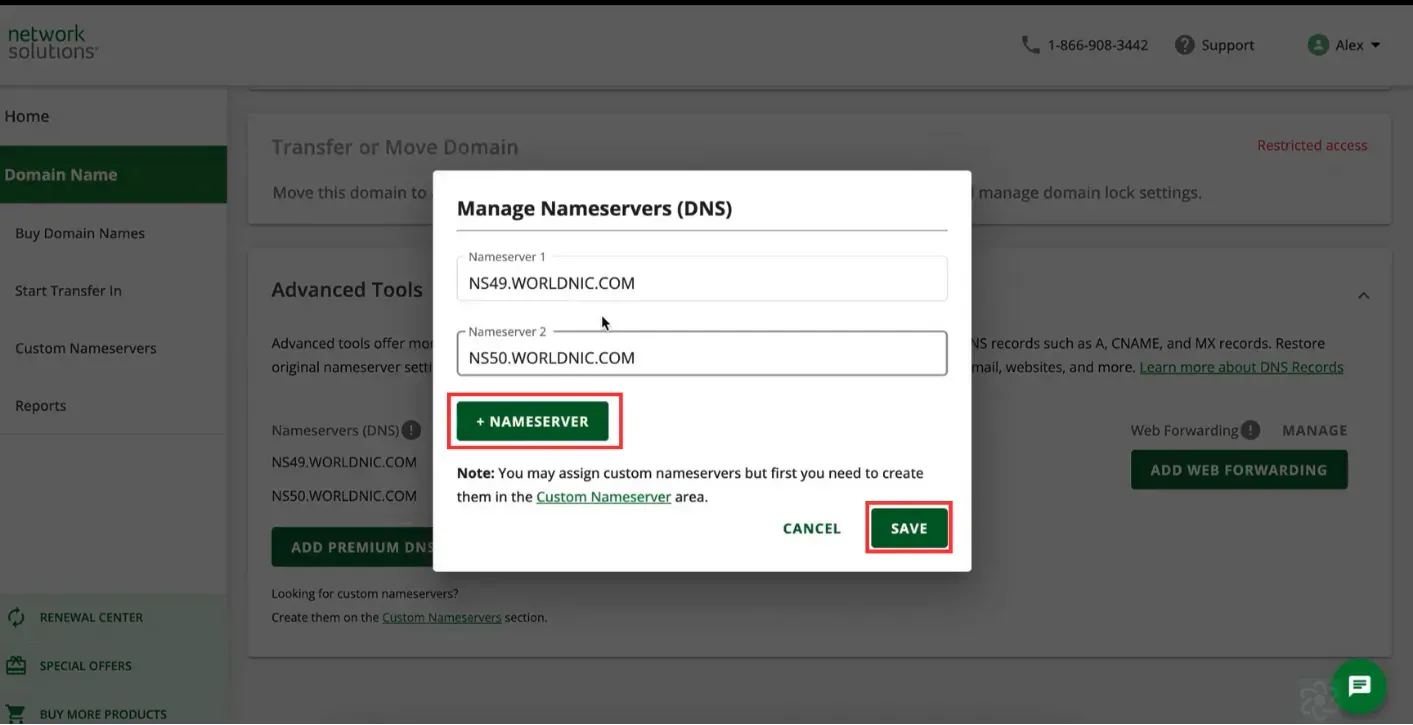
Click the +Nameserver button, enter one nameserver value, and click Save.
You will have been given four nameserver values. Repeat the last two steps until all four records exist. A delegation with one of the four missing looks complete under Advanced Tools and does not resolve.
NS record walkthrough4 screenshots
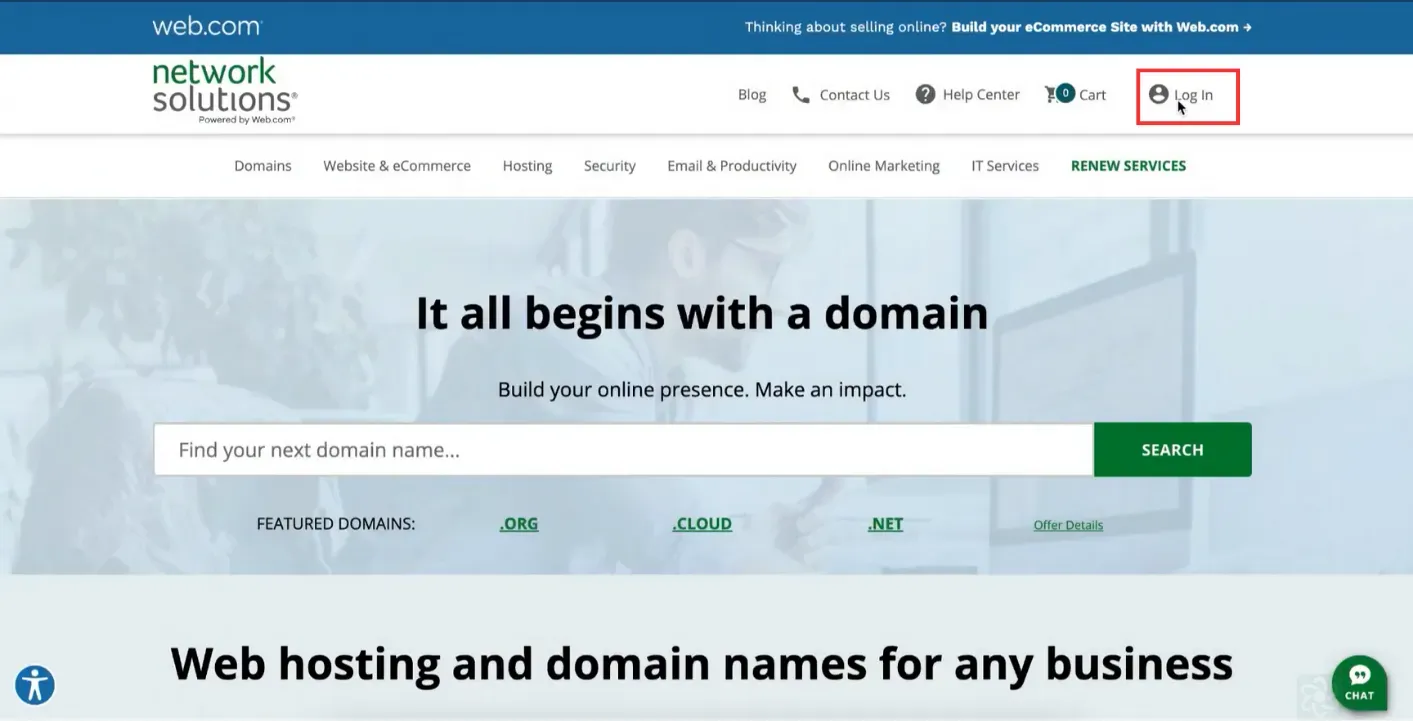
The Network Solutions home page, with Log In boxed at the top right. 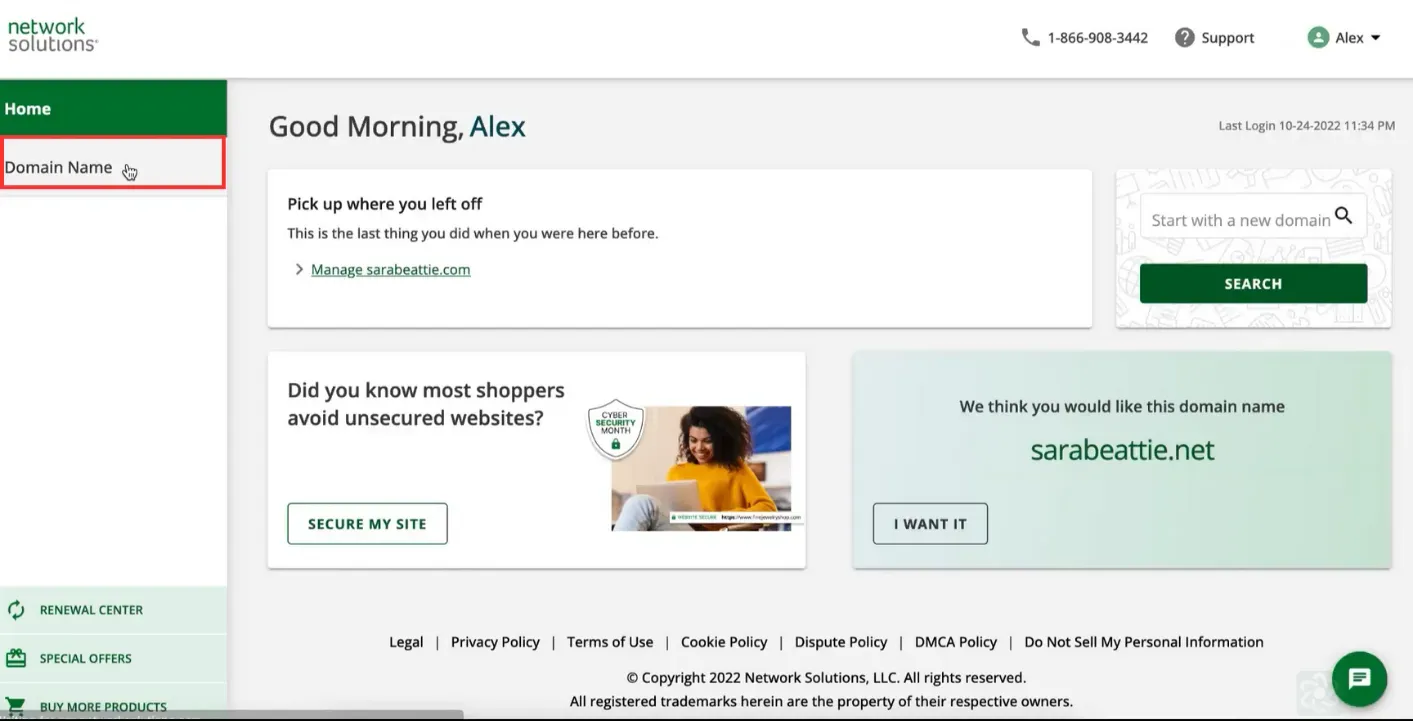
The signed-in account home page, with Domain Name boxed in the left sidebar. 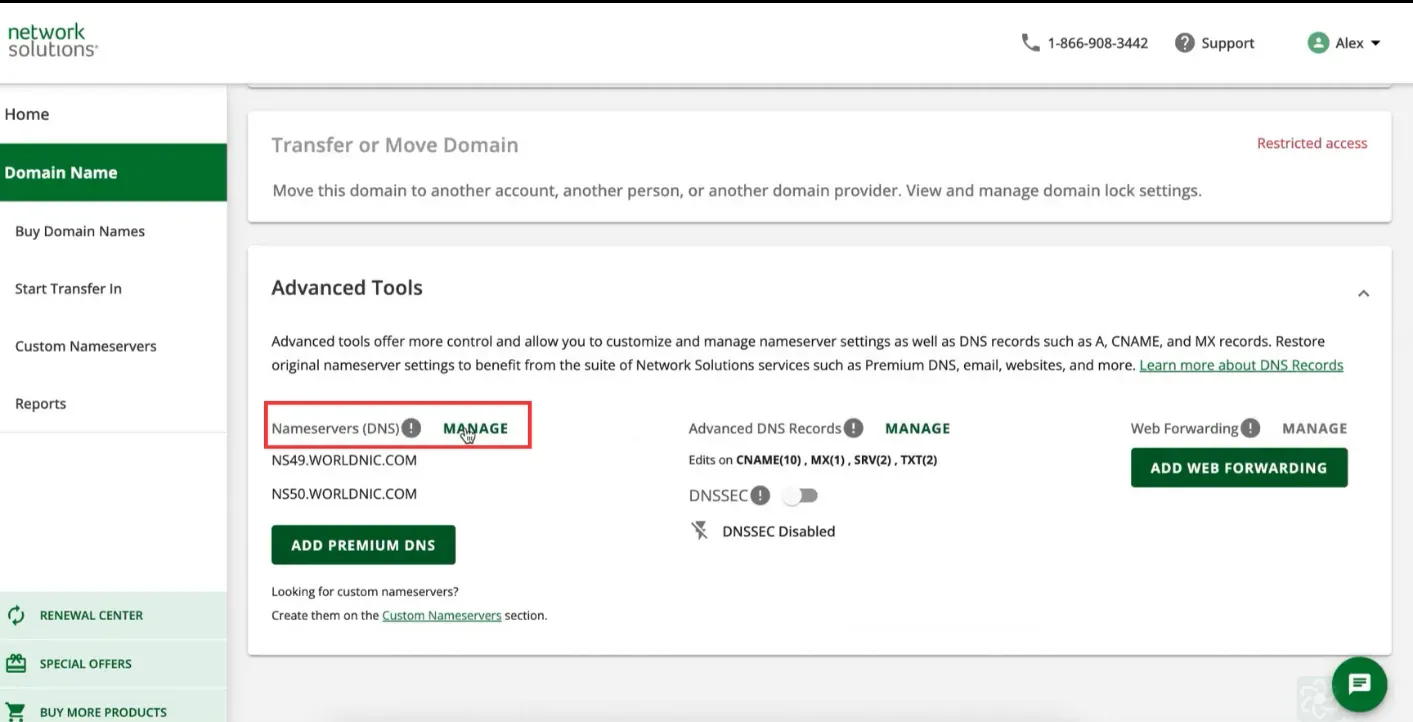
The domain page under Advanced Tools, with the Nameservers (DNS) Manage link boxed. 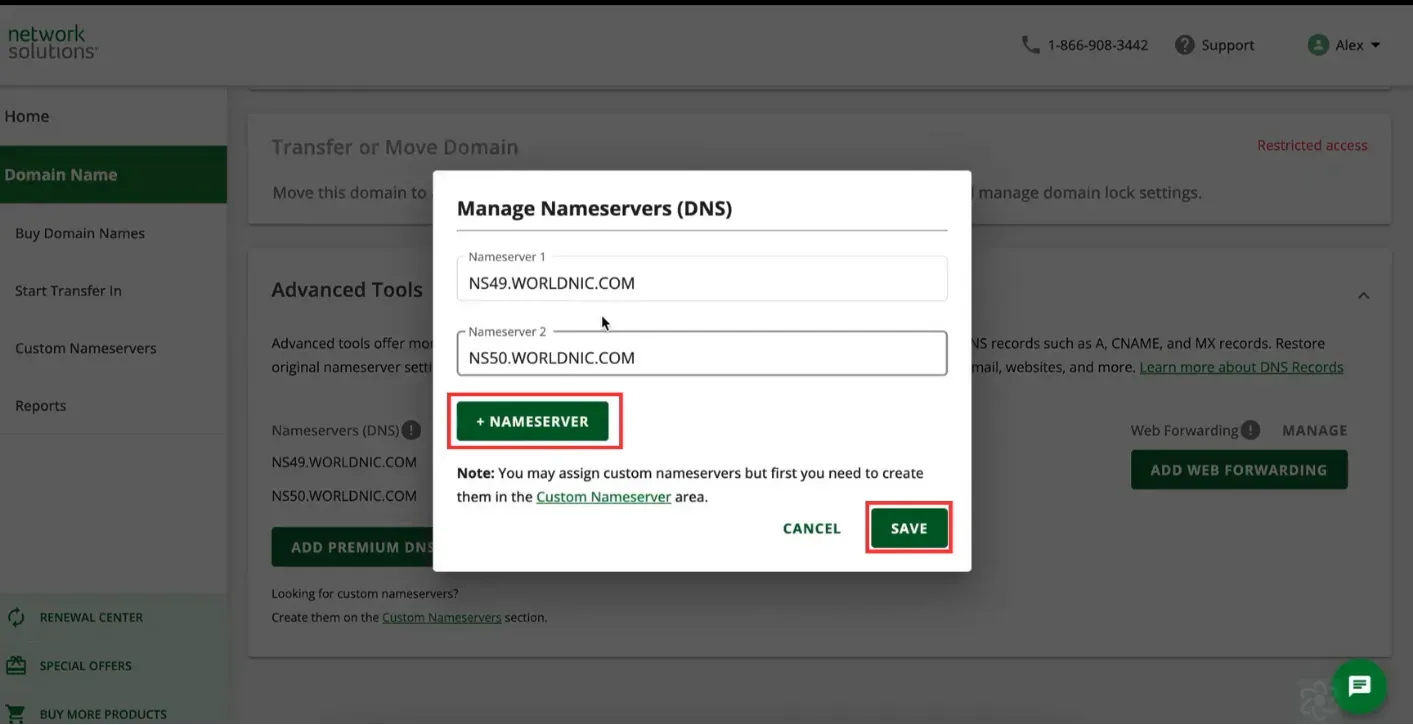
The Manage Nameservers dialog, with the + Nameserver and Save buttons boxed.
Adding a CNAME record
Section titled “Adding a CNAME record”-
Sign in to Network Solutions and click Domain Name.
-
Scroll to Advanced tools and open the dropdown.
-
Click Manage beside Advanced DNS Records.
-
Choose CNAME as the type, paste the value you were given, and click Add.
CNAME record walkthrough4 screenshots
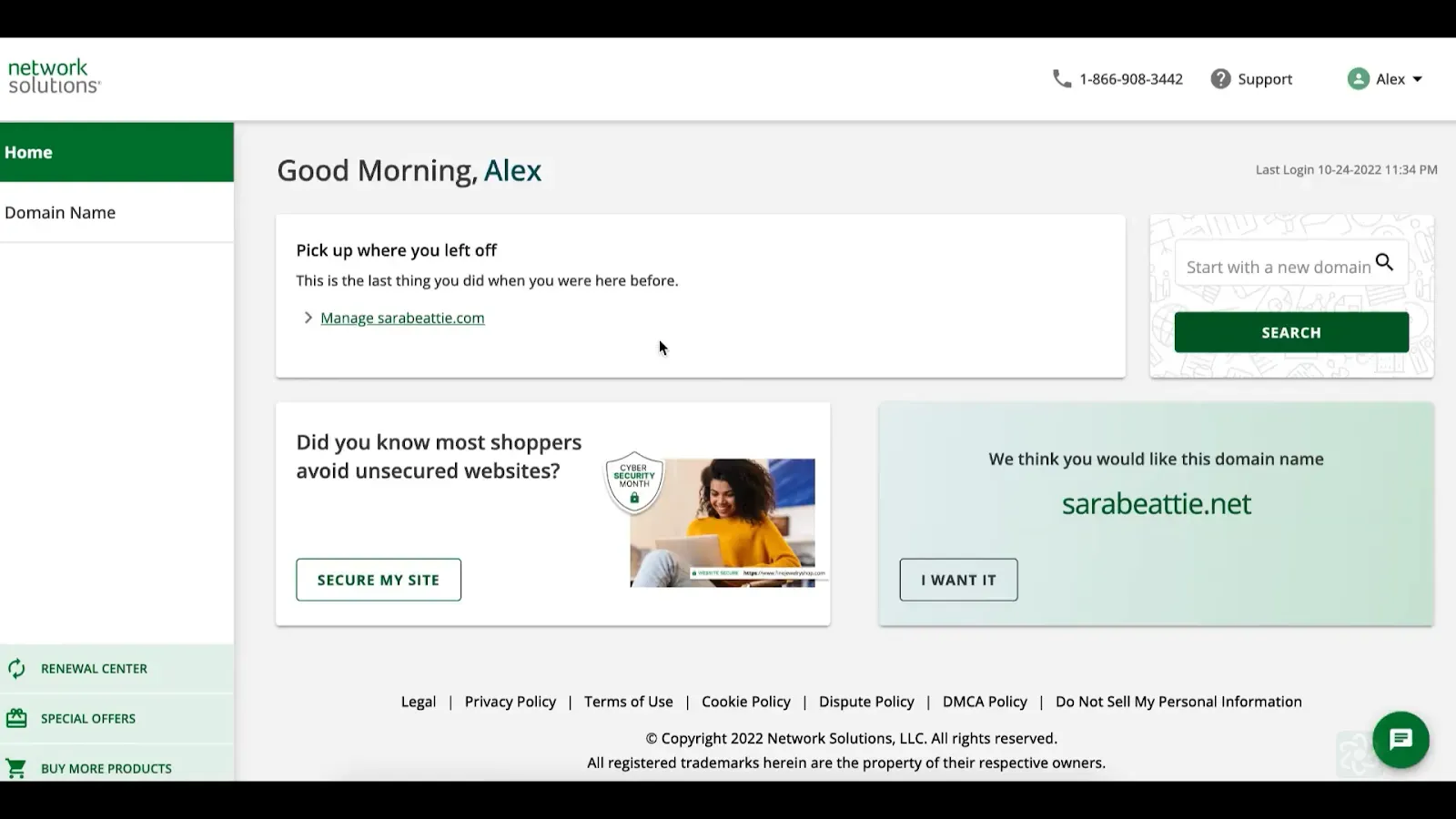
The signed-in account home page, with Domain Name in the left sidebar. 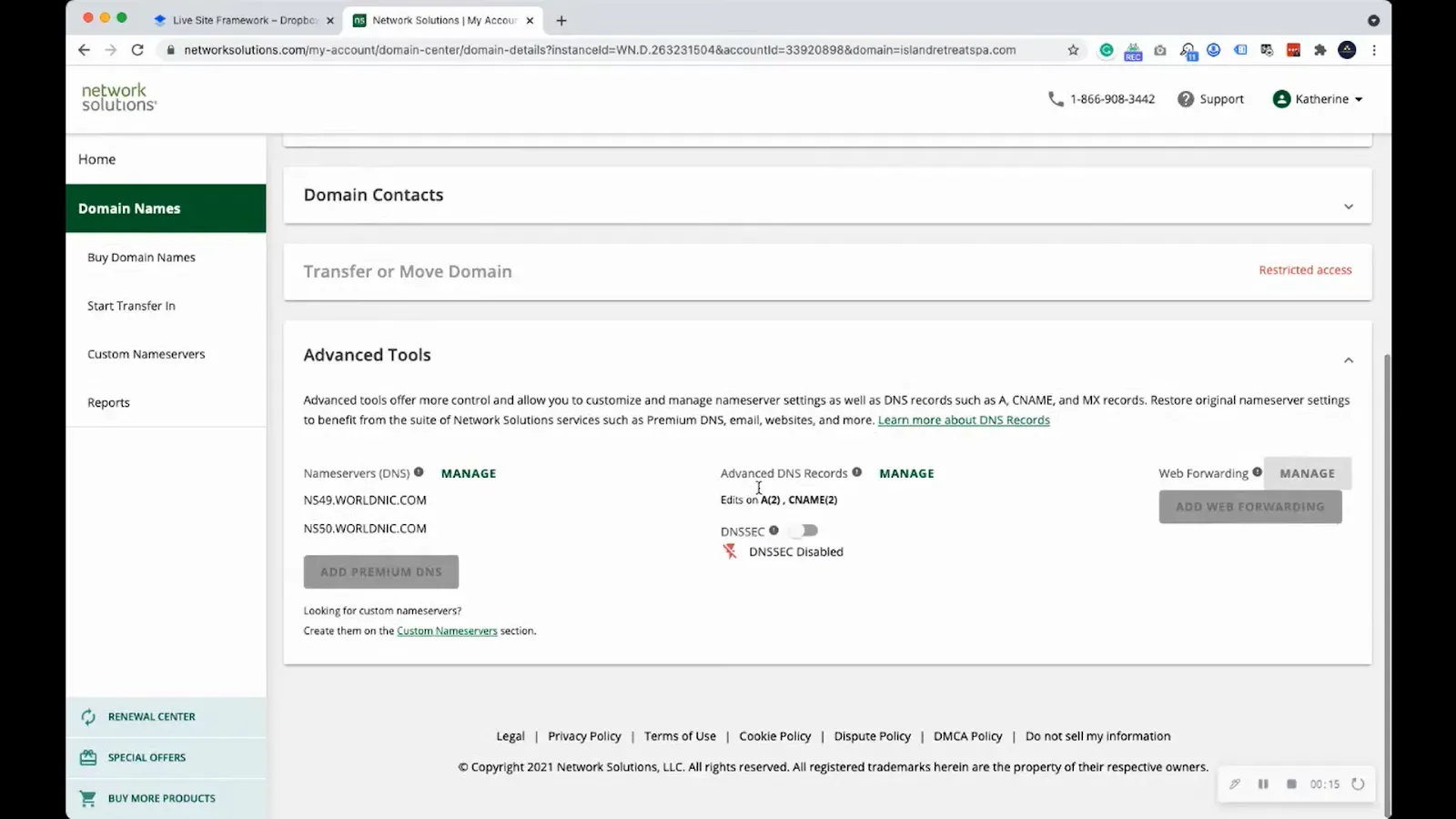
The domain page under Advanced Tools, with Advanced DNS Records and its Manage link. 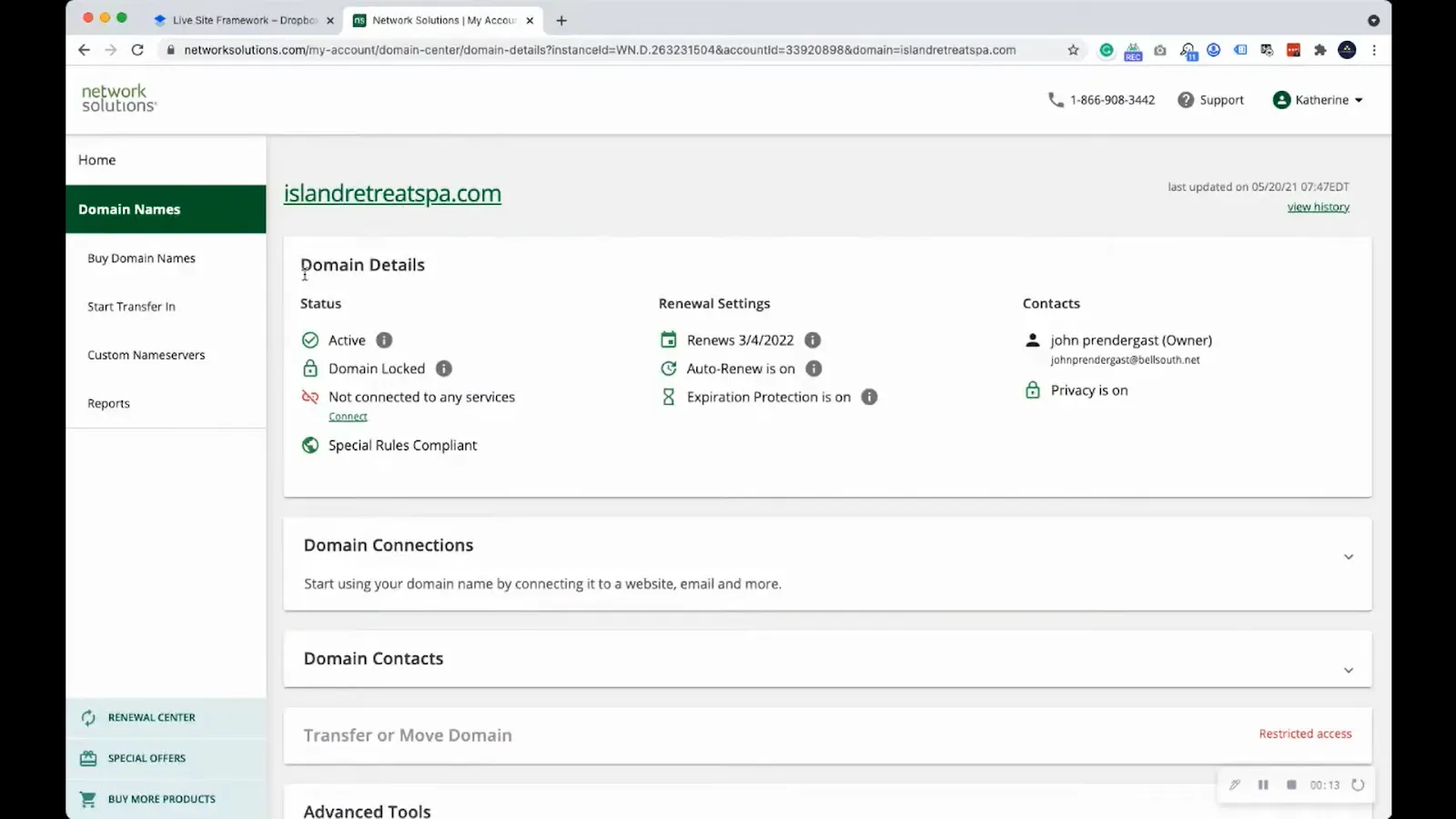
The domain overview page, with Advanced Tools listed near the bottom of the page. 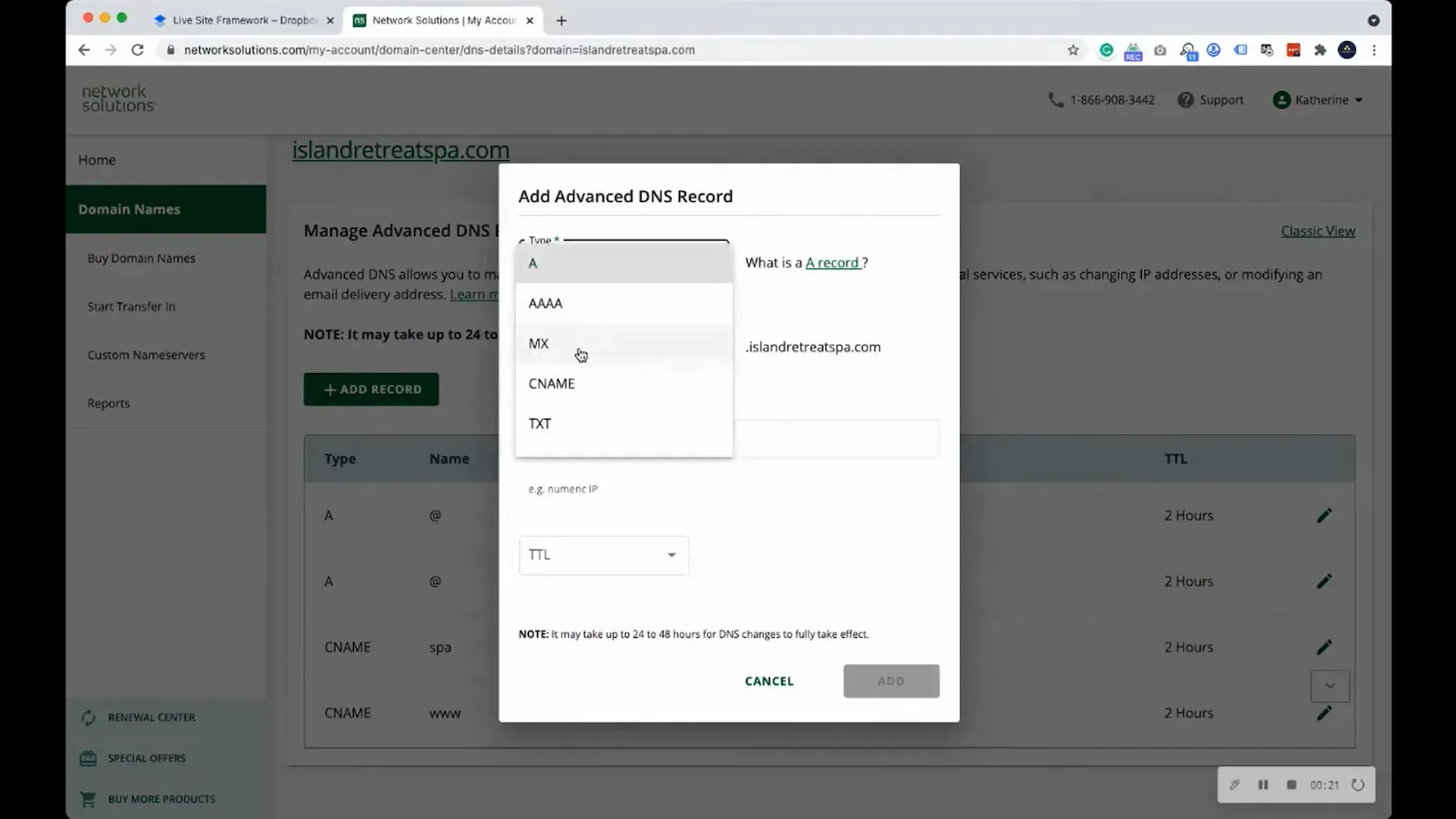
The Add Advanced DNS Record dialog, with the Type dropdown open and CNAME listed among the record types.