

Meta Signals Gateway
The Signals Gateway is Meta’s first-party data platform, hosted by Datahash. It collects interactions on your website through its own pixel and forwards them to Meta for use in campaigns.
Before you start
Section titled “Before you start”- Full access to the Meta business portfolio. Partial access fails partway through the permission grant, after you have already authenticated.
- Pop-ups enabled in your browser. Authentication opens in a pop-up, and a blocker stops the flow without reporting an error.
- A Google Tag Manager account, if you plan to install the pixel through GTM rather than editing your site directly.
- Access to your DNS records, if you plan to set up a first-party subdomain. That step is optional.
Set up the CAPI destination dataset
Section titled “Set up the CAPI destination dataset”There are two ways in.
From Meta Events Manager
Section titled “From Meta Events Manager”-
Open Meta Events Manager. You can also reach it from Meta Business Manager or Business Suite.
-
Select the data source you want the Signals Gateway for.
-
Open Settings on that data source and scroll to the Conversions API section.
-
Under Signals Gateway, choose Host with a Partner and select Datahash.
-
Follow the prompts and select Claim the Account. Meta redirects you to Datahash.
-
Sign in with your email.
You land on pixel connection with the dataset already selected. Continue at Subdomain setup.
Starting from Meta Events Manager7 screenshots
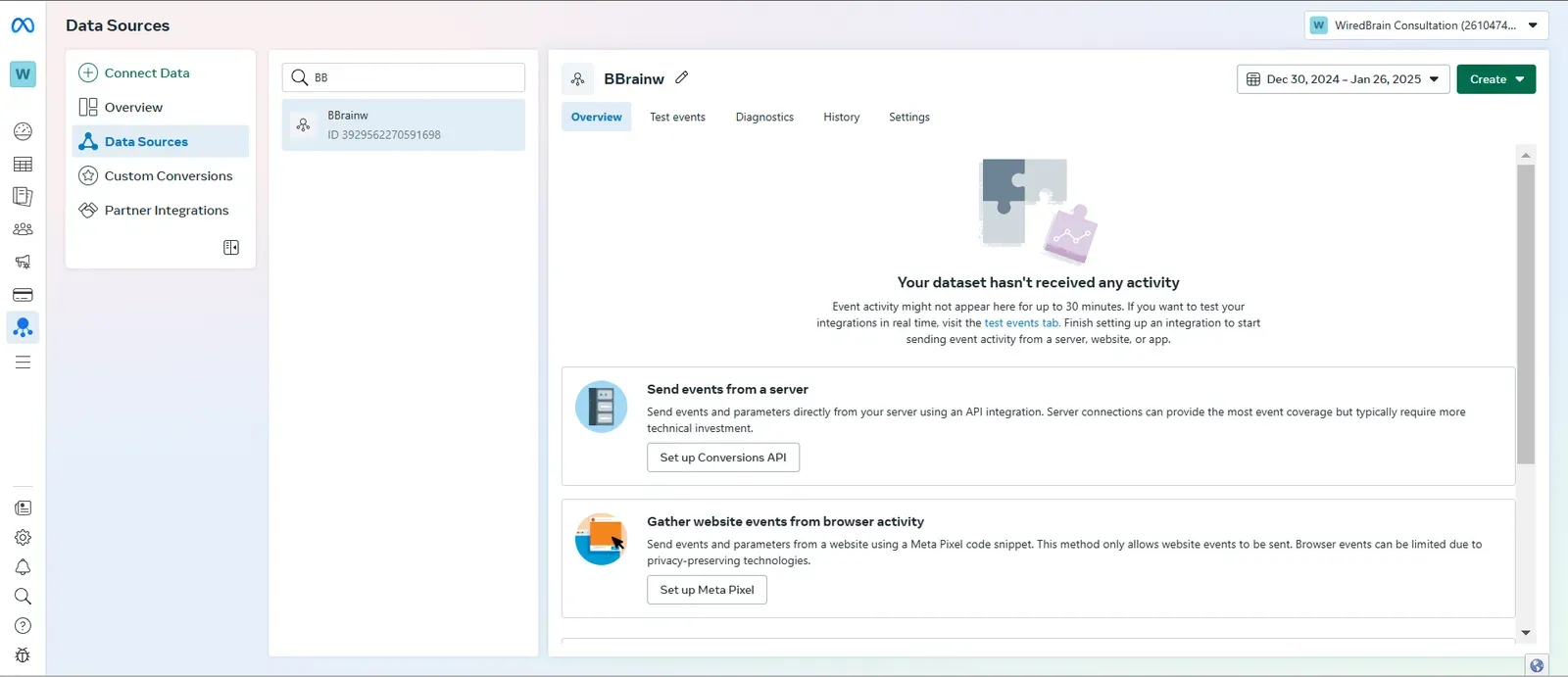
A data source's Overview tab in Meta Events Manager, with the source list open 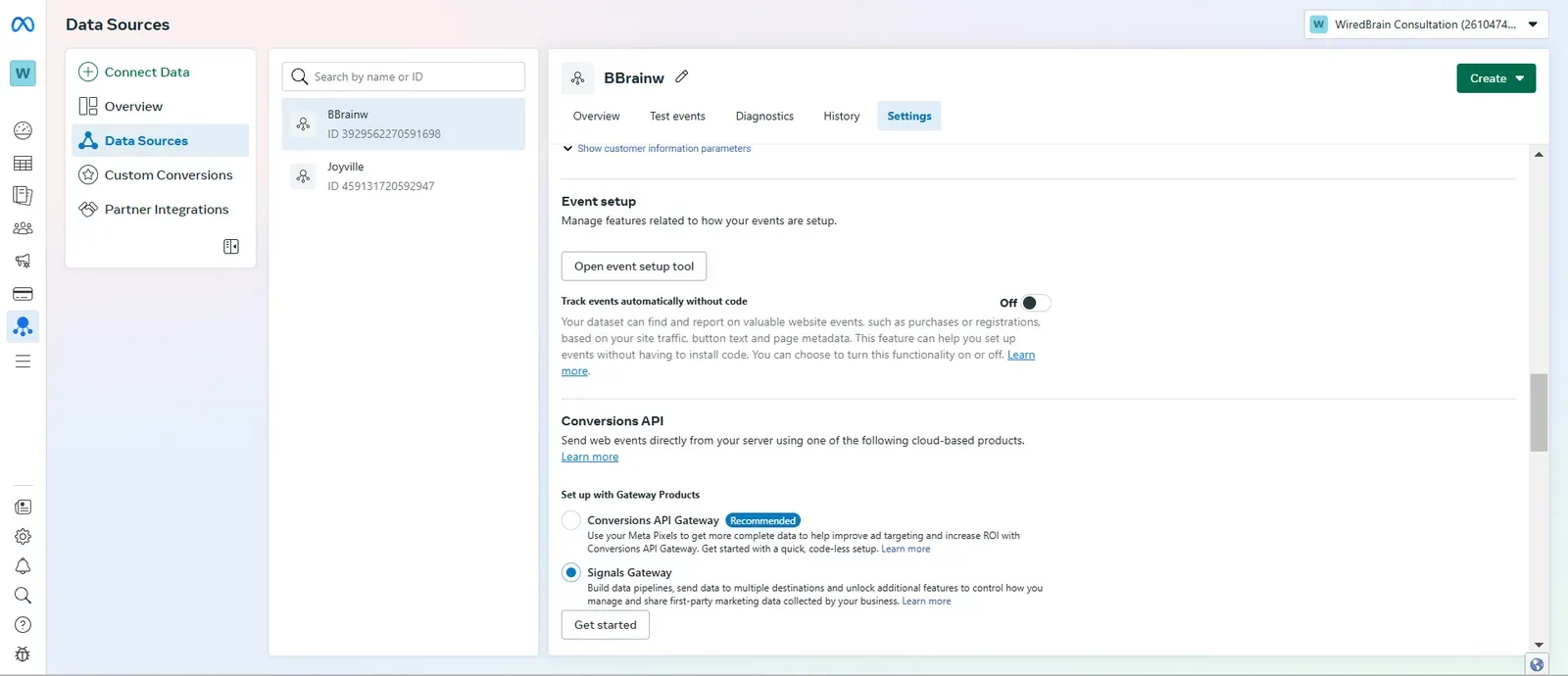
The Conversions API section in data source settings, with Signals Gateway selected 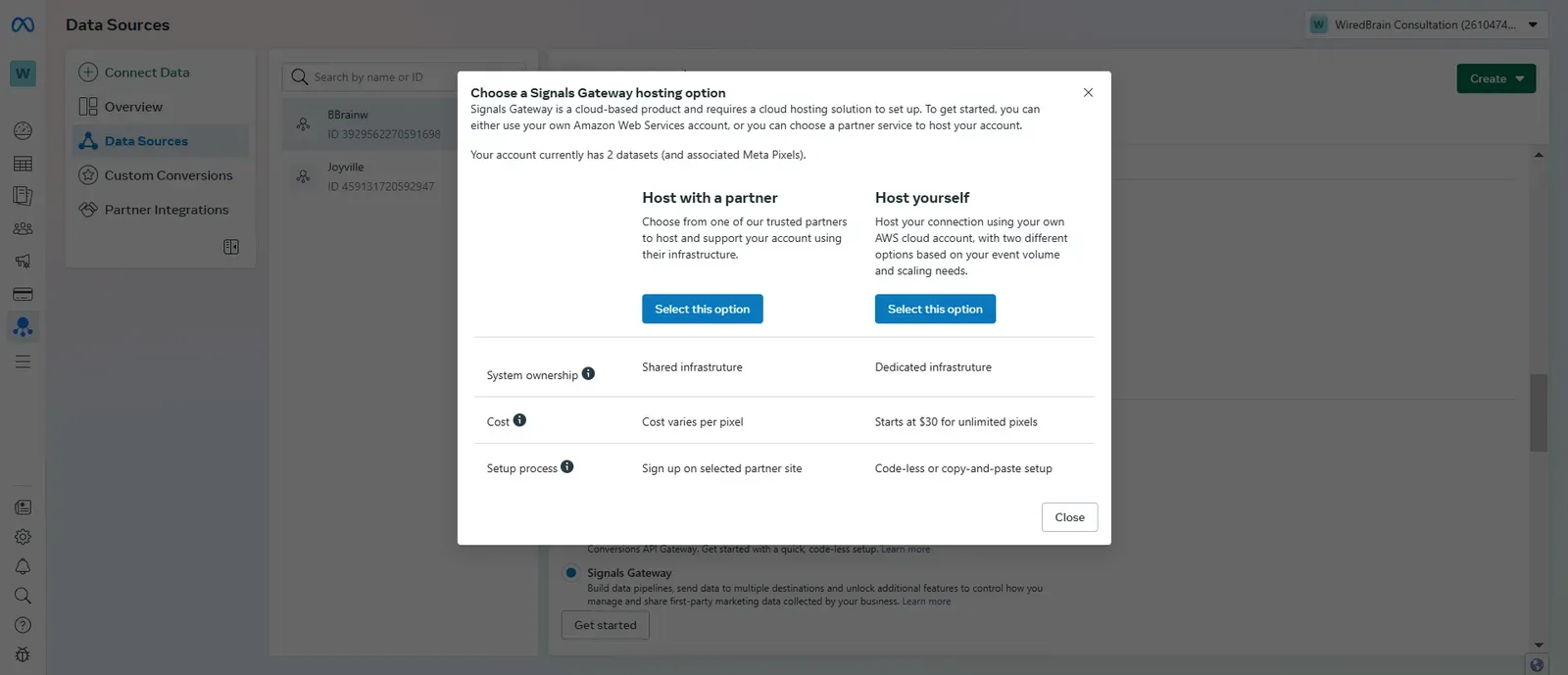
Choosing to host with a partner, under Signals Gateway 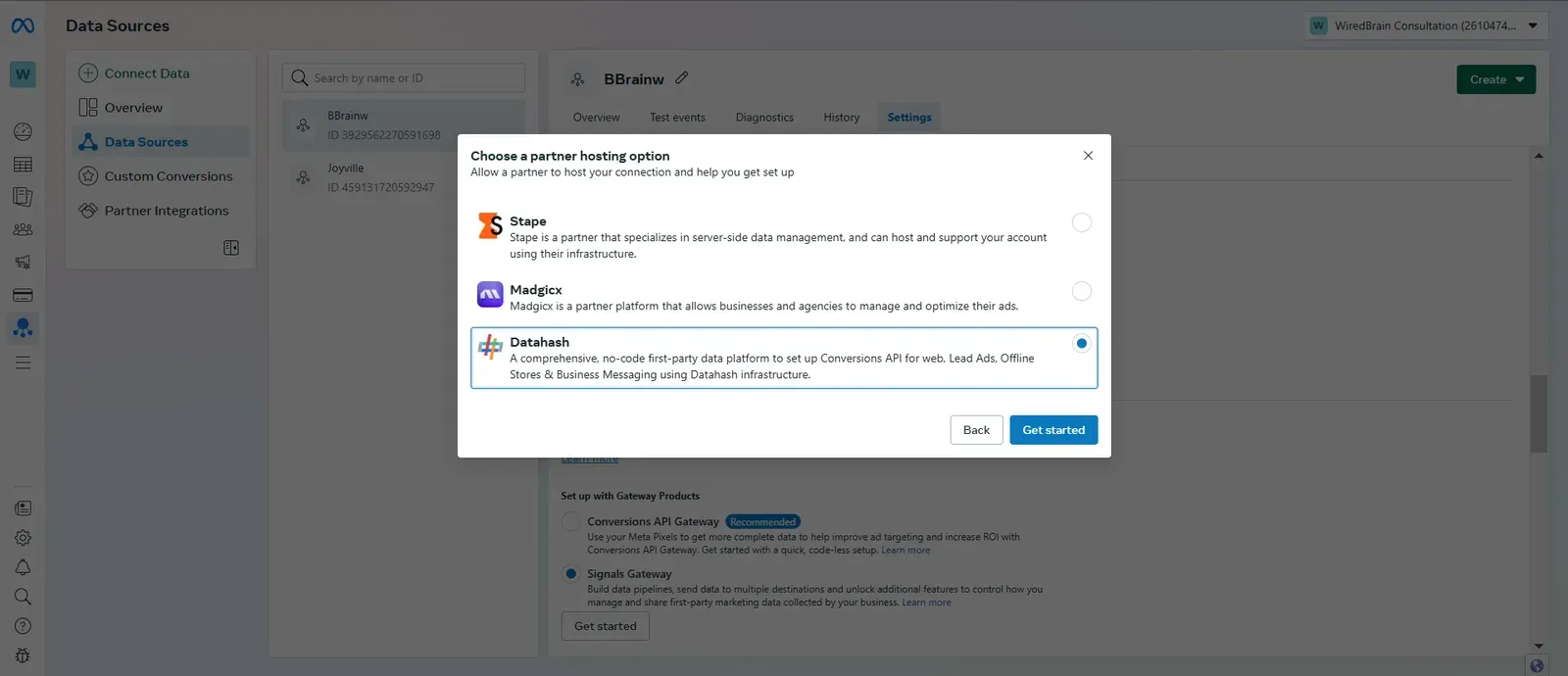
Selecting Datahash as the partner 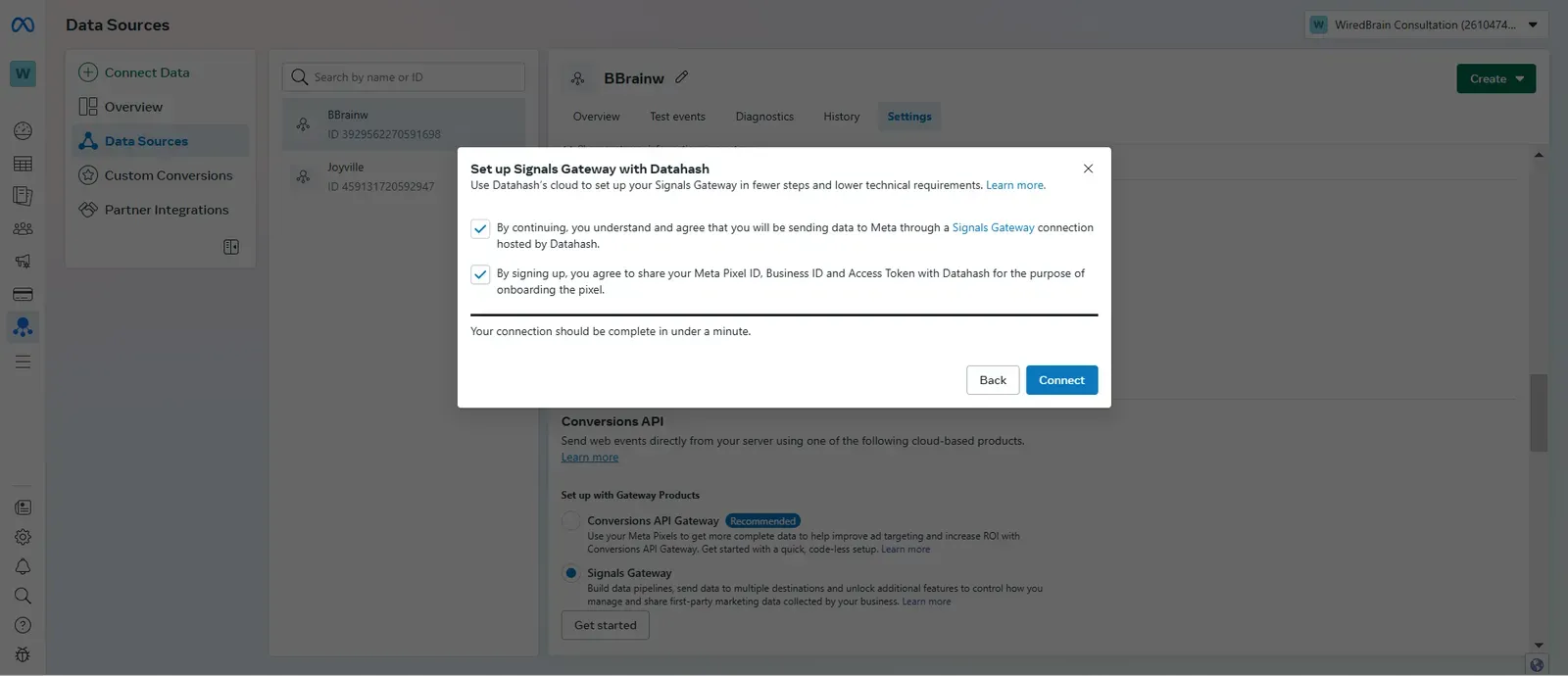
Agreeing to share pixel details with Datahash before connecting 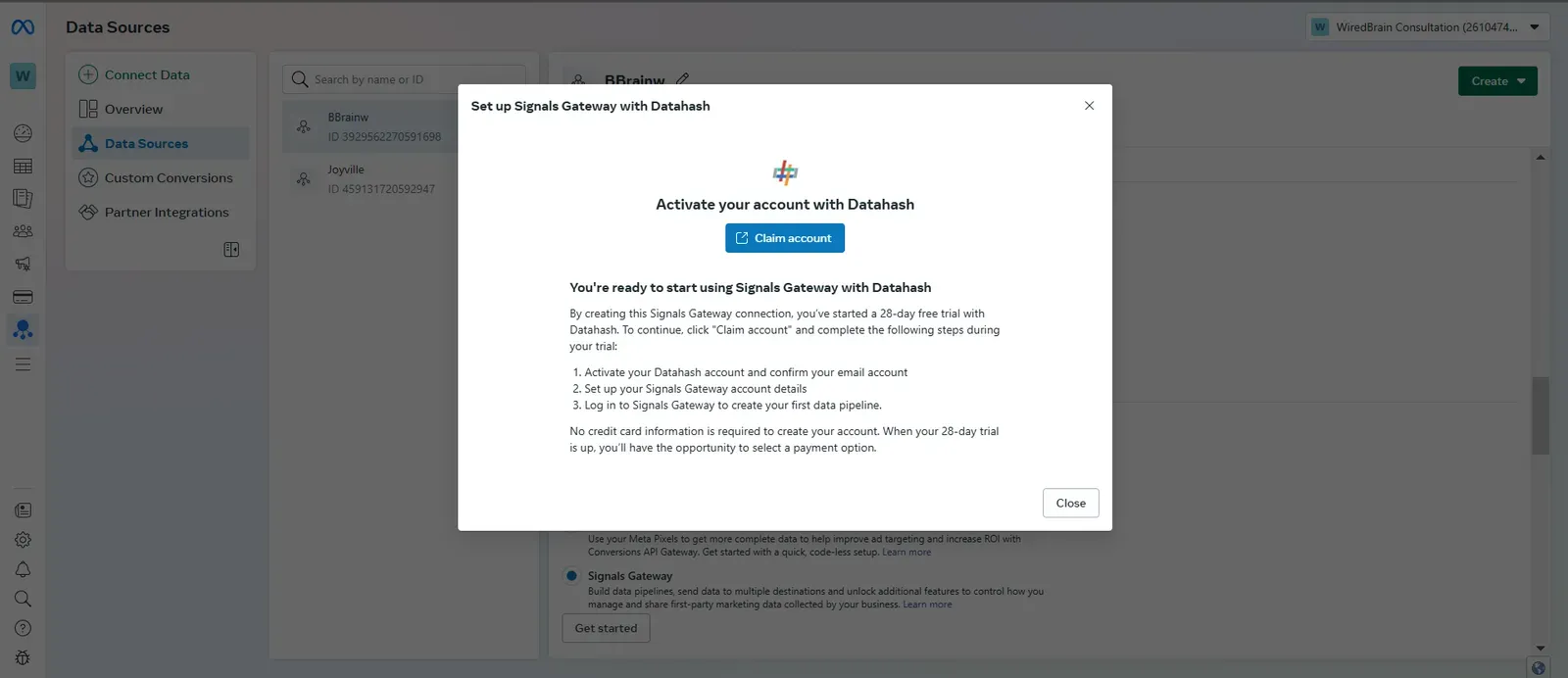
The Claim Account step, with the 28-day trial details 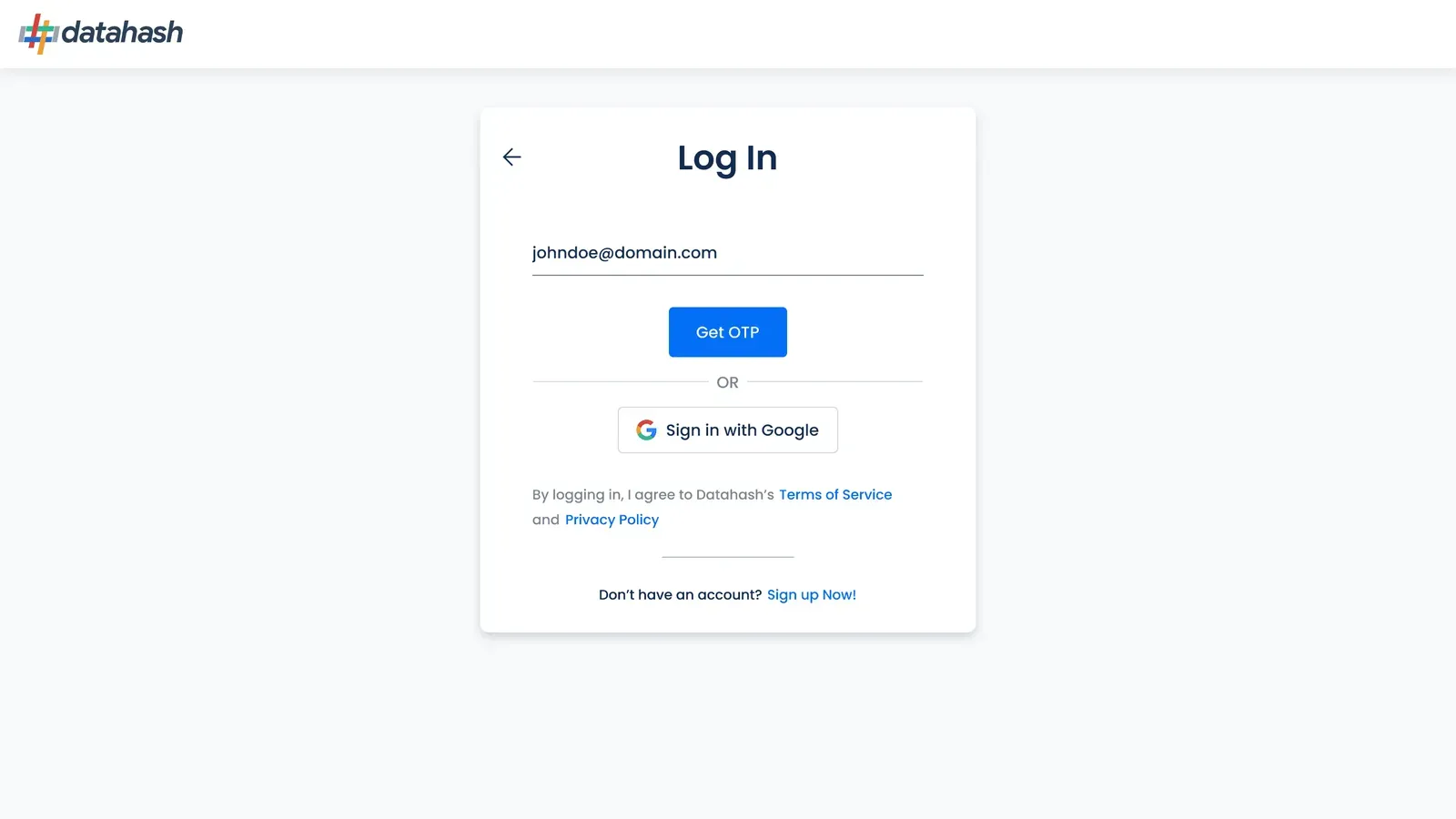
Signing in to Datahash with email
From Datahash Studio
Section titled “From Datahash Studio”-
Open Datahash Studio and sign in.
-
Go to the Gateways section.
-
Click Signals Gateway.
Then authenticate the Meta business account, one of two ways.
Single sign-on. Click Log in with Facebook for Business and follow the prompts.
Manual. Enter the Business Account ID, the Dataset ID and an Access Token, then click Validate Credentials.
Starting from Datahash Studio5 screenshots
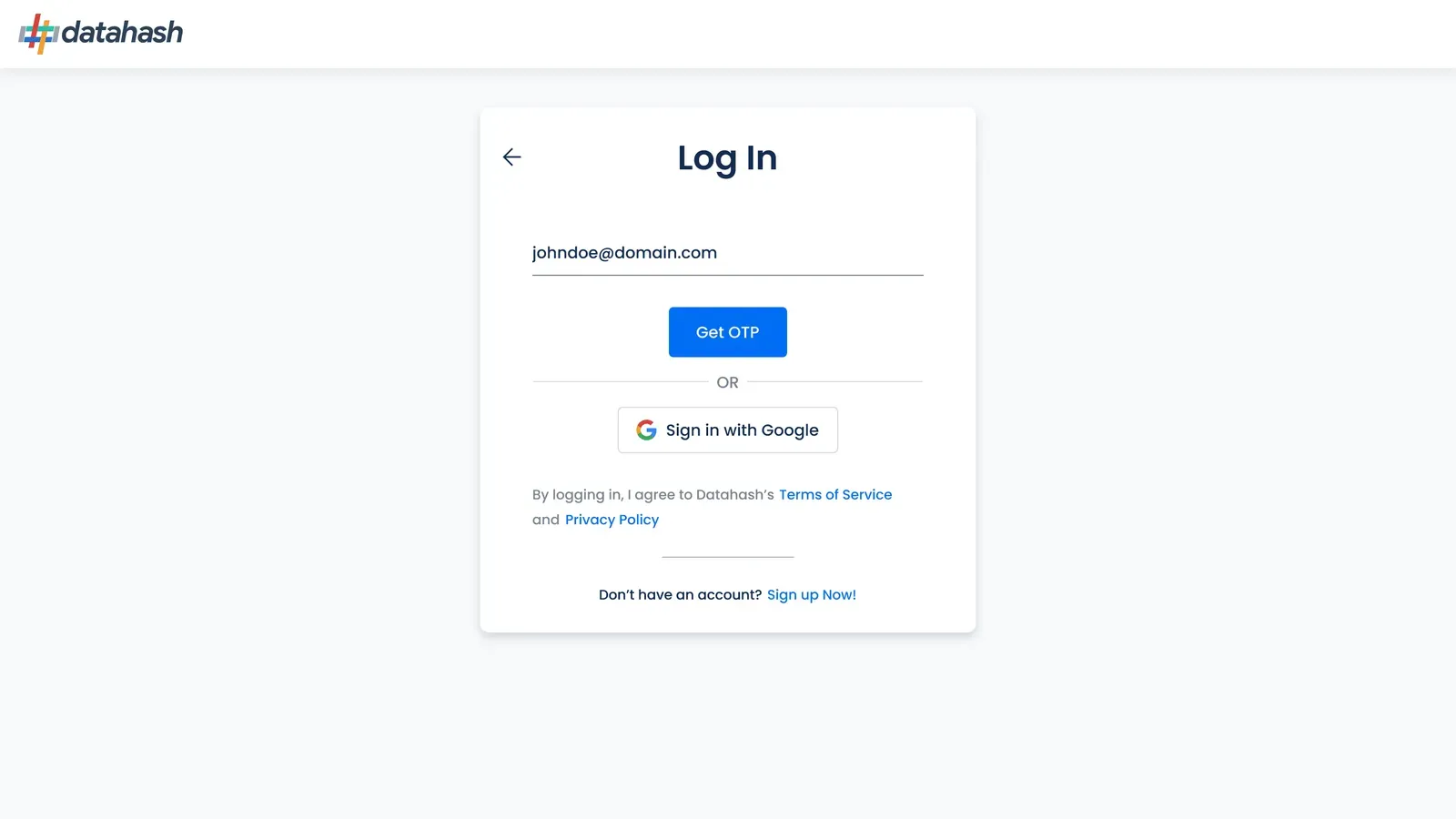
The Datahash sign-in page, with the email code and Google options 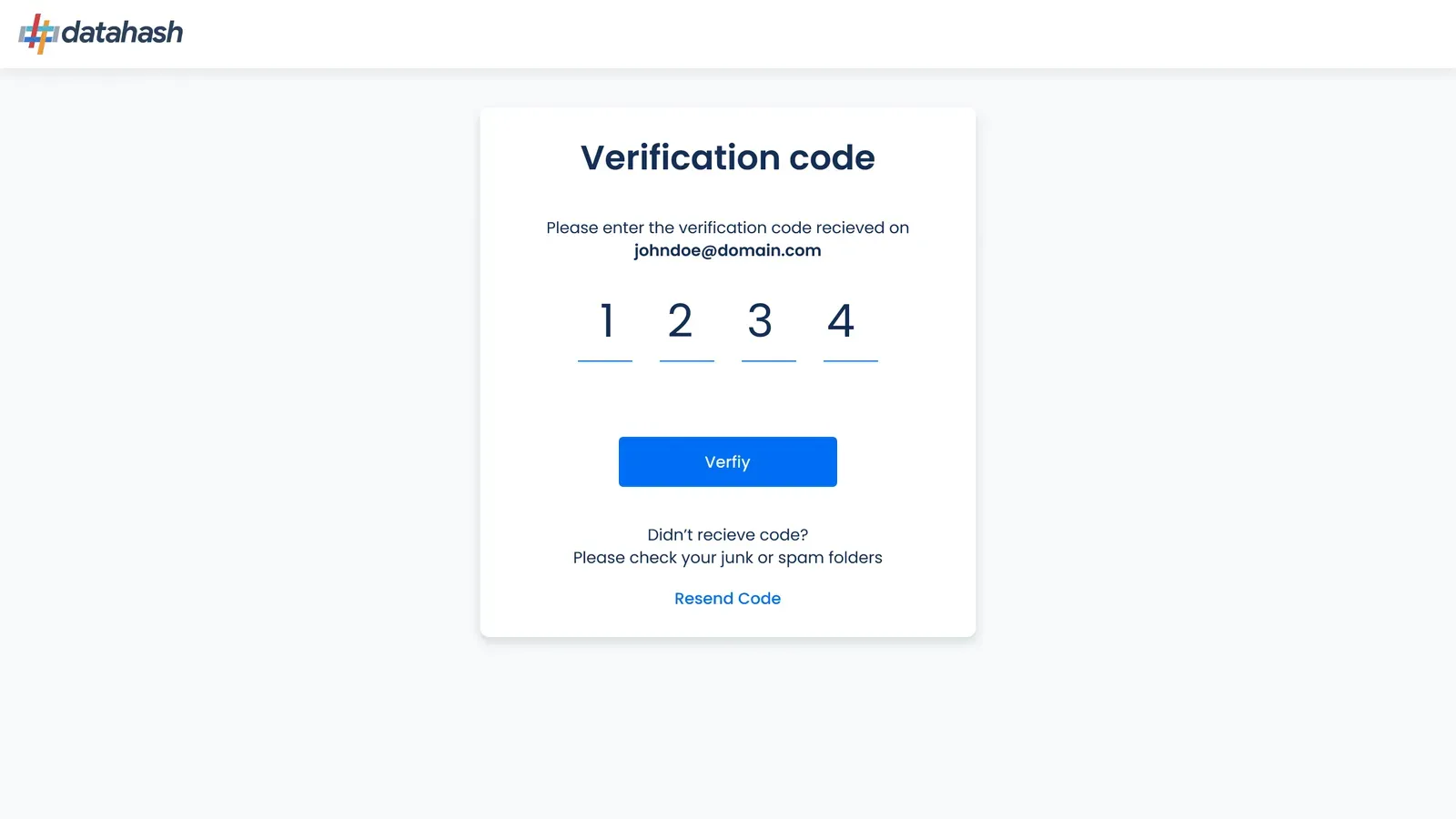
Entering the one-time verification code sent by email 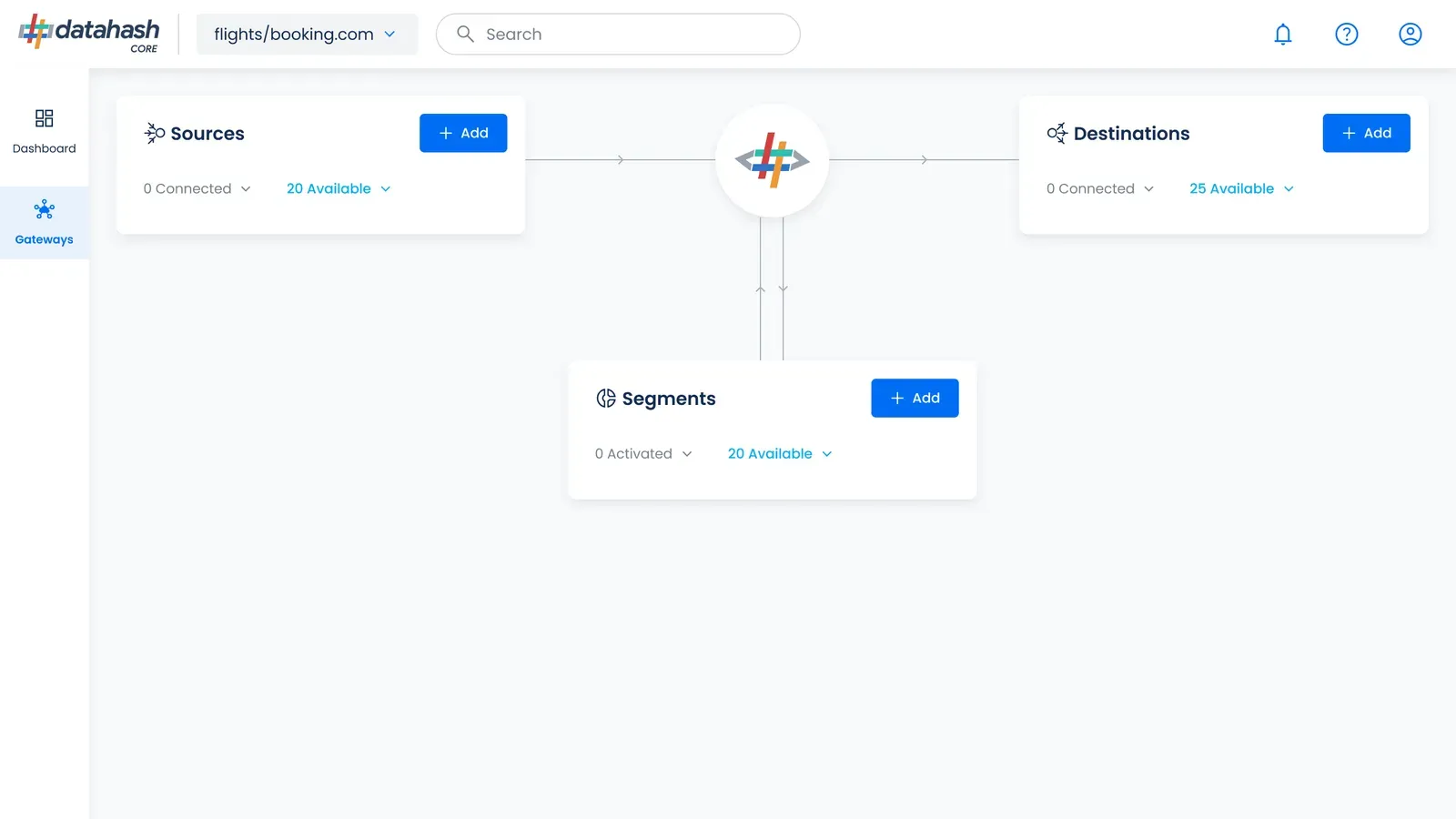
The Studio dashboard, opening the Gateways section 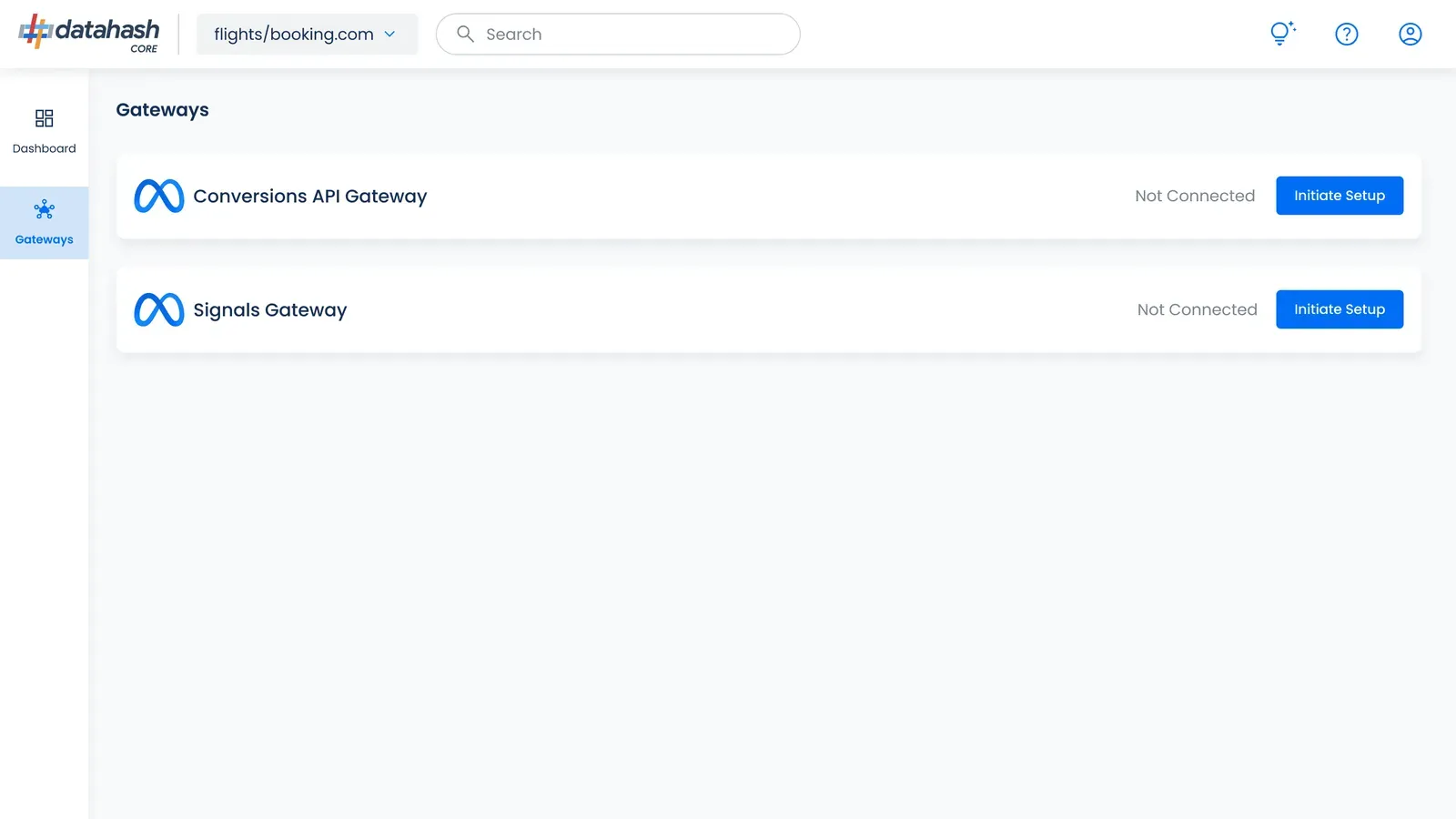
The Gateways list, with Initiate Setup for Signals Gateway 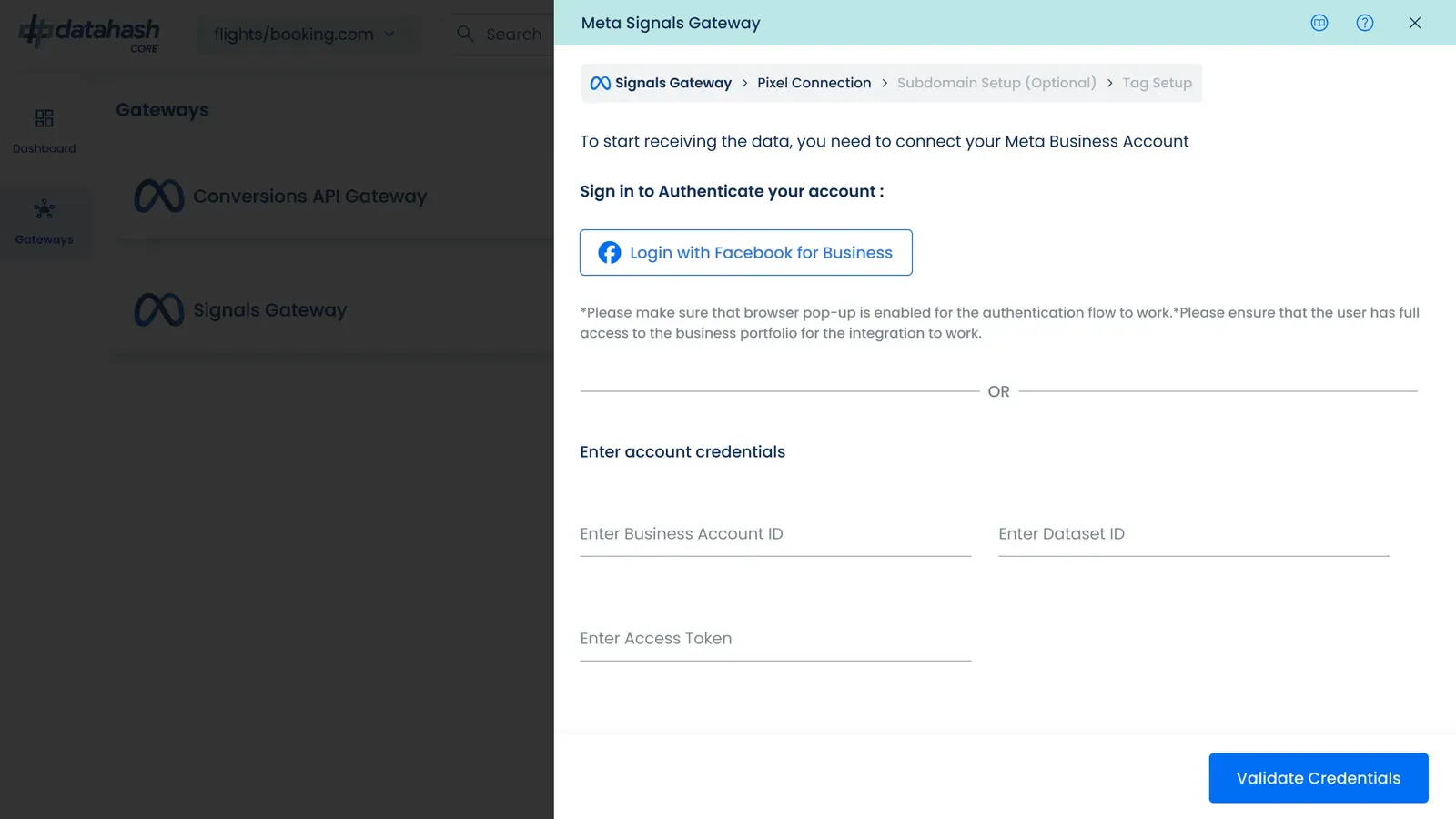
Log in with Facebook for Business, with the manual credential fields below
Subdomain setup
Section titled “Subdomain setup”This step is optional and worth doing. Receiving data through a subdomain of your own site makes it first-party, which keeps identifiers that a third-party request loses.
-
Enter your domain and the subdomain label you want to use.
-
Add the record Studio generates at your DNS provider. For the exact menu path at 57 providers, see Subdomain setup.
Setting up the subdomain2 screenshots
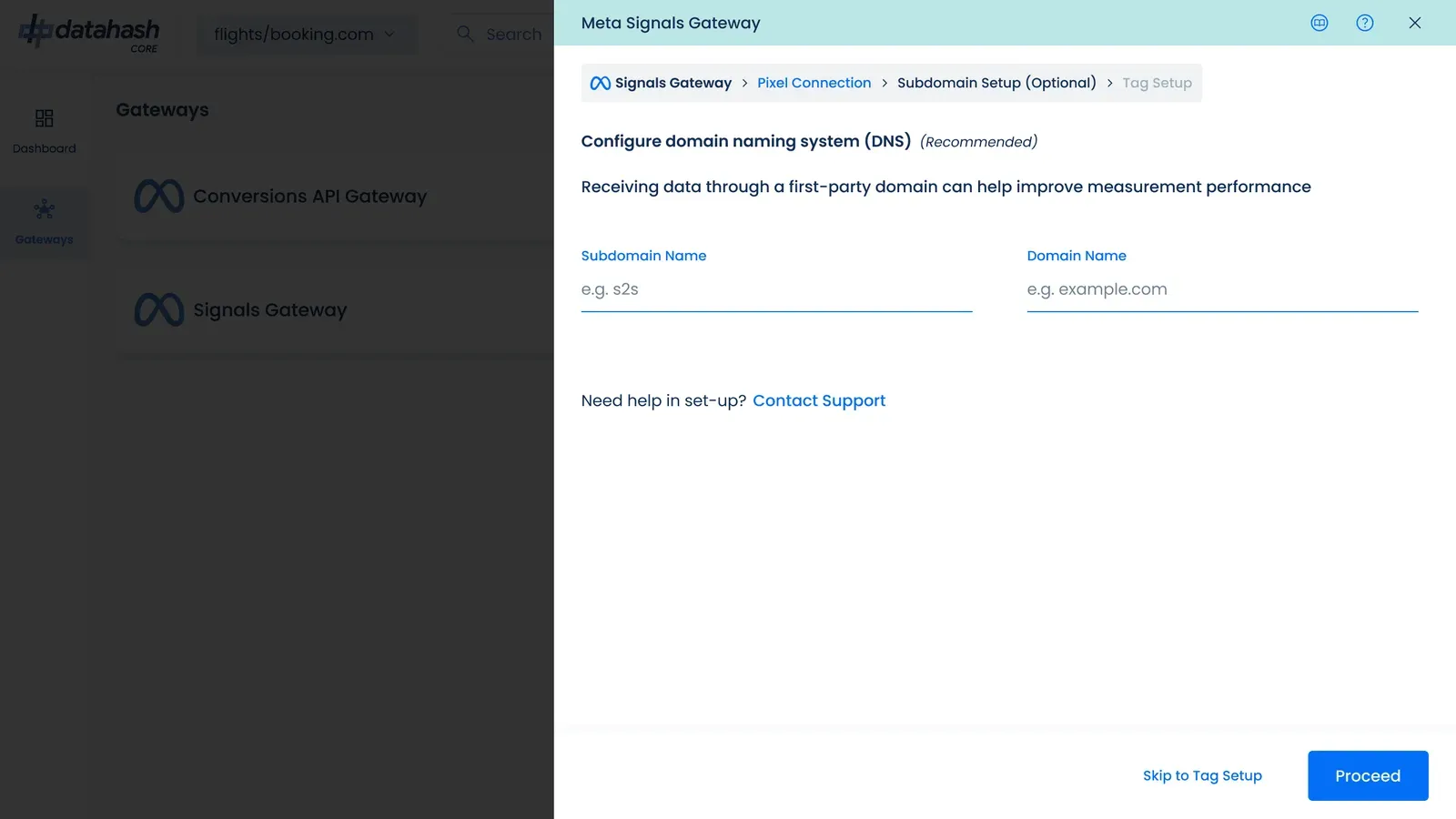
Entering the subdomain label and domain, under Subdomain Setup 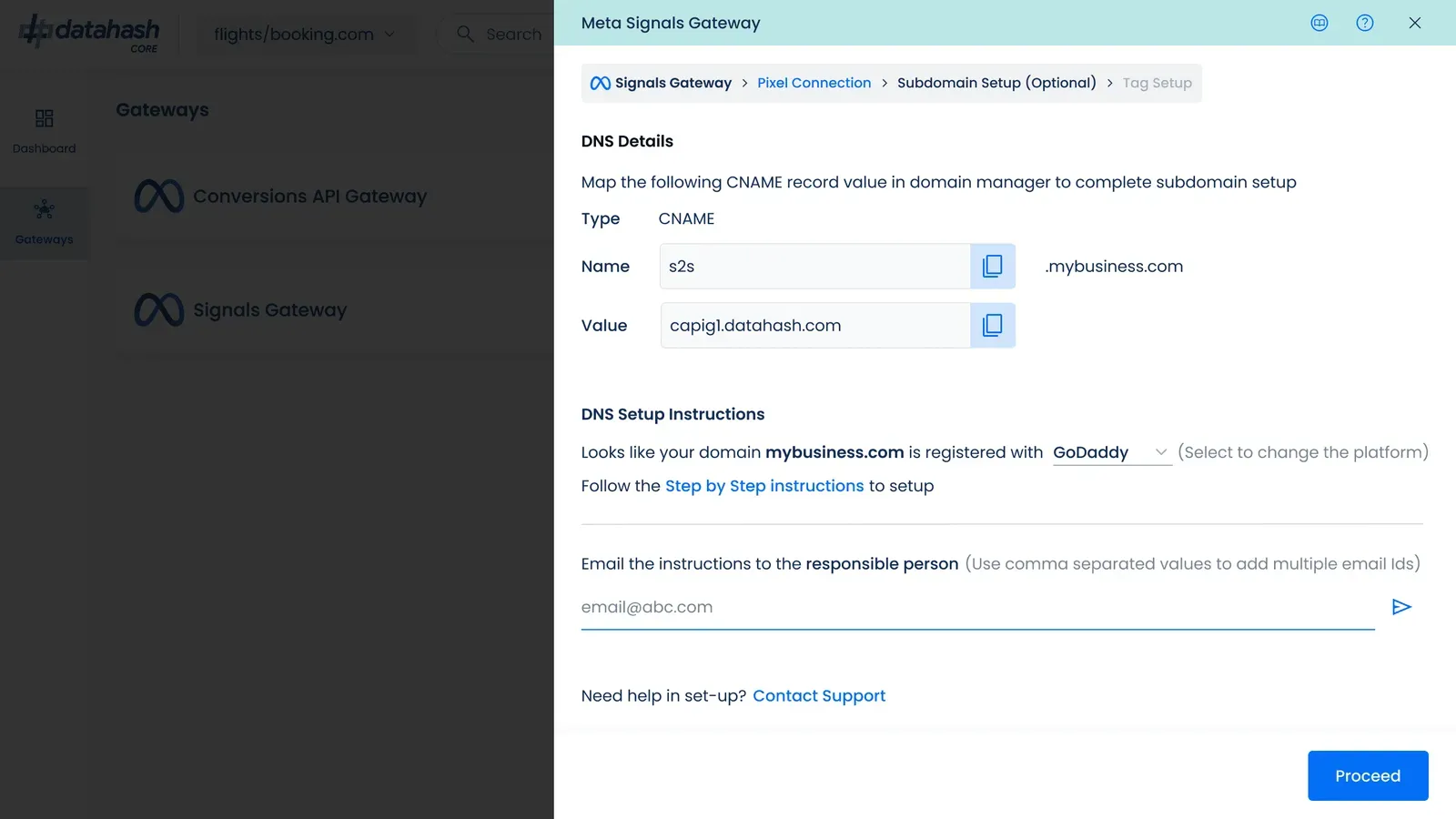
The generated CNAME record, with DNS setup instructions for the detected registrar
Installing the pixel tag
Section titled “Installing the pixel tag”Studio generates the base code for you on the Tag Setup step, the last step of the Signals Gateway flow. The breadcrumb in Studio reads Pixel Connection, then Subdomain Setup (Optional), then Tag Setup. Copy it from there rather than from anywhere else: it carries your own host and dataset ID, so a snippet from documentation is never the one you want. Paste it into the head of every page you want tracked.
The base code records page views on its own once installed. That is Studio’s step 1. Anything beyond page views is a configured event, which is Studio’s step 2: event code, the event setup tool, or importing from an existing Meta Pixel.
The Signals Gateway base code is built on the Datahash tag, so the method reference and the shape of a track() call are documented on NeoTag.
Pixel setup in Studio1 screenshot
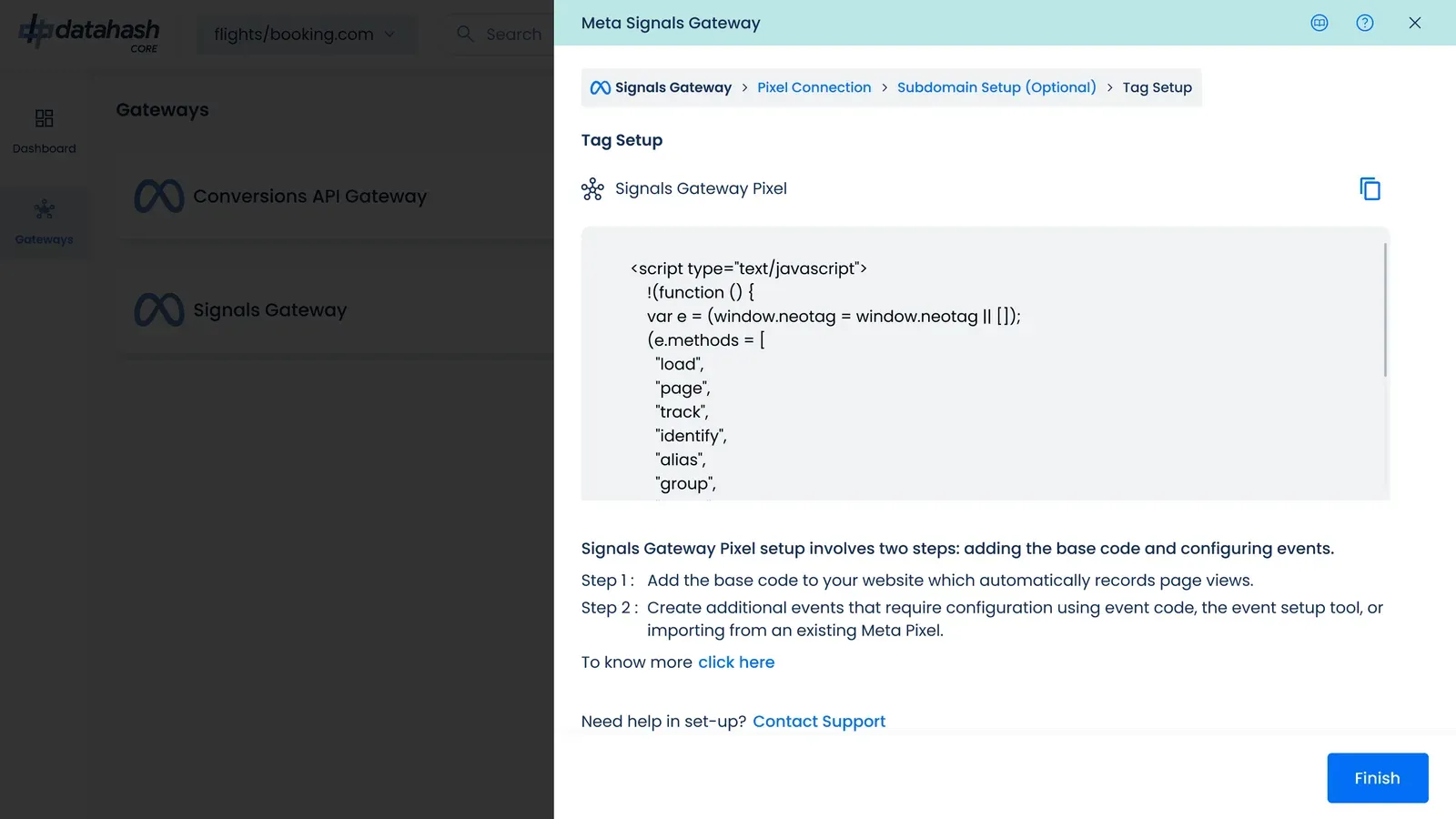
The Tag Setup step, with the Signals Gateway Pixel base code
Checking it works
Section titled “Checking it works”-
Confirm the pixel connection shows as complete in Studio.
-
Trigger each event on your site and confirm it is recorded.
-
Allow up to 30 minutes for events to appear.
Creating a Signals Gateway connection starts a 28-day free trial with Datahash. Creating the account does not require a credit card. When the trial is up, you have the opportunity to select a payment option.
Troubleshooting & FAQ
Section titled “Troubleshooting & FAQ”Symptom. The Facebook login window never opens. Your browser is blocking pop-ups. Allow them for the Studio domain and start the step again.
Symptom. The permission grant fails, or the dataset list comes back empty. The account you authenticated with does not have full access to the business portfolio. Ask a portfolio admin to grant it, then repeat the step.
Symptom. Validate Credentials fails. One of the three values is wrong, or the access token has expired or been rotated in Meta. Generate a new token in Events Manager and re-enter all three.
Symptom. No events appear after installing the pixel. Allow up to 30 minutes first. Then confirm the base code is in the head and not the body, that the container is published if you installed through a tag manager, and that the subdomain resolves. See Subdomain setup.