

Meta Conversions API Gateway
The Meta Conversions API Gateway sends your website’s conversion events to Meta server-to-server. Datahash hosts and runs the integration, so there is no server to operate and no code to maintain.
It is a codeless setup. You connect a dataset you already have in Meta Events Manager rather than installing new tracking code, and the guided flow takes about ten minutes.
Before you start
Section titled “Before you start”- A Meta business portfolio you have full access to. Partial access fails partway through the permission grant, after you have already authenticated.
- The dataset you want to send events to, already created in Meta Events Manager.
- Pop-ups enabled in your browser. Meta authentication opens in a pop-up, and a blocker stops the flow without reporting an error.
- Access to your DNS records, if you plan to set up a first-party subdomain. That step is optional.
Starting setup
Section titled “Starting setup”There are two ways in and they meet in the same guided flow. Use whichever console you are already in.
From Meta Events Manager
Section titled “From Meta Events Manager”-
Open Meta Events Manager. You can also reach it from Meta Business Manager or Business Suite.
-
Select the data source you want the Gateway for.
-
Click Settings, scroll to the Conversions API section, and click Get Started.
-
Choose Host with a partner, select Datahash, and click Get started.
-
Click Go to Datahash. Meta hands the setup over and you land on the Datahash instructions.
From Datahash
Section titled “From Datahash”Open the Gateway setup link and sign in. You authenticate with Meta later in the flow instead of starting from Events Manager.
Signing in to Datahash
Section titled “Signing in to Datahash”-
Sign in with an email one-time code, or with Google.
-
Fill in the short profile form and continue.
Signing in to Datahash2 screenshots
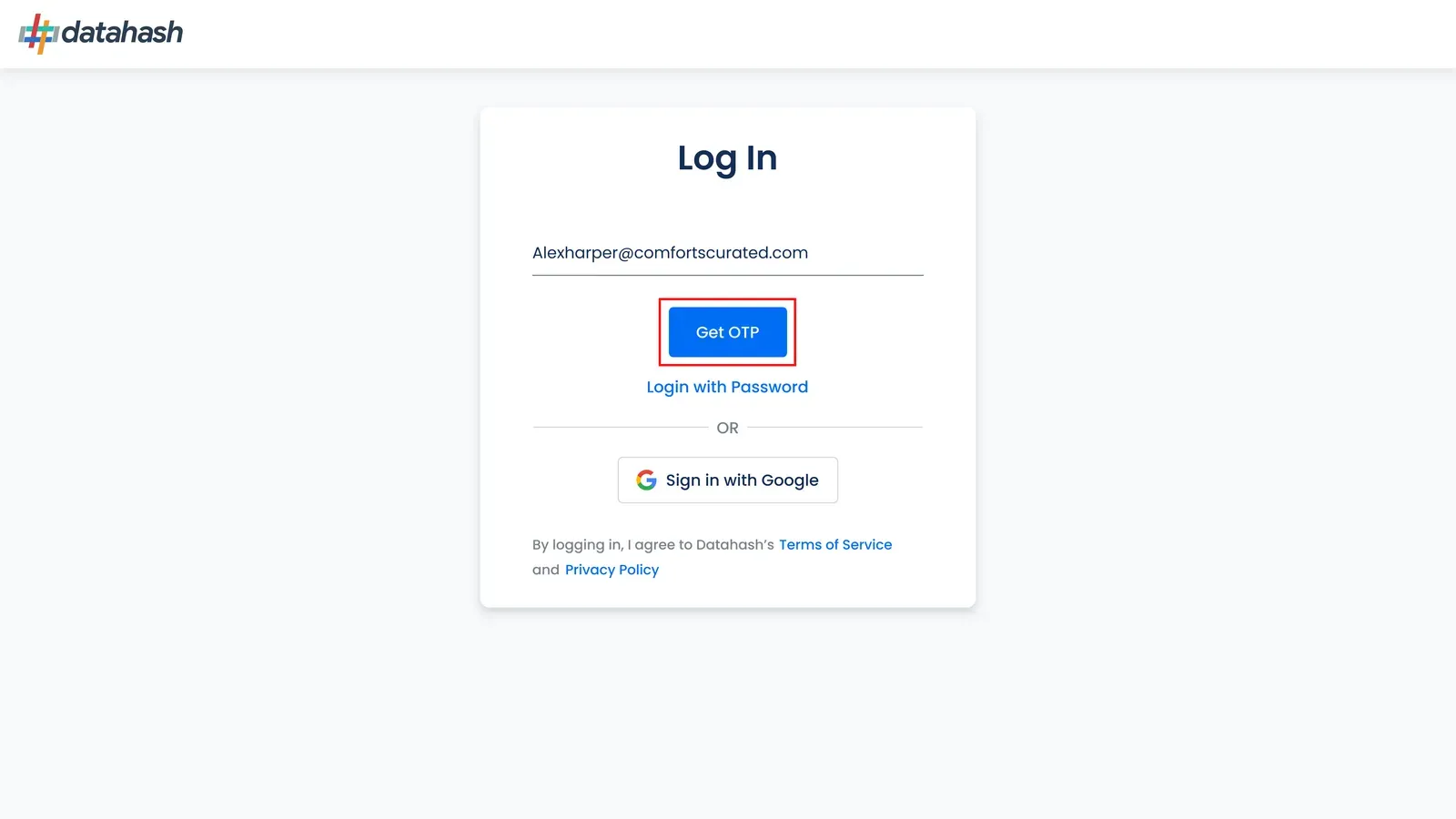
Datahash sign-in, with the email code and Google options 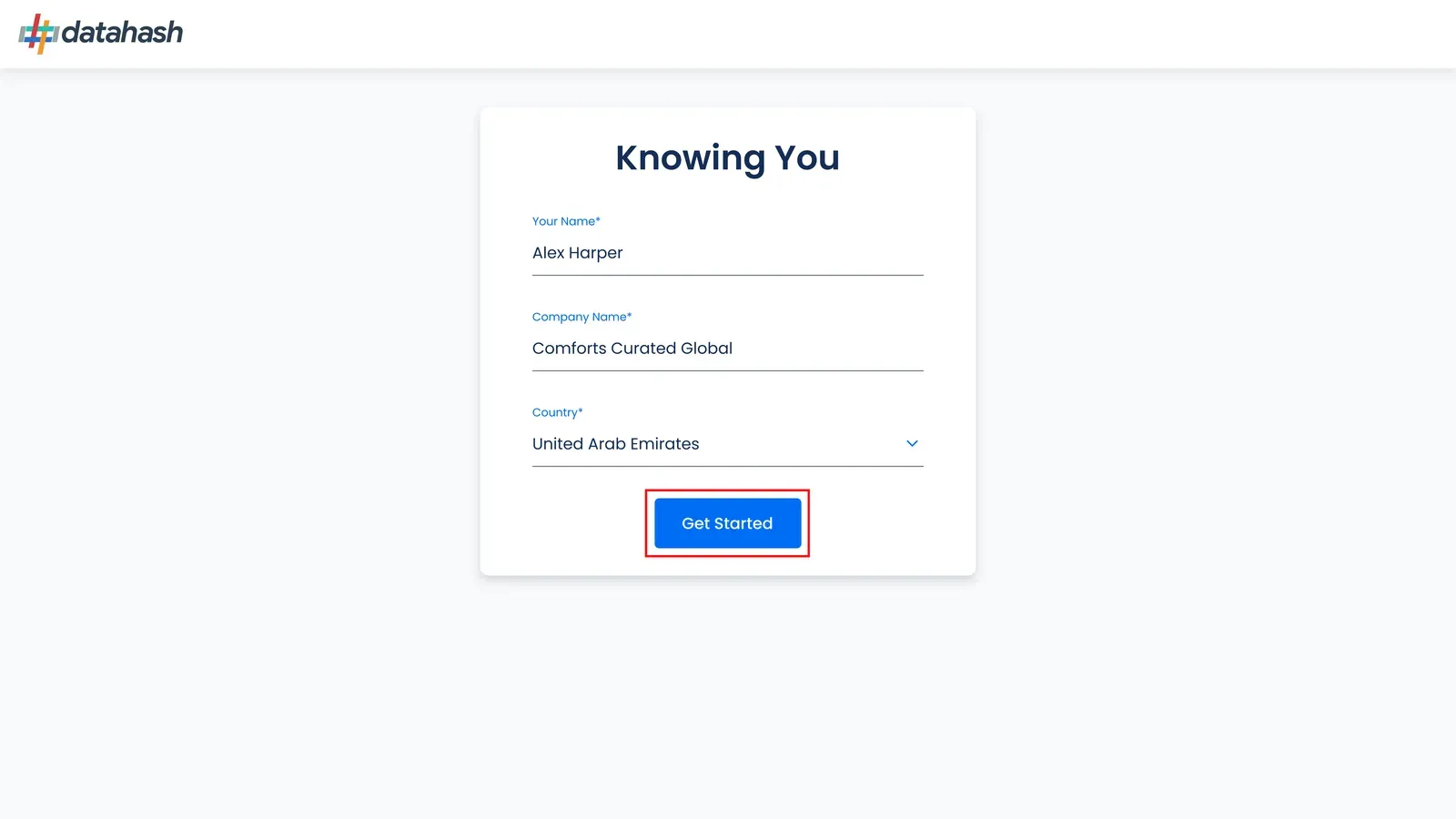
The profile form shown on first sign-in
Connecting your pixel
Section titled “Connecting your pixel”-
Read the setup summary and click Start Setup.
-
Click Log in with Facebook and authenticate with the business account that owns the dataset.
-
Select the business portfolio, then the dataset.
-
Grant the permissions Meta asks for. These are what let Datahash create the Gateway and link it to your dataset.
Wait for the flow to finish before leaving the page. The Gateway is connected at this point, though setup is not complete until the subdomain step.
Connecting the pixel6 screenshots
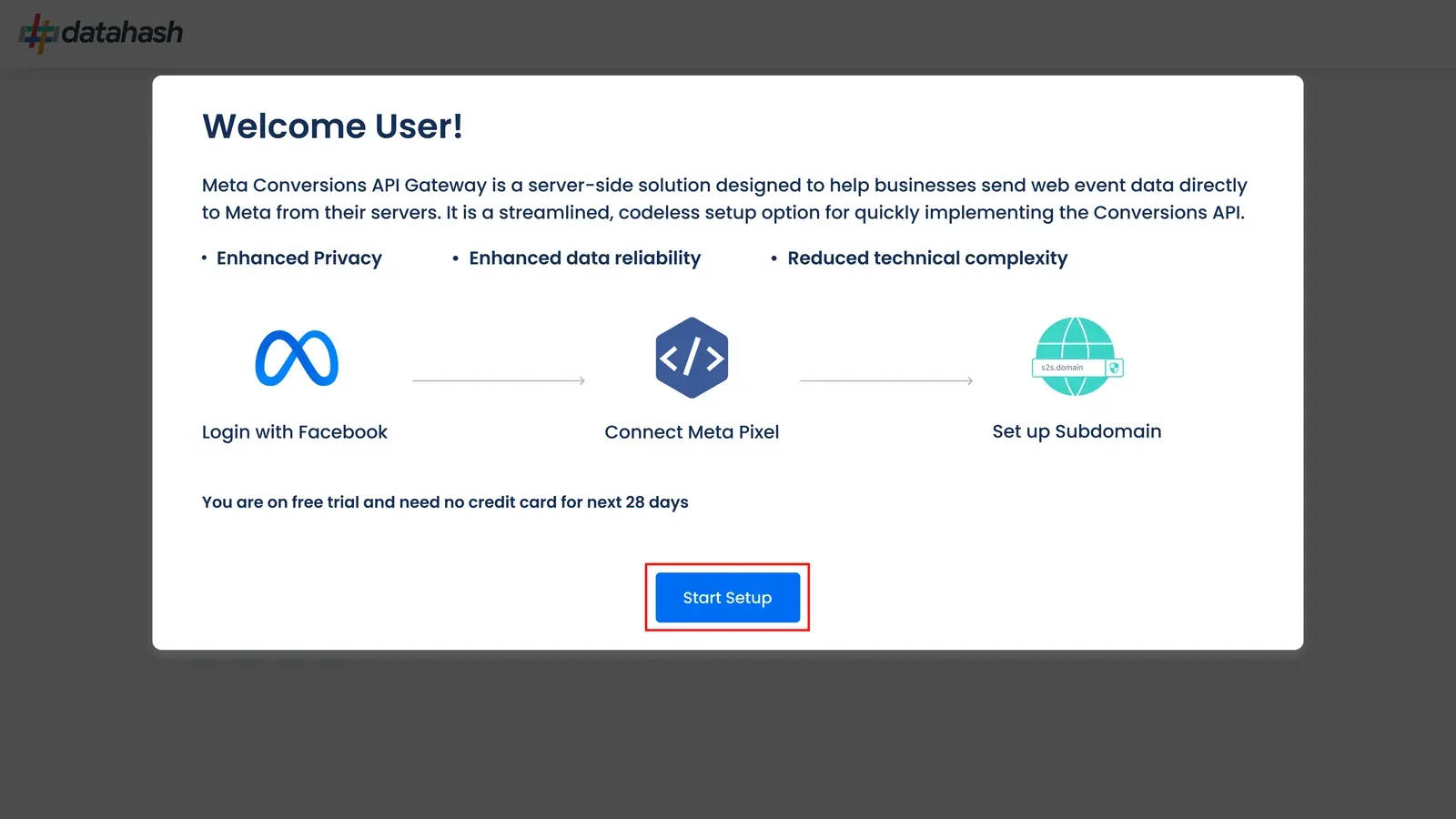
The setup summary, with Start Setup 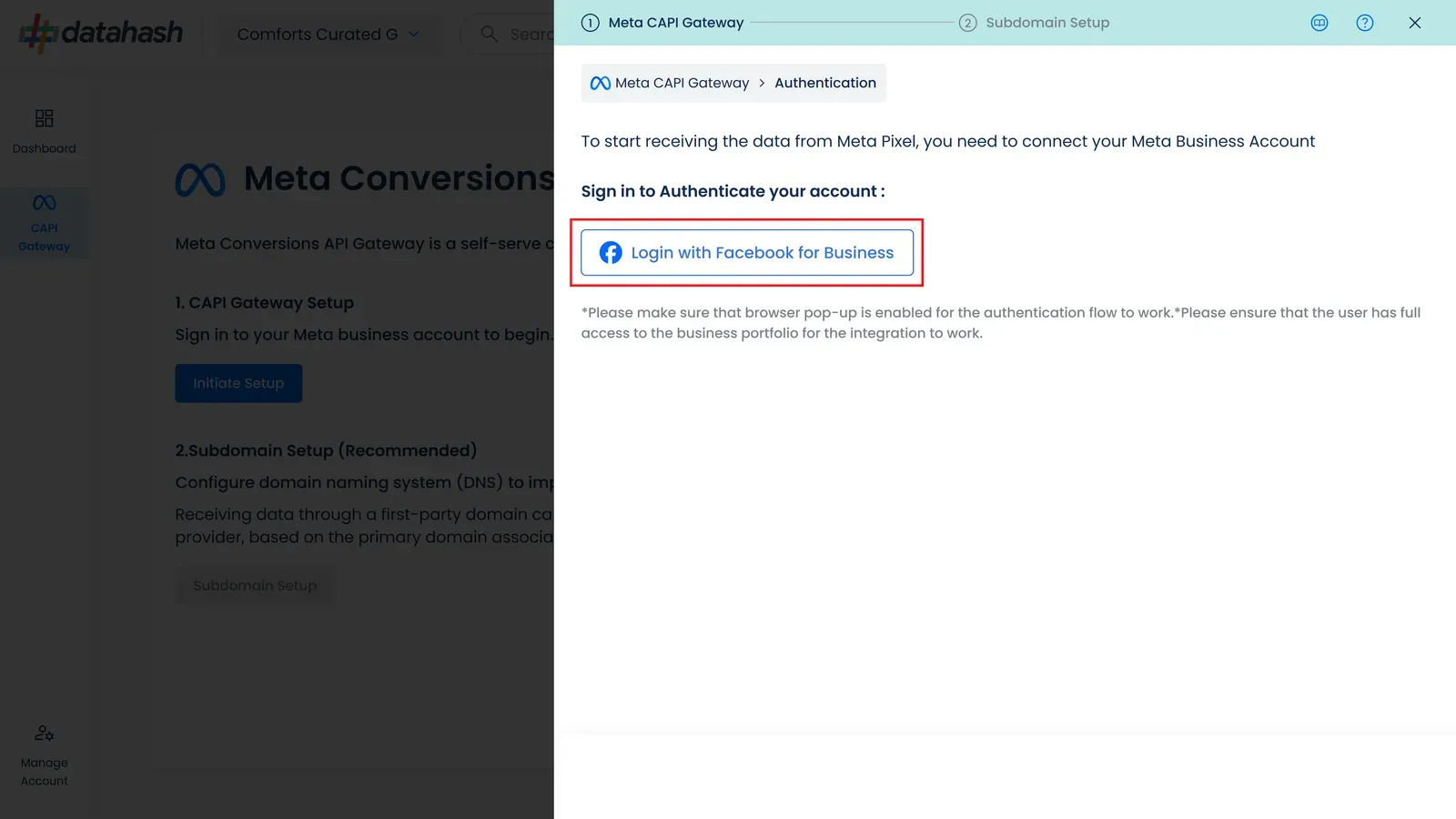
Log in with Facebook 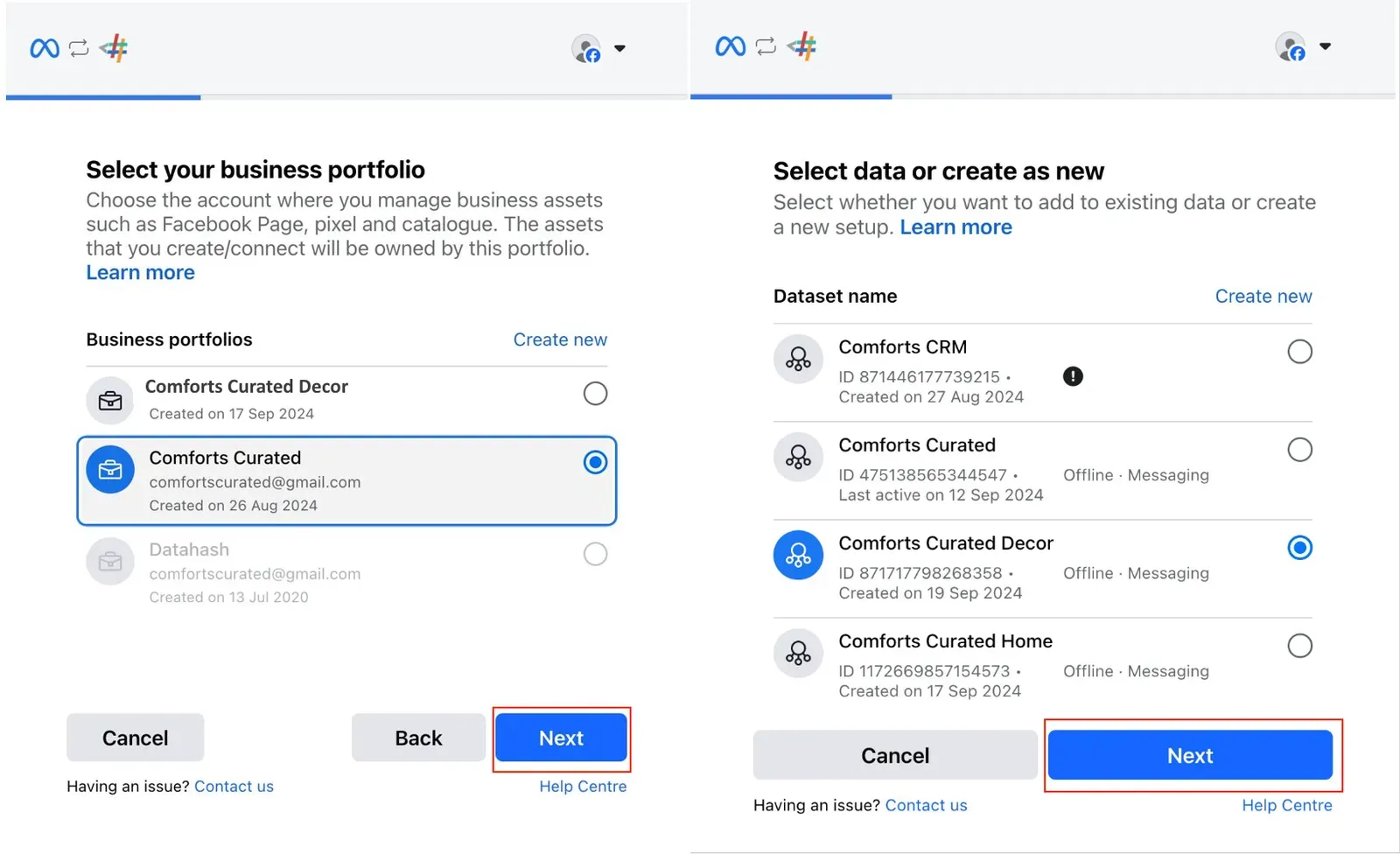
Choosing the business portfolio and the dataset 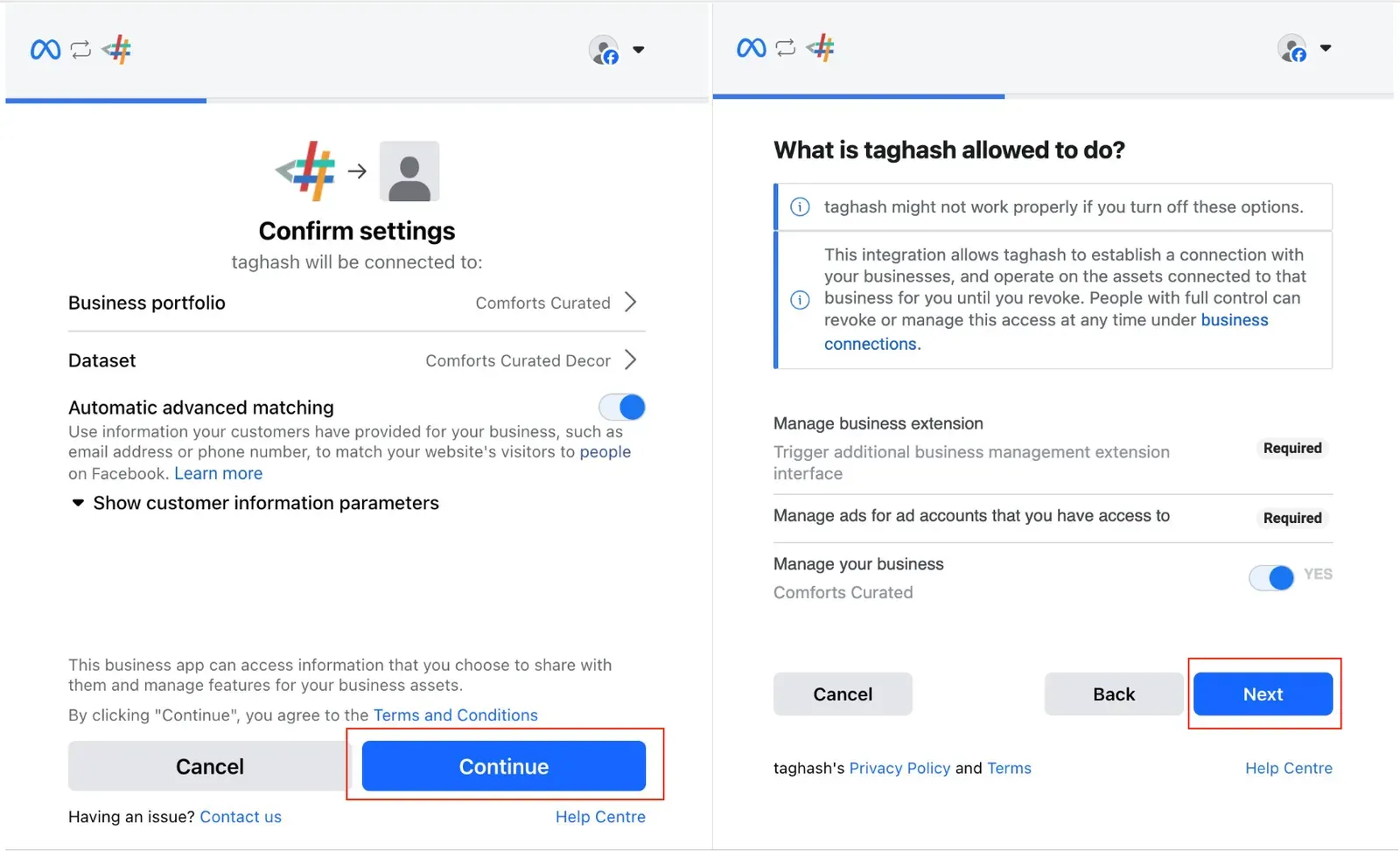
Confirming the connection settings, then granting the permissions Meta asks for 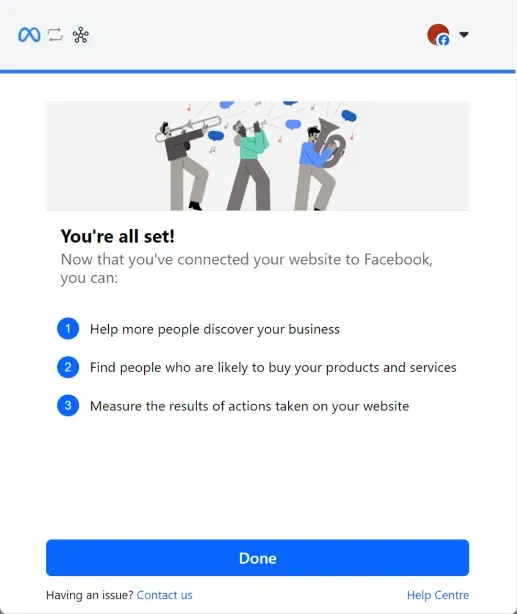
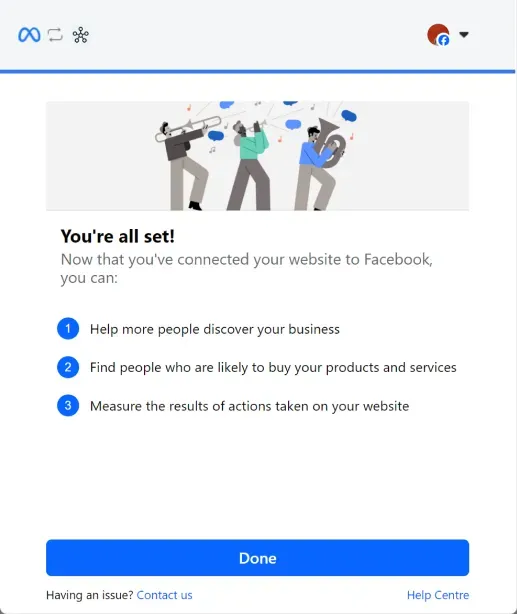
Confirmation from Meta that the connection is in place 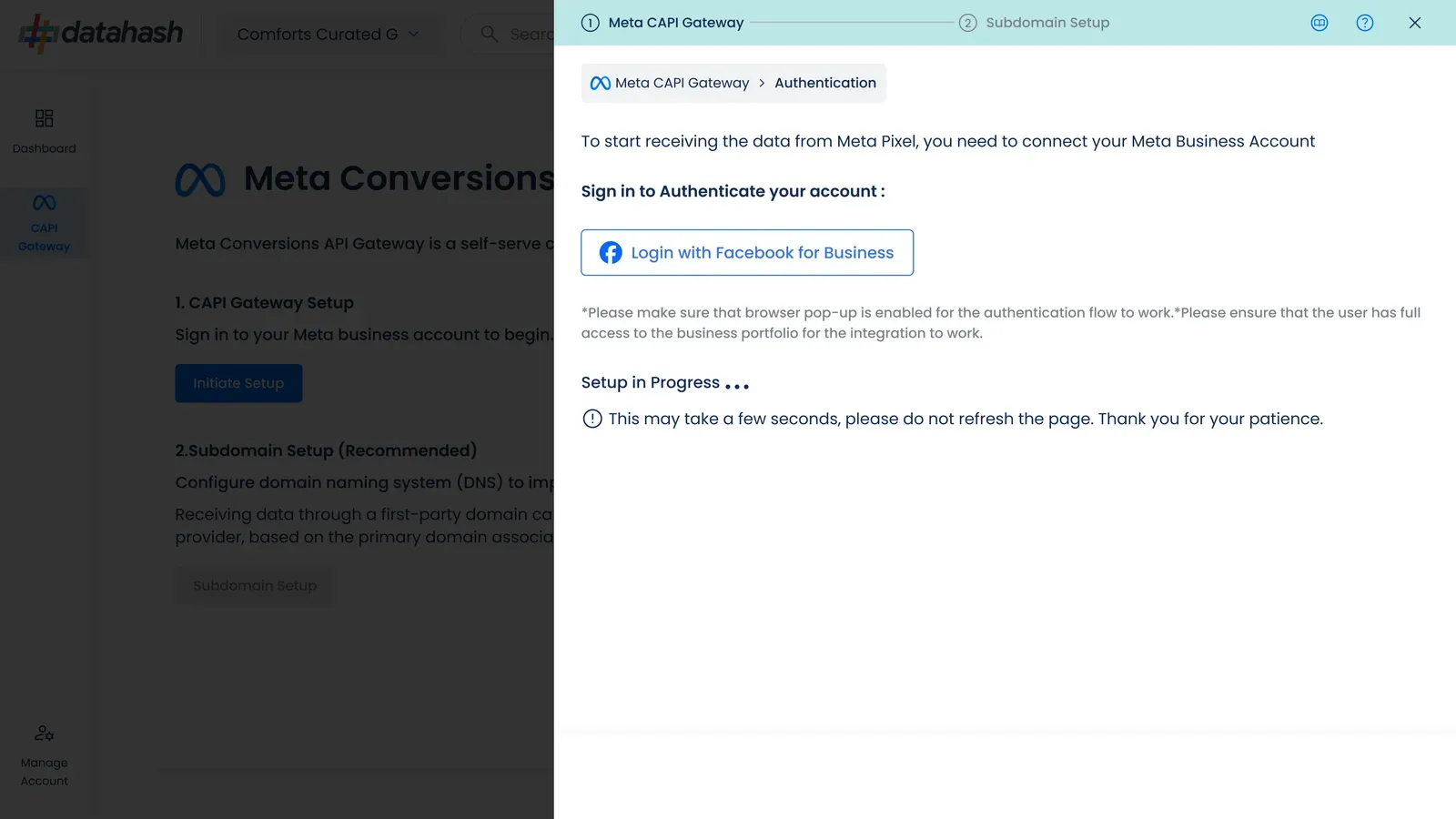
The connection shown in progress in Studio
Subdomain setup
Section titled “Subdomain setup”This step is optional and worth doing. Events collected through a subdomain of your own site are first-party, which keeps identifiers that a third-party request loses, and that usually shows up as better match quality.
-
Enter a subdomain label, for example
s2sorfirstpartydata, and the domain of the site you are tracking. Click Next. -
Copy the CNAME record Studio generates. Studio can email the instructions to whoever manages your DNS.
-
Add the record at your DNS provider. For the exact menu path at 57 providers, see Subdomain setup.
-
Click Proceed. The page shows DNS propagation status and moves to completed once the record resolves.
Setting up the subdomain4 screenshots
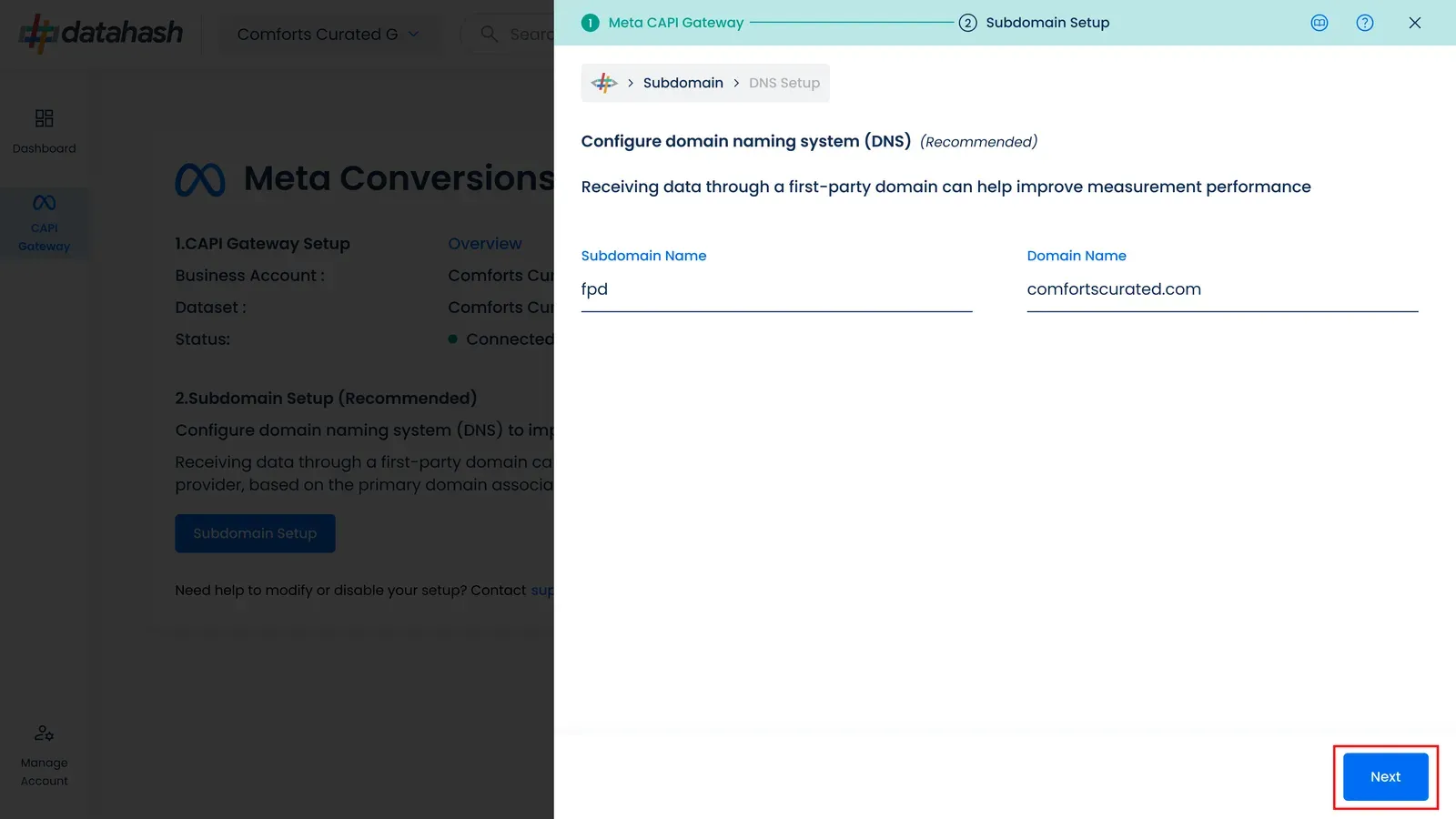
Entering the subdomain label and the domain 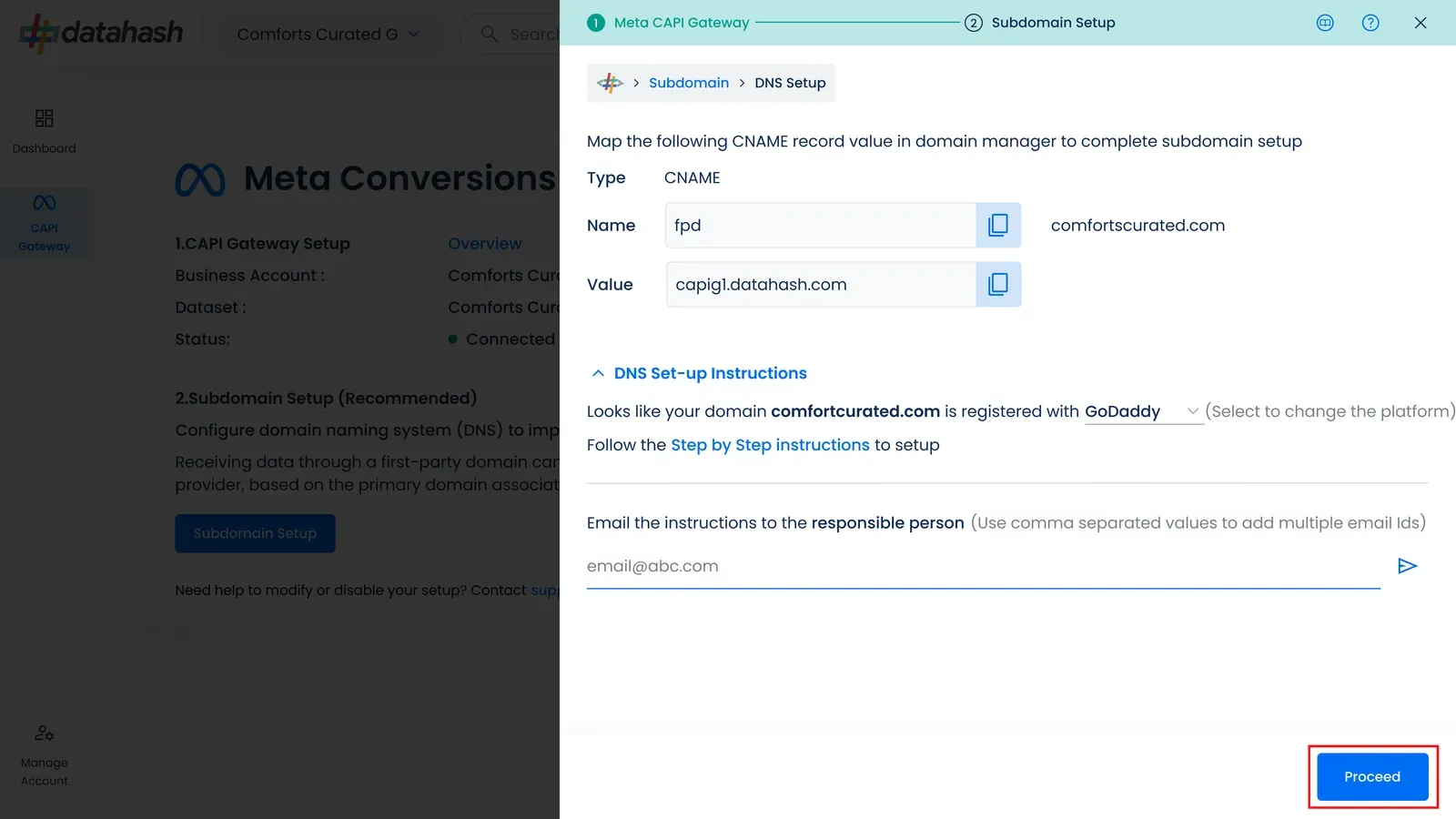
The generated CNAME record and DNS setup instructions 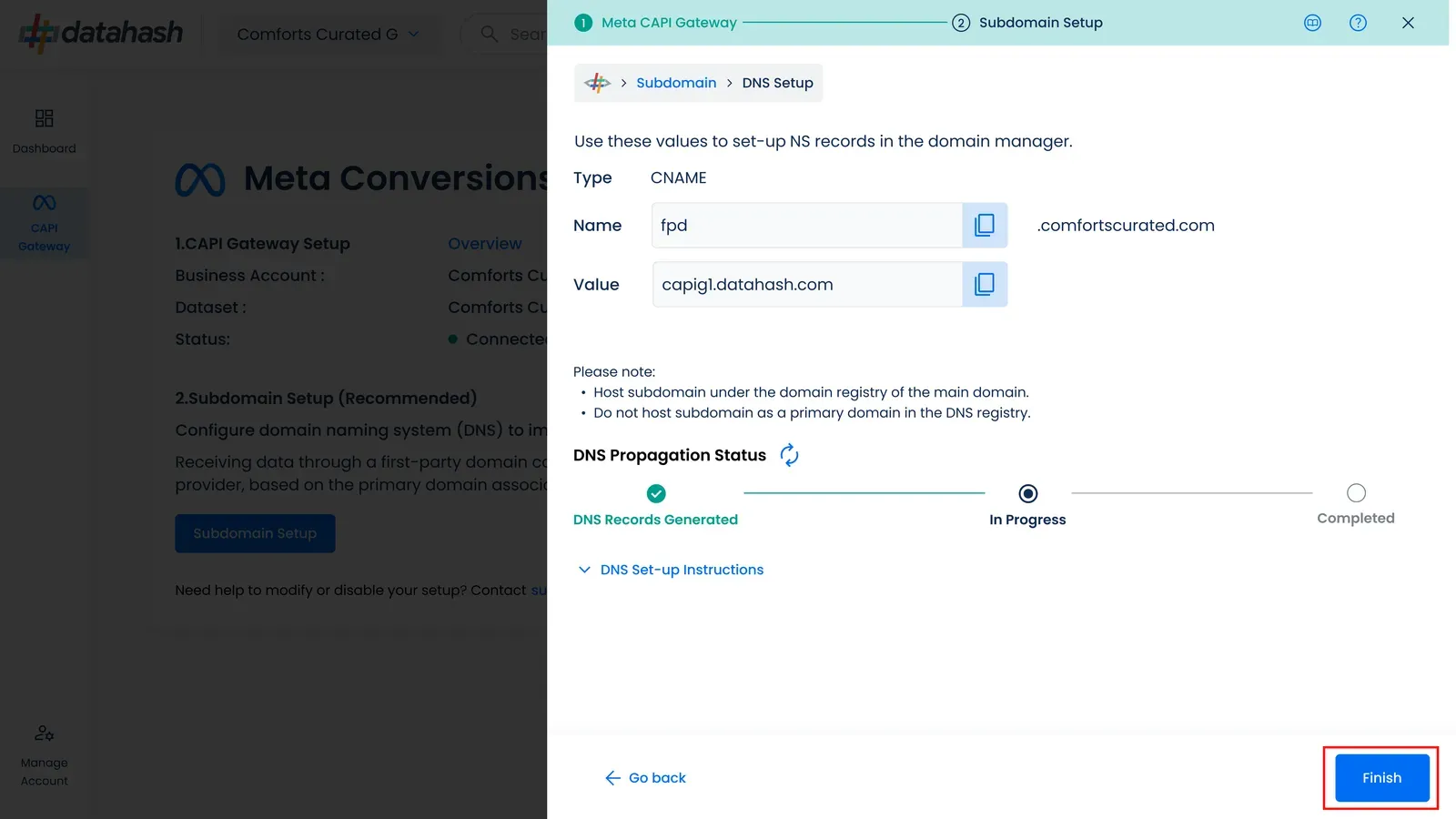
DNS propagation status 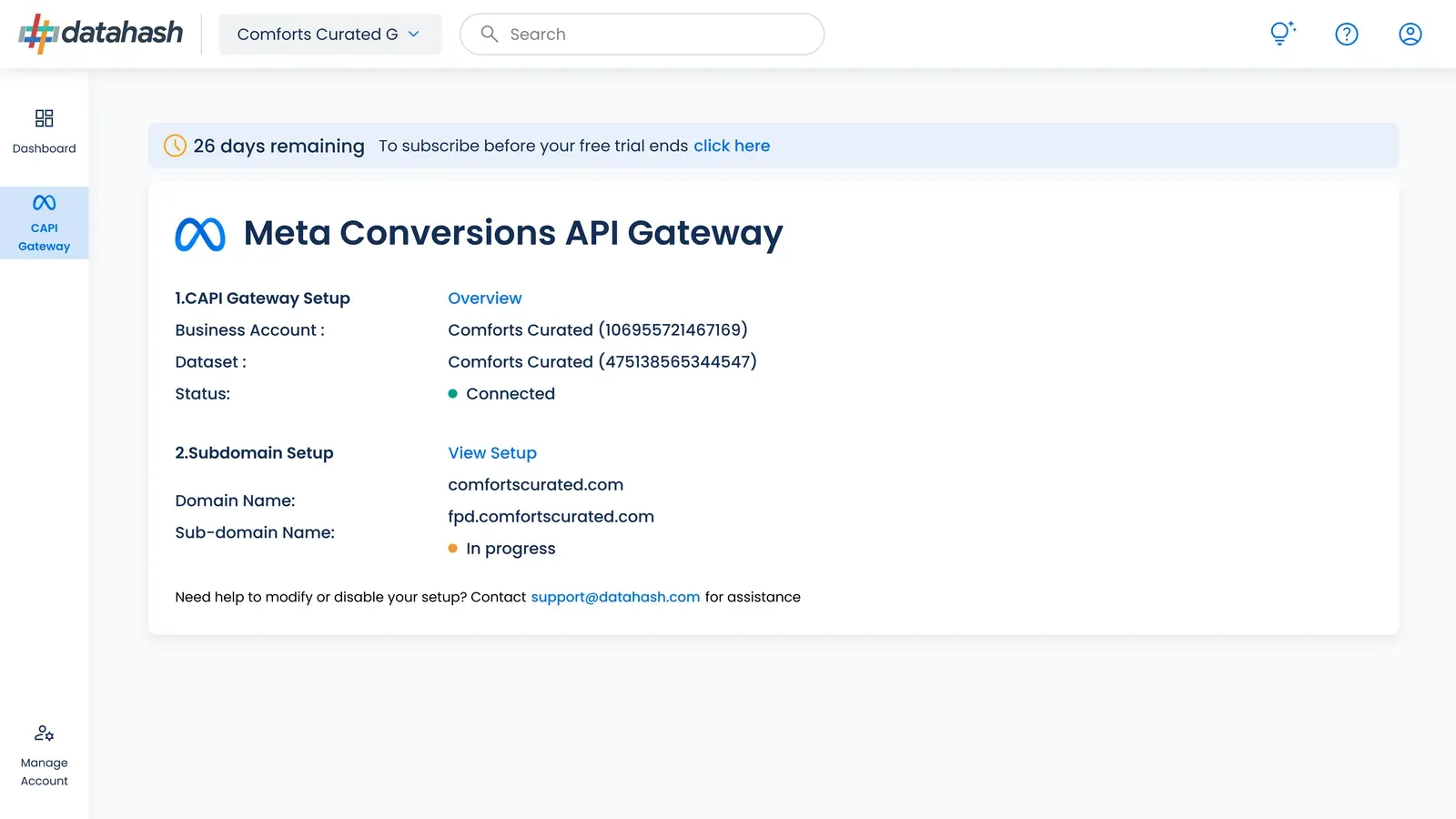
The Gateway overview, with the subdomain still propagating
Trial and subscription
Section titled “Trial and subscription”Setup starts a 28-day free trial with full access to the Gateway.
Signal transmission through the Gateway stops when the trial ends unless you have upgraded to a paid plan. A banner across the top of Studio counts down the days remaining and carries the upgrade link.
-
Click the upgrade link in the banner. A window opens with the available plan.
-
Click Proceed.
-
Fill in your billing details.
-
Add a card.
The banner disappears once the subscription is active. If the trial runs out first, the banner changes to Free Trial Expired and keeps the upgrade link.
Trial and subscription6 screenshots
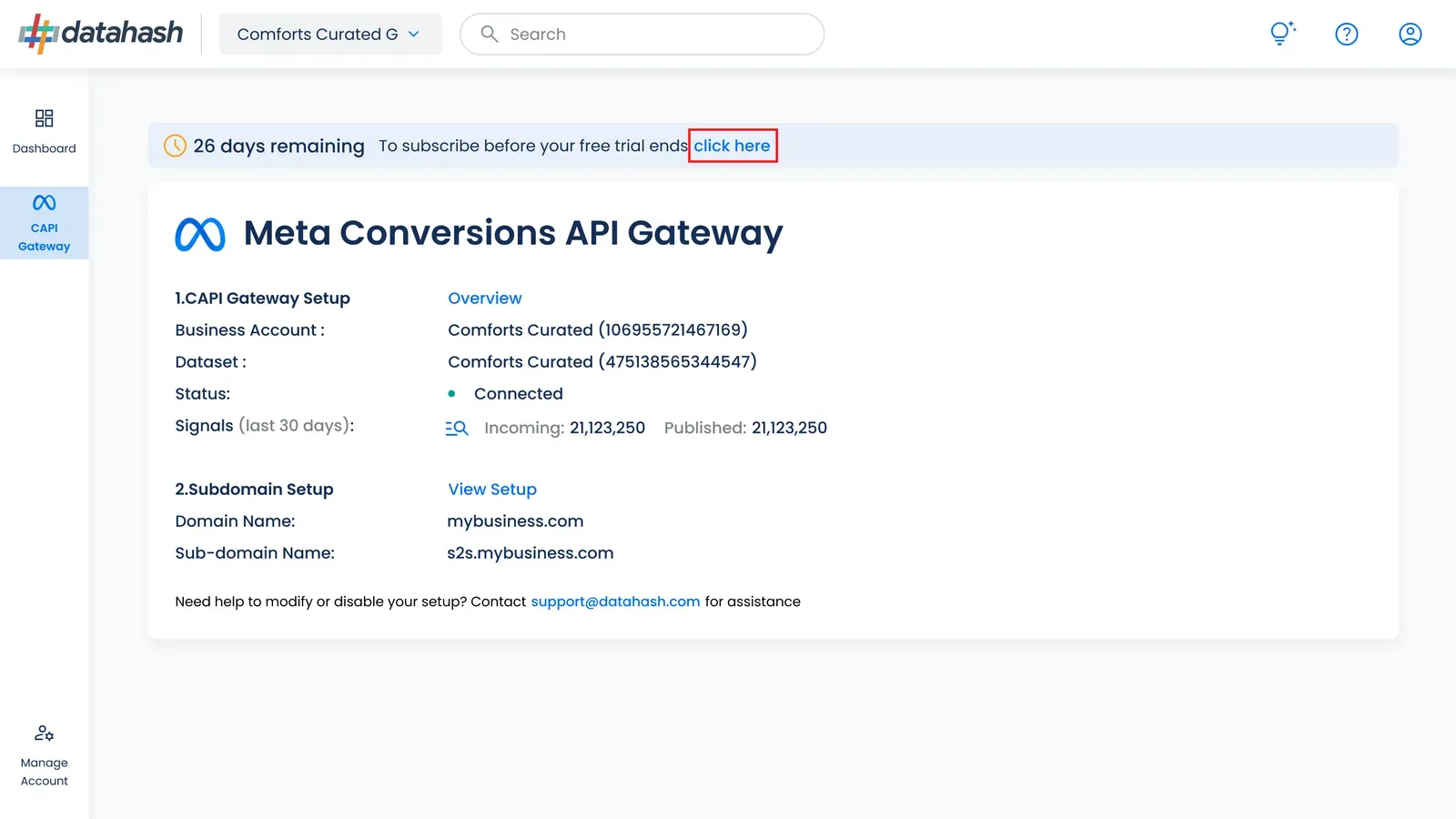
The trial countdown banner, with the upgrade link 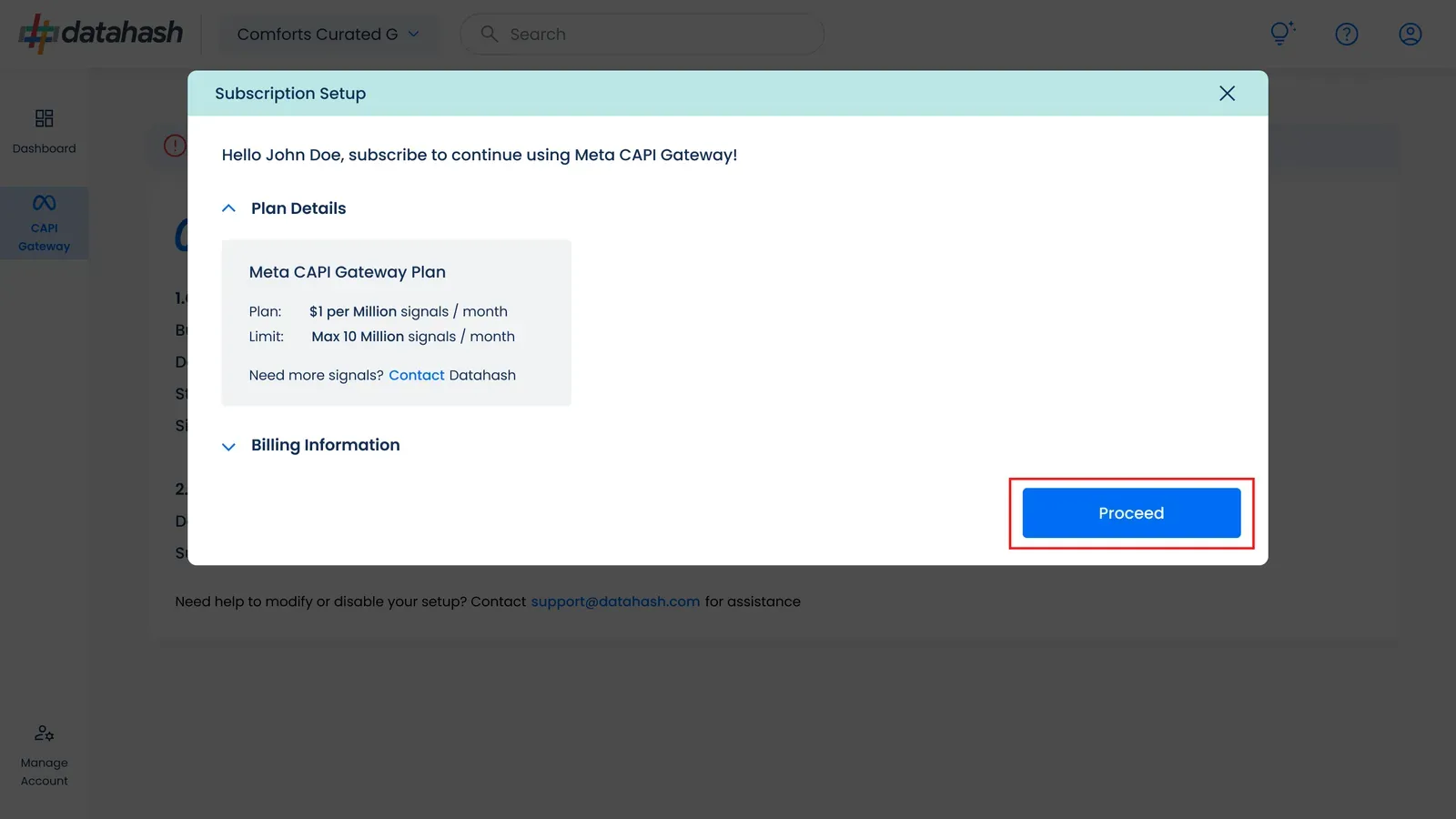
The plan details window 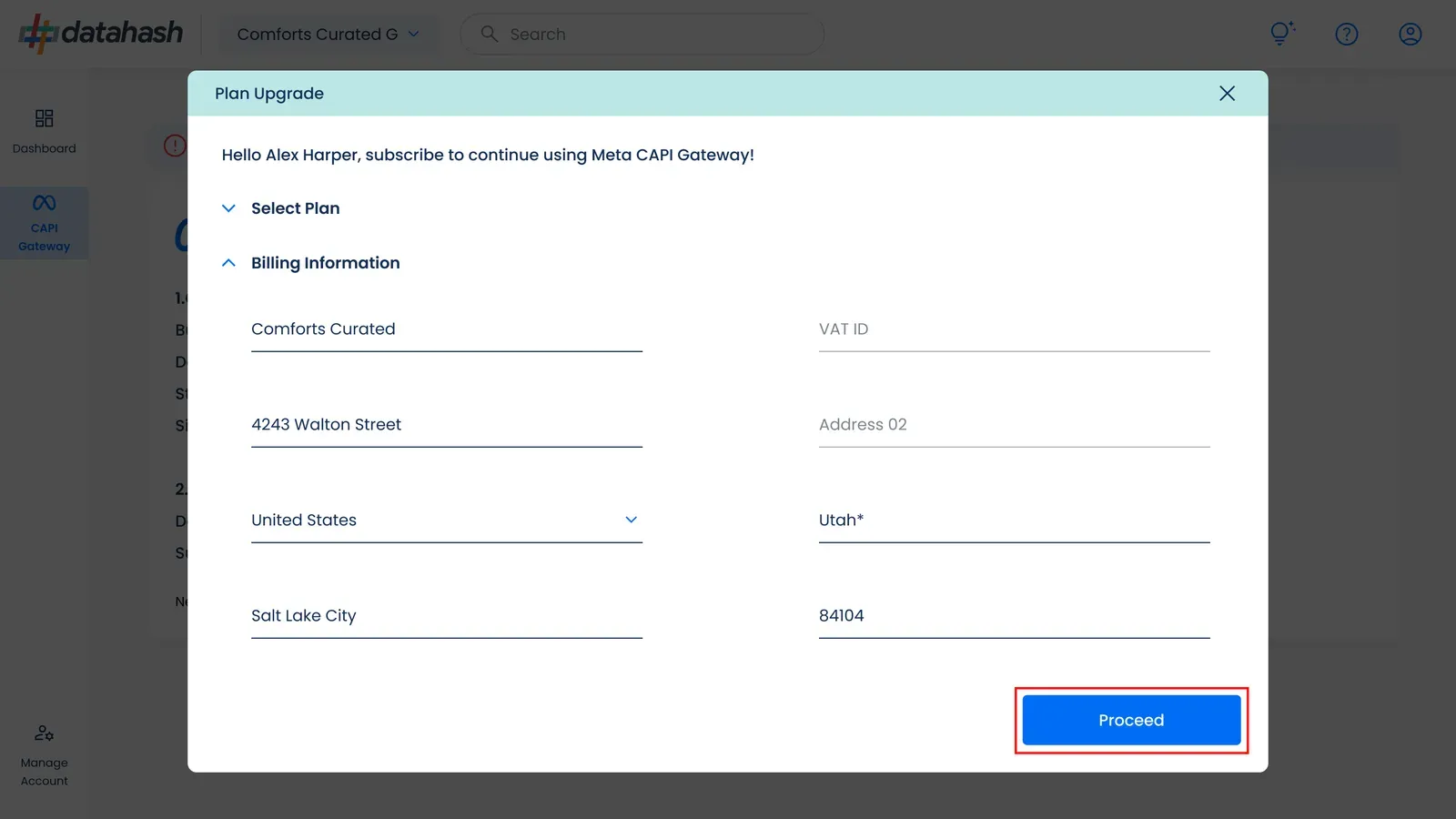
The billing details form 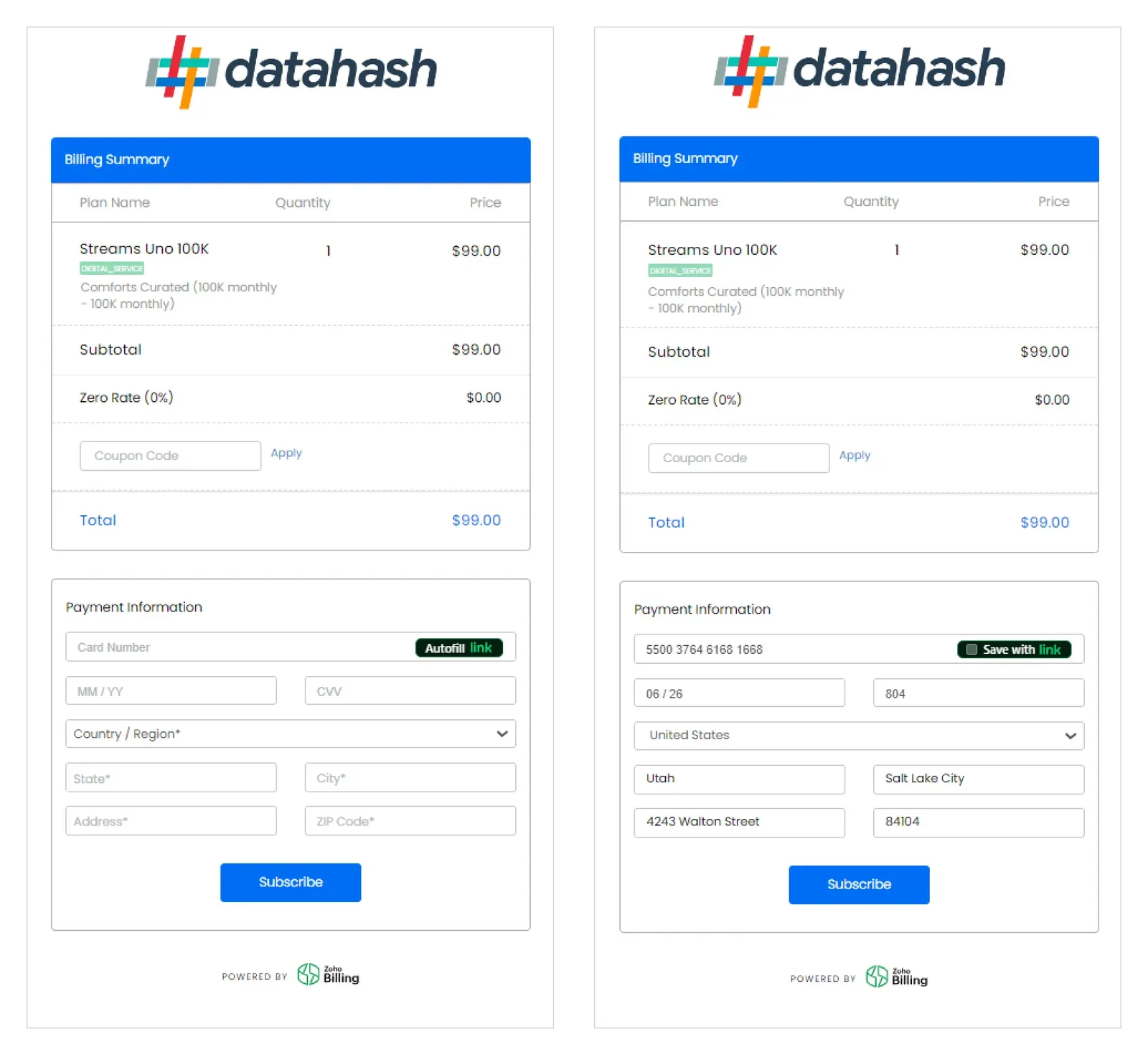
Card entry 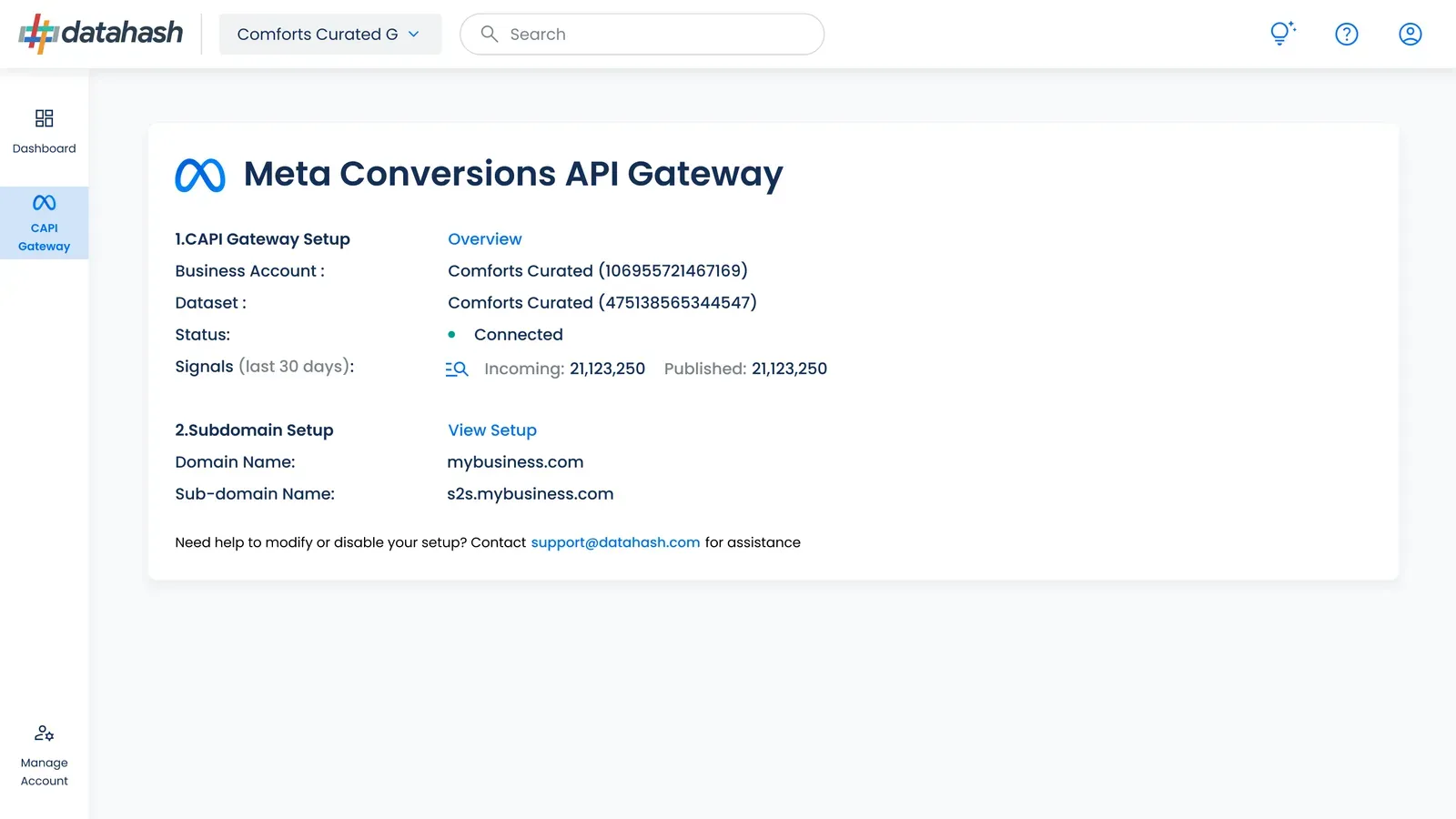
Studio with the banner gone, subscription active 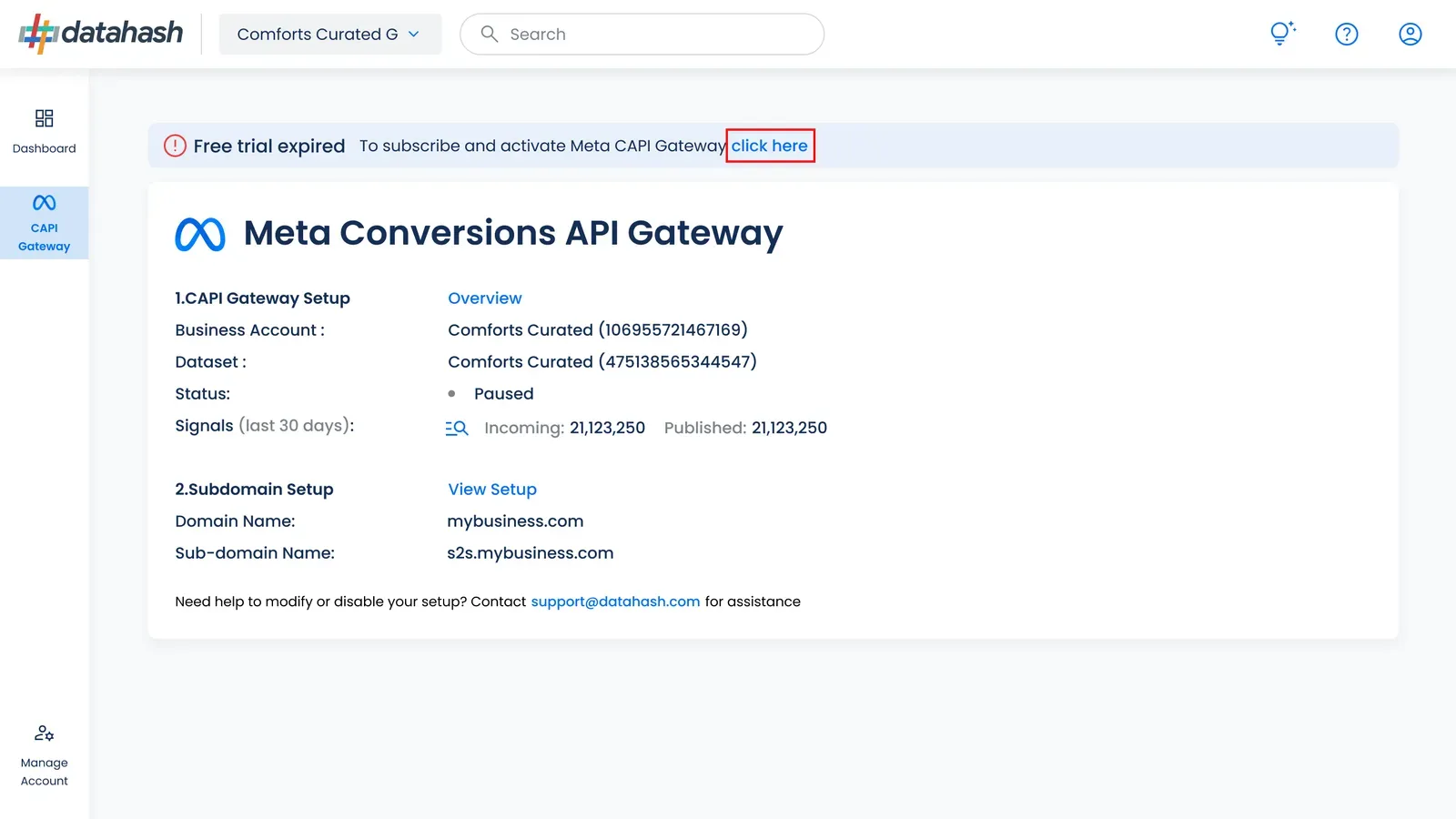
The Free Trial Expired banner
Reporting
Section titled “Reporting”Once setup is complete, the Signal count icon in Studio opens Gateway reporting. Three numbers carry most of the diagnosis.
| Metric | What it is |
|---|---|
| Total Incoming Signals | Events the Gateway received. |
| Total Outgoing Signals | Events successfully transmitted to Meta. |
| EMQ score | Meta’s Event Match Quality, how well the customer information on your events matches to Meta accounts. |
There are three views: event volume over a time range you choose, a breakdown by event type, and an EMQ table carrying parameter coverage and a trend per event type.
Read incoming against outgoing to see whether events are being lost between the Gateway and Meta. Read EMQ per event type to find which events carry too little customer information to match. For what the score means and how to raise it, see Match quality & EMQ.
Gateway reporting3 screenshots
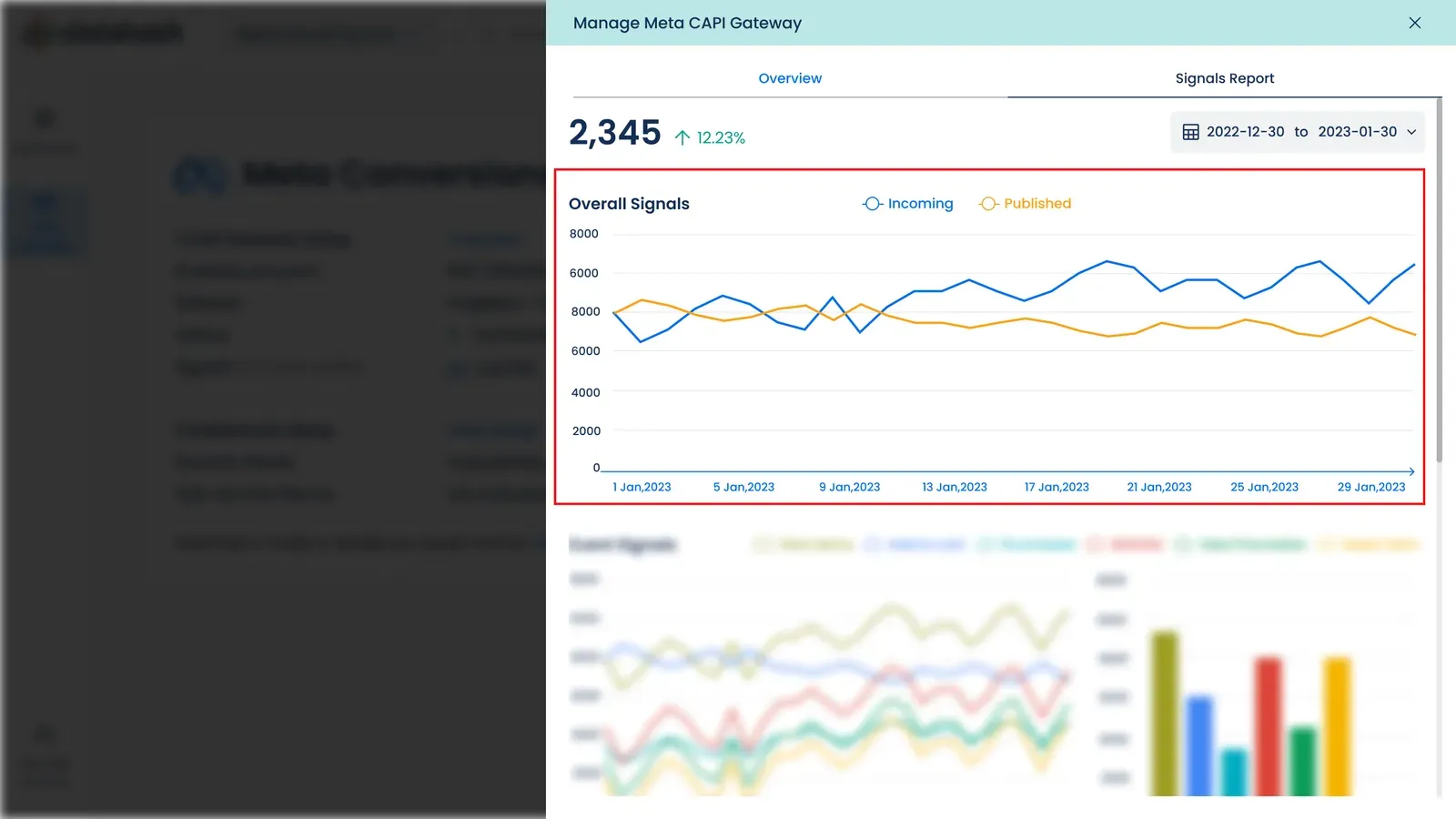
Event volume over the selected date range 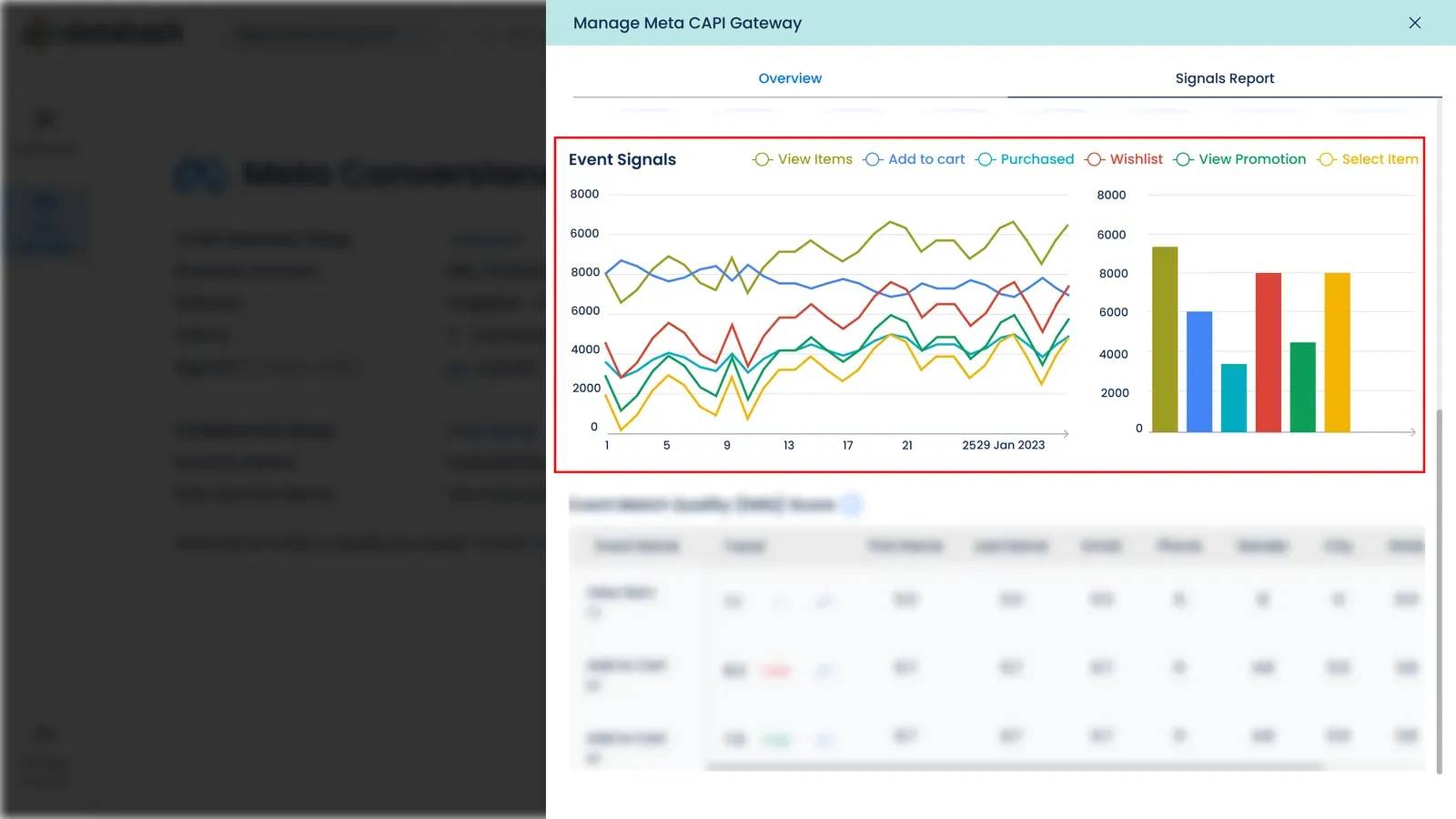
Volume broken down by event type 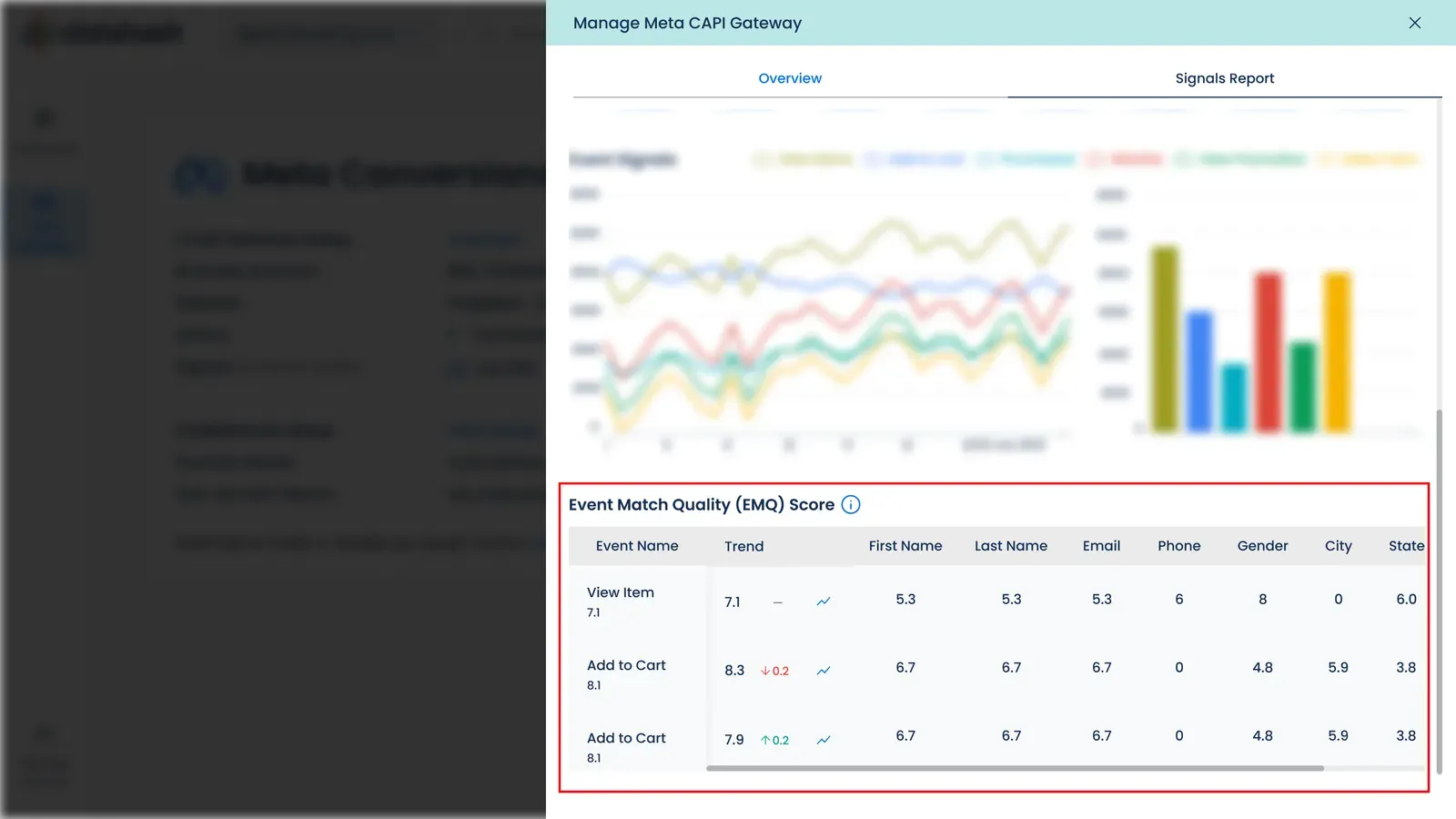
The EMQ table, with parameter coverage per event
Troubleshooting & FAQ
Section titled “Troubleshooting & FAQ”Symptom. The Meta login window never opens. Your browser is blocking pop-ups. Allow them for the Studio domain and start the step again.
Symptom. The permission grant fails, or the dataset list comes back empty. The account you authenticated with does not have full access to the business portfolio. Ask a portfolio admin to grant it, then repeat the step.
Symptom. The subdomain stays at propagating and never completes. Either the CNAME record has not been added, or it was added on a different domain than the one entered in Studio. Check the record at your DNS provider against the value Studio generated. Propagation itself takes time, but a record that is present and correct will resolve.
Symptom. Events stopped reaching Meta. Check whether the free trial has ended. Transmission through the Gateway stops without a paid plan, and the Studio banner says so when that is the cause.
Do I have to set up a subdomain? No. The Gateway delivers events without one. Events collected through your own subdomain are first-party and usually match better, which is why it is recommended rather than required.